JavaScript Arrays
Almost every real app deals with lists: a list of users, a shopping cart, search results, notifications. Arrays and their methods (map, filter, reduce) are what you'll use daily as a developer. This is not optional knowledge.
An array is an ordered collection that stores multiple values in one place. Instead of creating a separate variable for each value, you group related values together in a single array.
You can put any type of data inside an array: numbers, strings, booleans, objects, and even other arrays. Each item has a zero-based position called an index, so the order is preserved. Arrays can contain duplicate values, and their length property tells you the highest index plus one.
let cartItems = ["Laptop", "Mouse", "Keyboard"];

console.log(cartItems); // ["Laptop", "Mouse", "Keyboard"]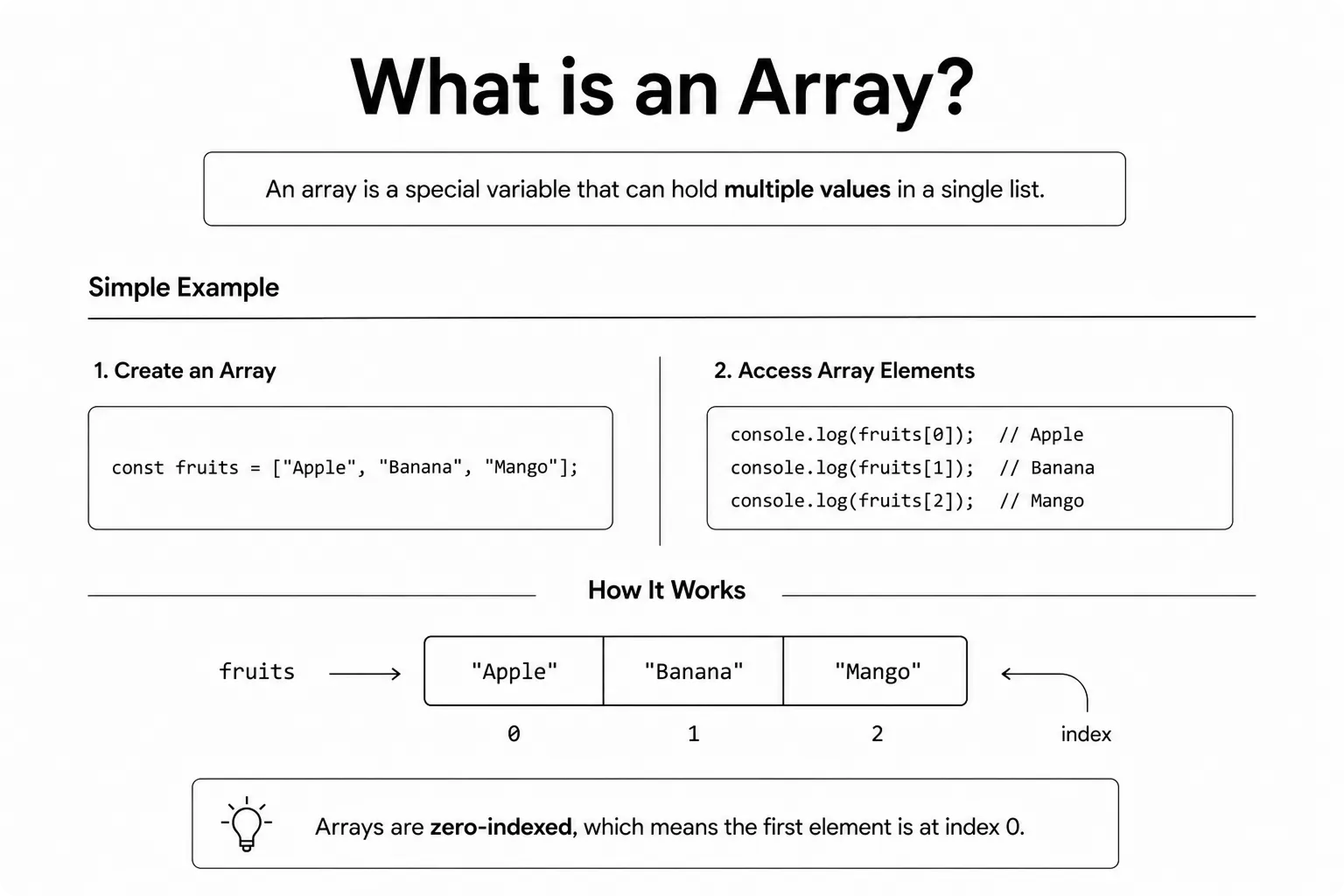
Without arrays, you would have to create a separate variable for every value. This works for a few items, but as the amount of data grows, your code becomes longer, harder to read, and difficult to manage.
Arrays solve this problem by storing multiple values inside a single variable. You can easily access, update, loop through, add, or remove items whenever needed, making your code much cleaner and more organized.
Whether you are working with a list of names, products, marks, or numbers, arrays help you manage data efficiently and write reusable JavaScript code. They are one of the most commonly used data structures in JavaScript.
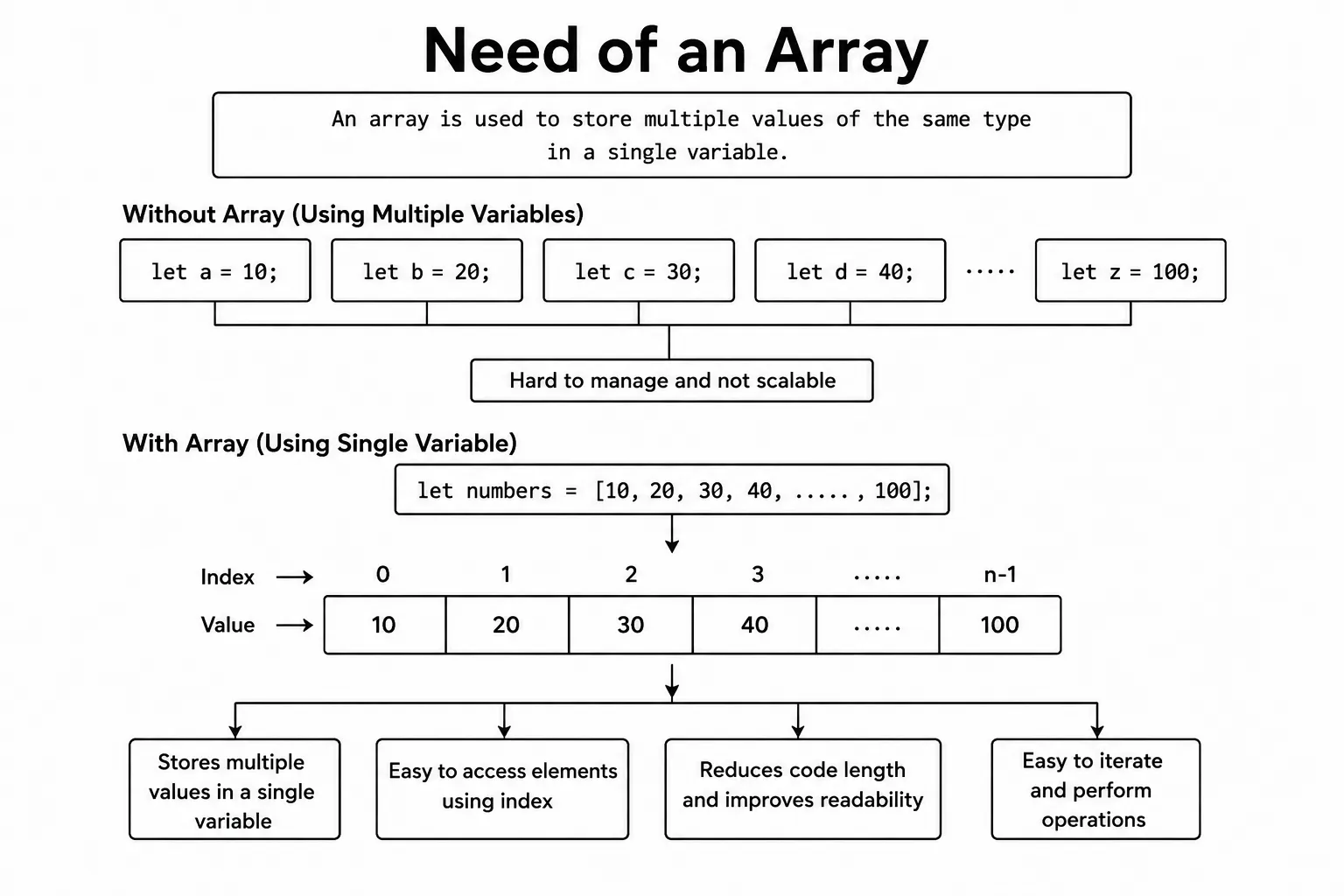
// Without arrays - messy
let item1 = "Laptop";
let item2 = "Mouse";
let item3 = "Keyboard";

// With arrays - clean
let cartItems = ["Laptop", "Mouse", "Keyboard"];
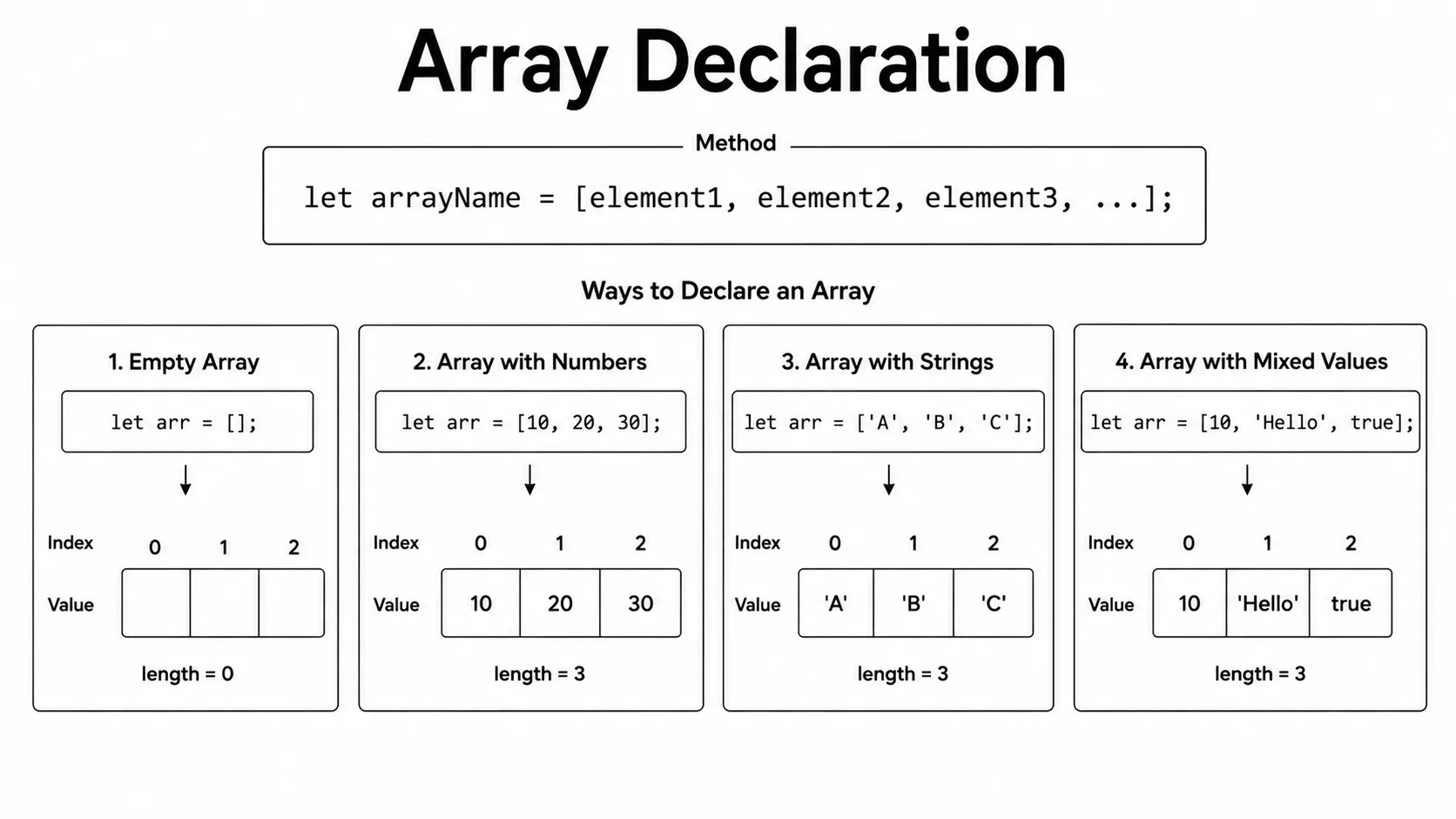
There are two ways to create an array in JavaScript. The most common way is
using an array literal, which uses square brackets
[]. You can also create an array using the
Array constructor with new Array().
The array literal syntax is the preferred choice because it is shorter, easier to read, and widely used in modern JavaScript. It makes your code clean and simple, which is why most developers use it in real-world projects.
The new Array() constructor also creates an array, but it is
less common and can sometimes be confusing for beginners. Unless you have a
specific reason to use it, the [] syntax is the recommended and
best practice for creating arrays.
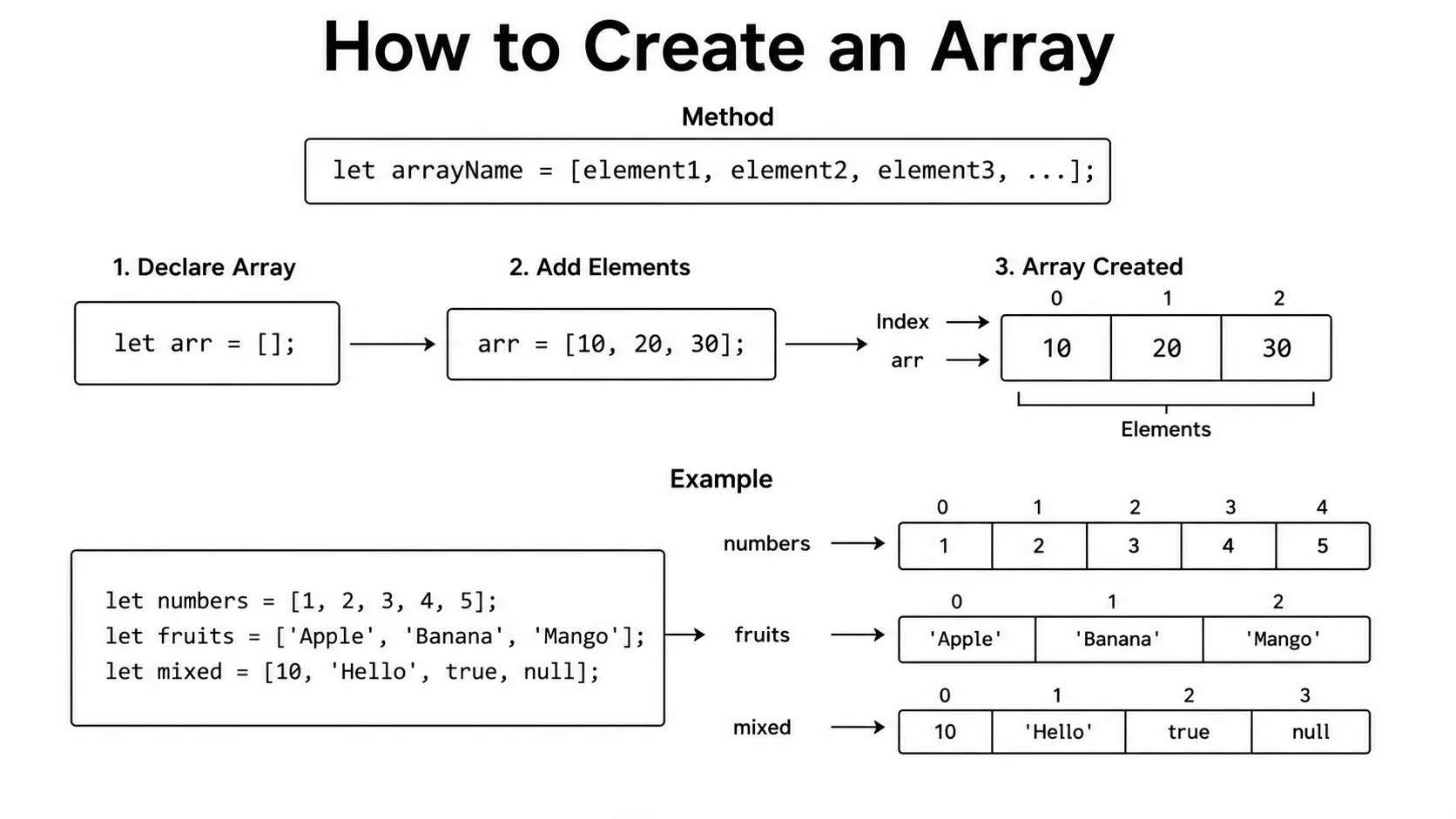
// Array Literal (recommended)
let colors = ["red", "green", "blue"];

// Array Object using new Array()
let numbers = new Array(1, 2, 3, 4, 5);

console.log(colors);  // ["red", "green", "blue"]
console.log(numbers); // [1, 2, 3, 4, 5]
Watch out: new Array(3) creates an empty array with 3 slots, not an array containing the number 3. Stick with the literal syntax to avoid this gotcha.
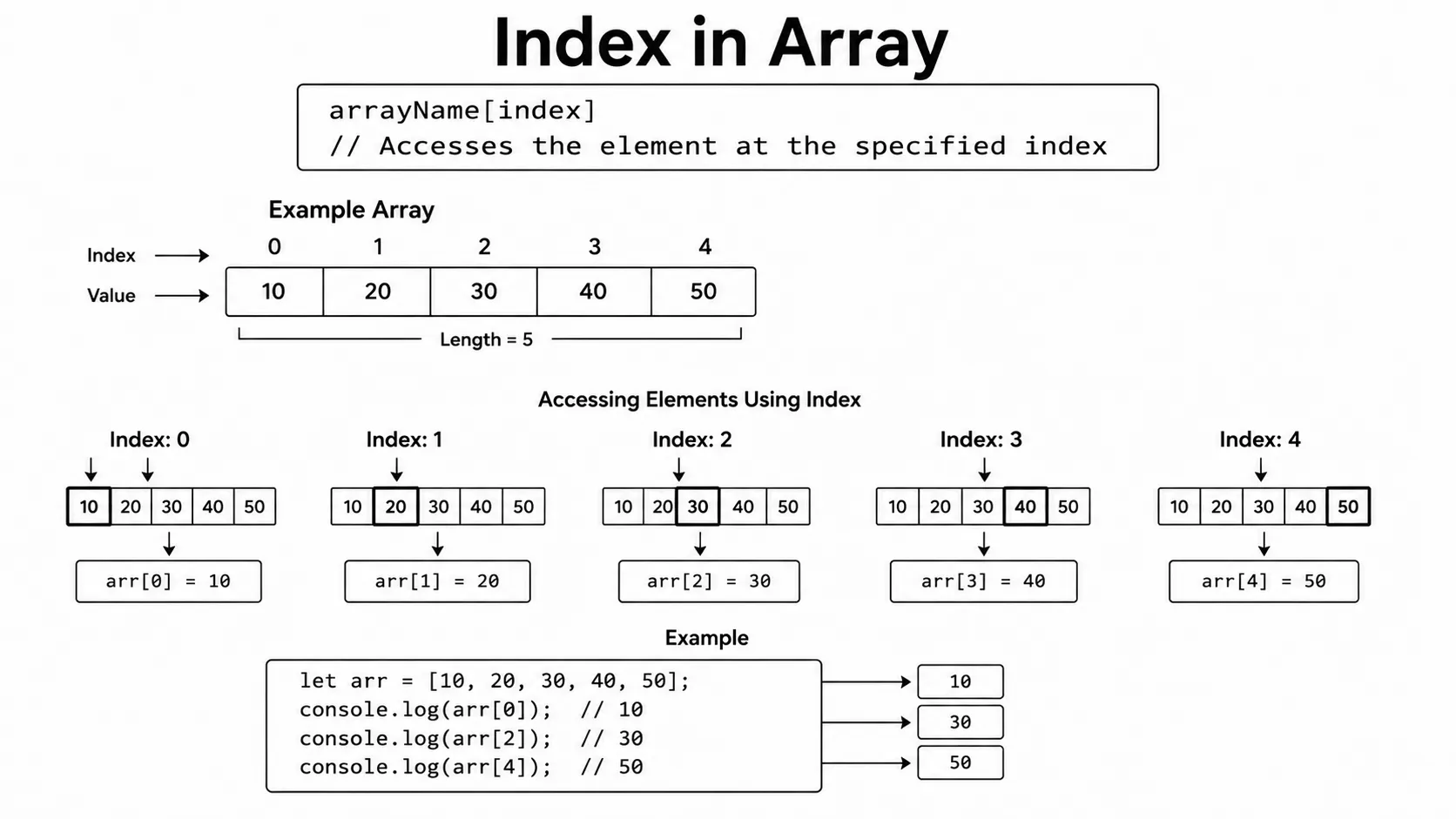
Every value stored in an array has a unique position called an
index. JavaScript arrays use
zero-based indexing, which means counting starts from
0. So, the first item is at index 0, the second
at 1, the third at 2, and so on.
You can access any array item by writing its index inside square brackets
[]. The same syntax is also used to update or replace an
existing value in the array whenever needed.
Understanding array indexes is important because almost every array operation, such as reading values, updating items, looping through an array, or using array methods, depends on the index of each element.
let cartItems = ["Laptop", "Mouse", "Keyboard"];

console.log(cartItems[0]); // Laptop
console.log(cartItems[1]); // Mouse
console.log(cartItems[2]); // Keyboard

// Update an element
cartItems[1] = "Monitor";
console.log(cartItems); // ["Laptop", "Monitor", "Keyboard"]
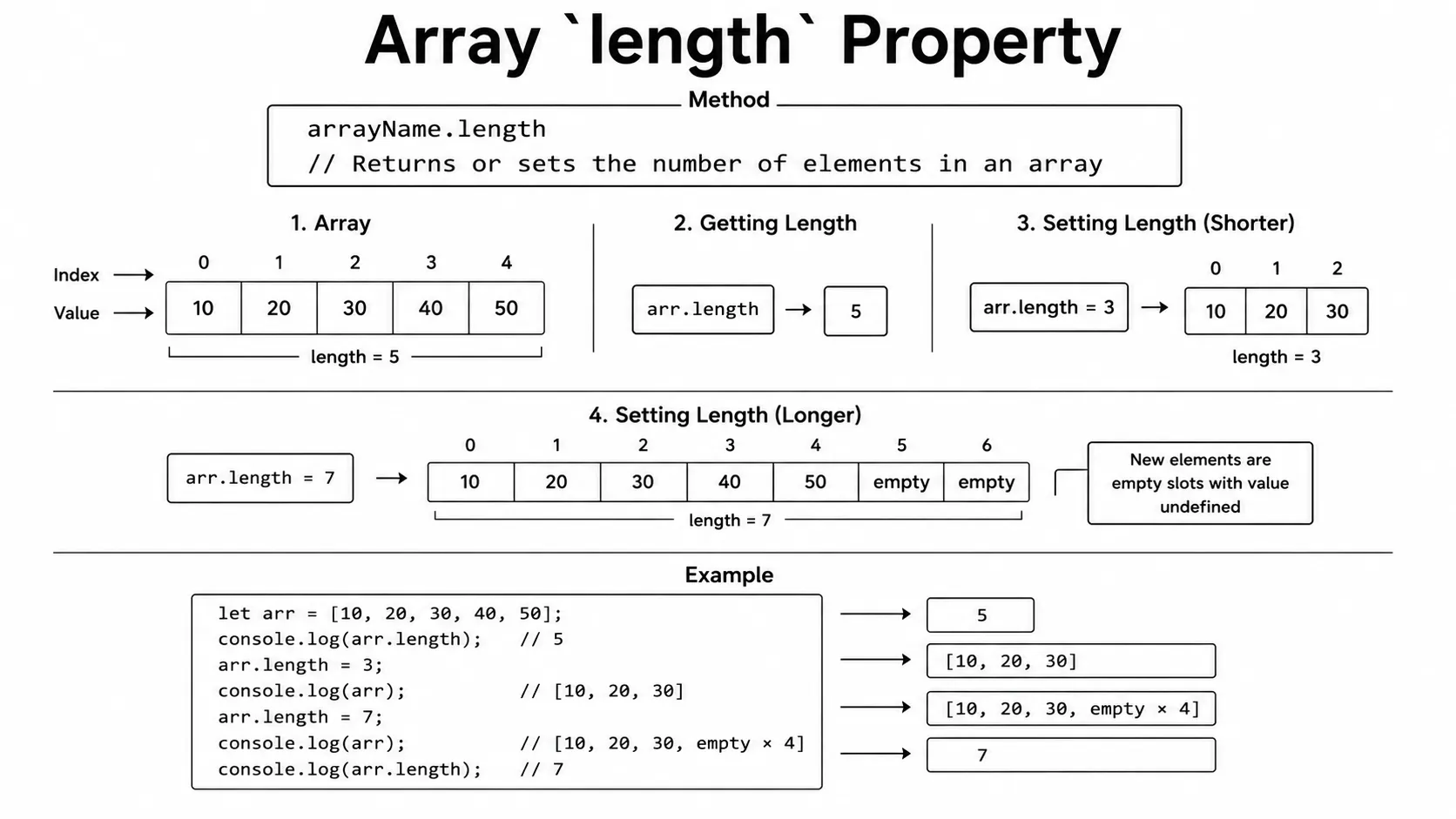
The length property returns the highest index in an array plus
one. For a normal array this is the number of items, and JavaScript updates
it when you add or remove elements. A sparse array can have empty slots, so
its length can be larger than the number of actual values.
Since array indexes start from 0, the last item's index is
always one less than the array length. That's why you can access the last
element using array.length - 1 without knowing how many items
the array contains.
The length property is useful when looping through an array,
checking whether it is empty, or finding the last index. It is a property,
not a function, so use array.length rather than
array.length().
let cartItems = ["Laptop", "Mouse", "Keyboard"];

console.log(cartItems.length); // 3

// Access the last element
console.log(cartItems[cartItems.length - 1]); // Keyboard
In JavaScript, you can create an array using
let, const, or var. All three can hold
arrays, but they behave differently when it comes to reassigning the
variable.
Most developers prefer using const because it prevents the array
variable from being reassigned to a new array. The variable holds a reference
to the array, so you can still add, remove, or update items inside that array.
In other words, const protects the reference, not the contents.
Use let when you plan to assign a completely new array later.
The var keyword is older and is rarely used in modern
JavaScript. For most projects, const is the recommended and best
practice.
// Using const (recommended)
const scores = [10, 20, 30];
scores.push(40); // OK - modifying contents is allowed
// scores = [1, 2]; // Error - reassigning is not allowed

// Using let
let tags = ["urgent", "new"];
tags = ["archived"]; // OK - reassigning is allowed with let

// Empty array
const empty = [];
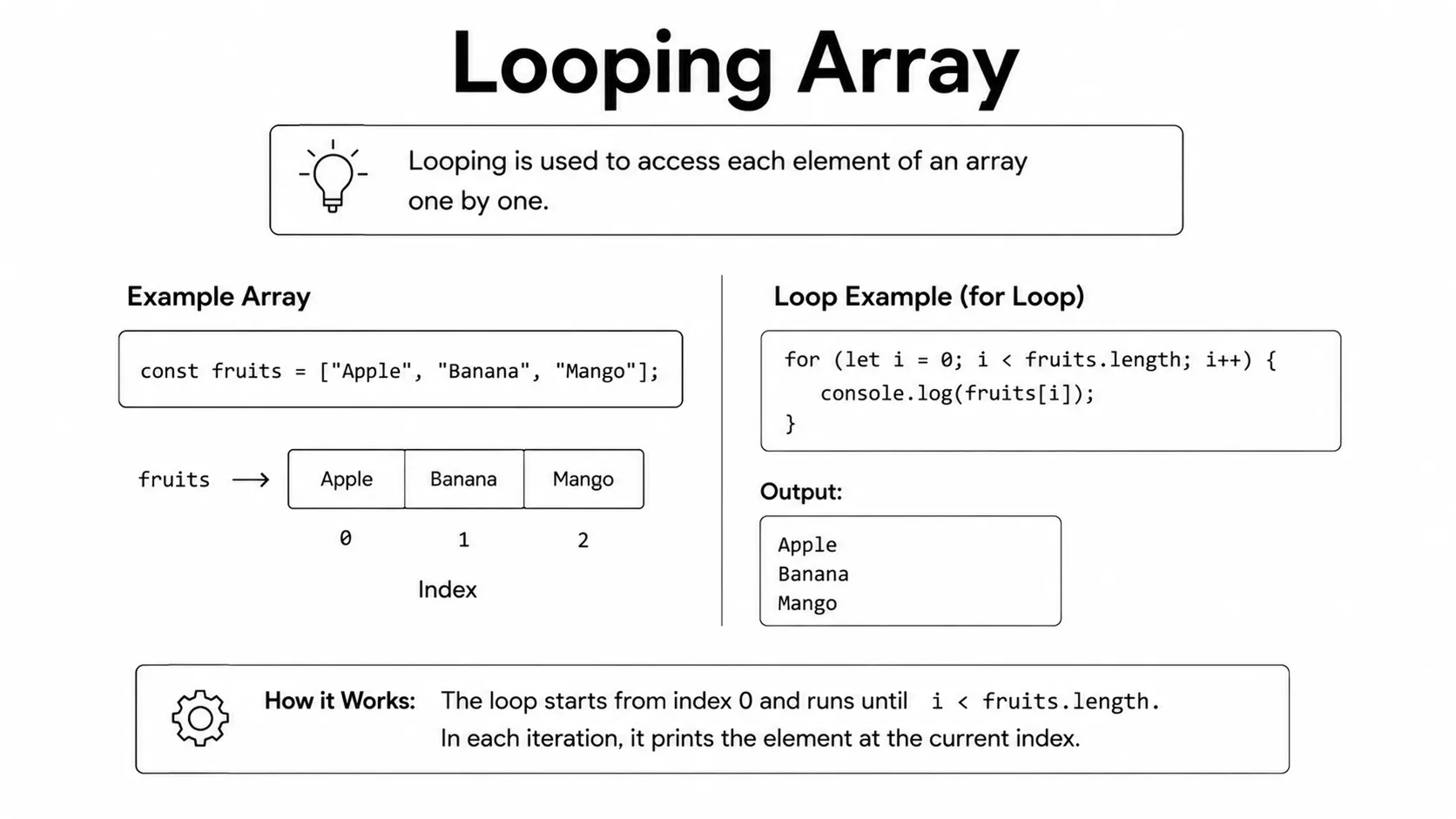
Looping is a way to process every item in an array without writing the same code again and again. Instead of accessing each element manually, a loop automatically goes through the array one item at a time.
JavaScript provides several ways to loop through an array, but the for loop and the forEach() method are the most commonly used. Both allow you to access each element and perform an action on it.
Looping makes your code shorter, cleaner, and easier to maintain. It is useful when you need to display data, calculate values, update items, or perform the same task for every element in an array.
const cartItems = ["Laptop", "Mouse", "Keyboard"];

// Using a for loop
for (let i = 0; i < cartItems.length; i++) {
  console.log(cartItems[i]);
}
// Laptop
// Mouse
// Keyboard

// Using forEach
cartItems.forEach(function(item) {
  console.log(item);
});
// Laptop
// Mouse
// Keyboard
Use the for loop when you need the index, need to stop early, or need more control over the iteration. Use forEach() when you want to perform an action for each existing item and do not need a return value.
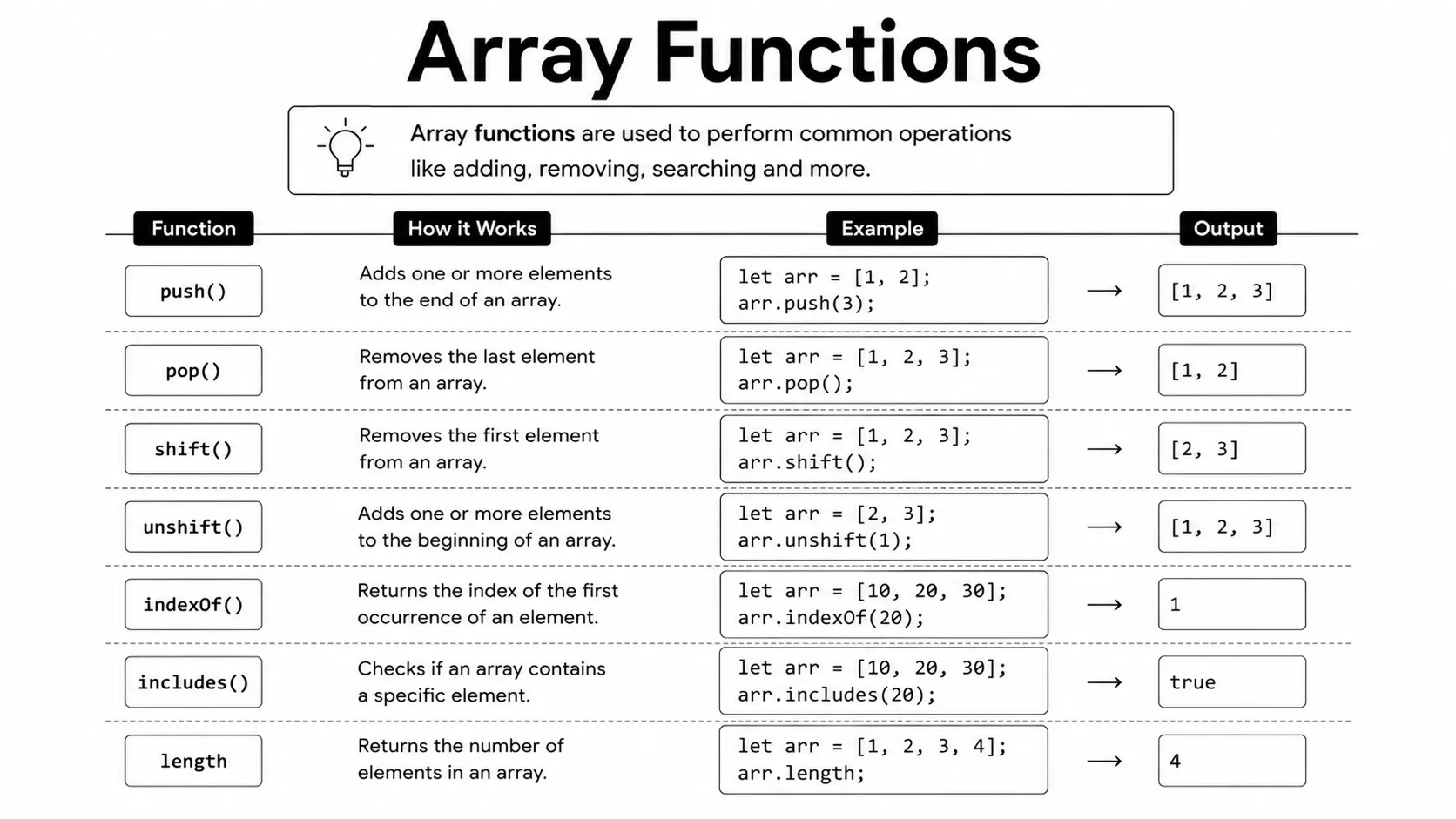
JavaScript provides built-in array methods so you can add, remove, search, transform, and combine values with a single method call. A method is a function that belongs to an object, so these are called with an array followed by a dot, such as items.push().
Here's a quick overview of the ones you'll use most:
- Need to change every item and keep the same number of items? Use
map(). - Need only the items that pass a condition? Use
filter(). - Need one answer such as a total, count, or grouped object? Use
reduce(). - Need to check whether any or all items match? Use
some()orevery(). - Need the first matching item? Use
find(); need its position? UsefindIndex(). - Need to turn each item into several items and keep one flat list? Use
flatMap().
- push(): add to end
- pop(): remove from end
- unshift(): add to beginning
- shift(): remove from beginning
- toString(): convert to string
- join(): join elements with a separator
- concat(): merge arrays
- splice(): add or remove at a position
- slice(): extract a portion
- sort(): sort elements
- reverse(): reverse the order
- forEach(): loop through elements
- at(): access element by index (supports negative index)
- map(): transform each element
- filter(): keep elements that match a condition
- reduce(): combine all elements into one value
- find(): find first matching element
- findIndex(): find index of first match
- some(): check if any element matches
- every(): check if all elements match
- flat(): flatten nested arrays
- flatMap(): map then flatten
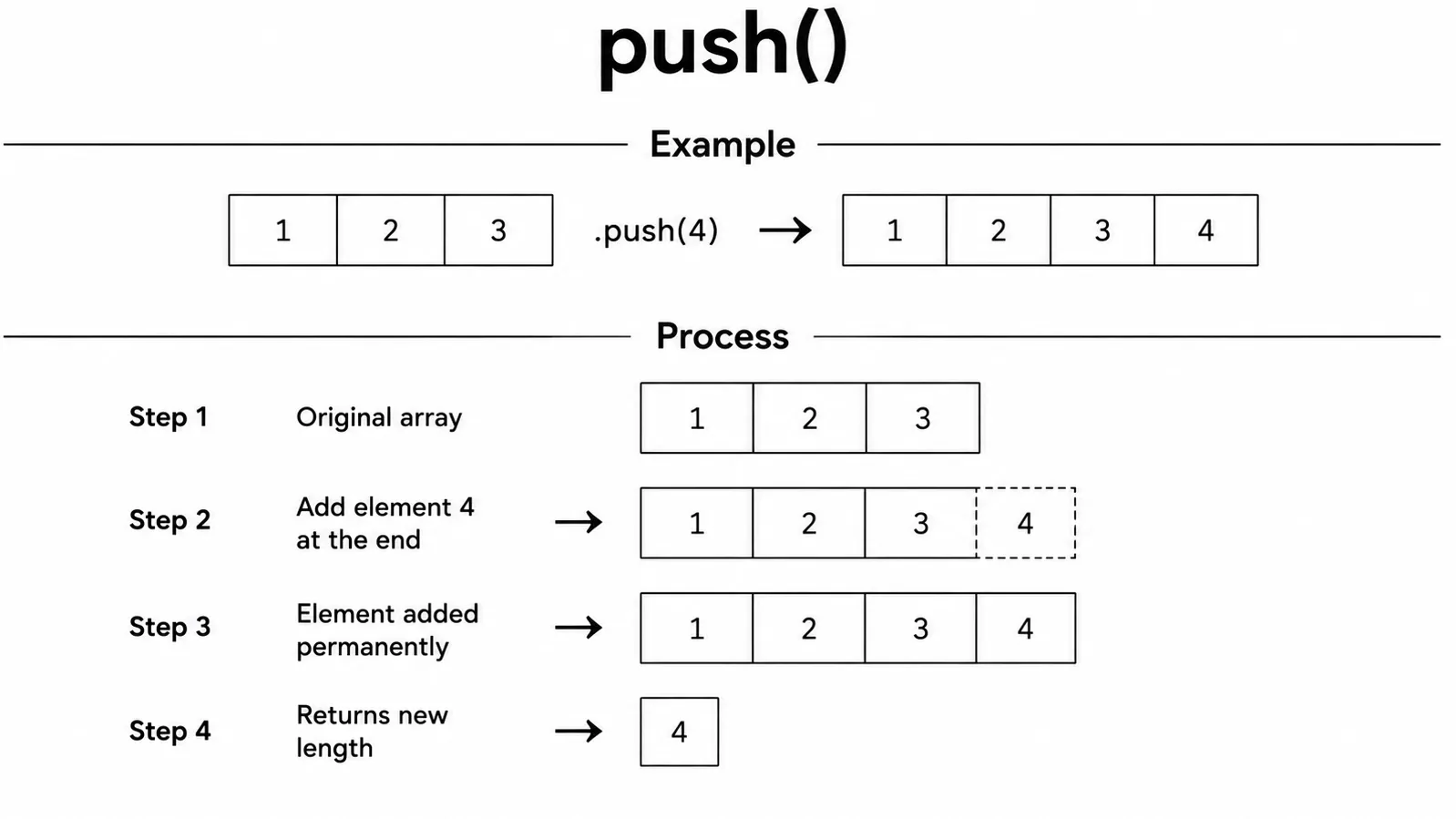
The push() method adds one or more items to the
end of an array. The new item is placed after the last
existing element, making it easy to grow an array.
After adding the new item, push() returns the
new length of the array. The original array is updated
automatically, so you do not need to create a new array.
The push() method is commonly used when you want to store new
data, such as adding a new product, user, message, or value to an existing
array.
const cartItems = ["Laptop", "Mouse"];

cartItems.push("Keyboard");
console.log(cartItems); // ["Laptop", "Mouse", "Keyboard"]

// Push multiple items
cartItems.push("Monitor", "Webcam");
console.log(cartItems); // ["Laptop", "Mouse", "Keyboard", "Monitor", "Webcam"]
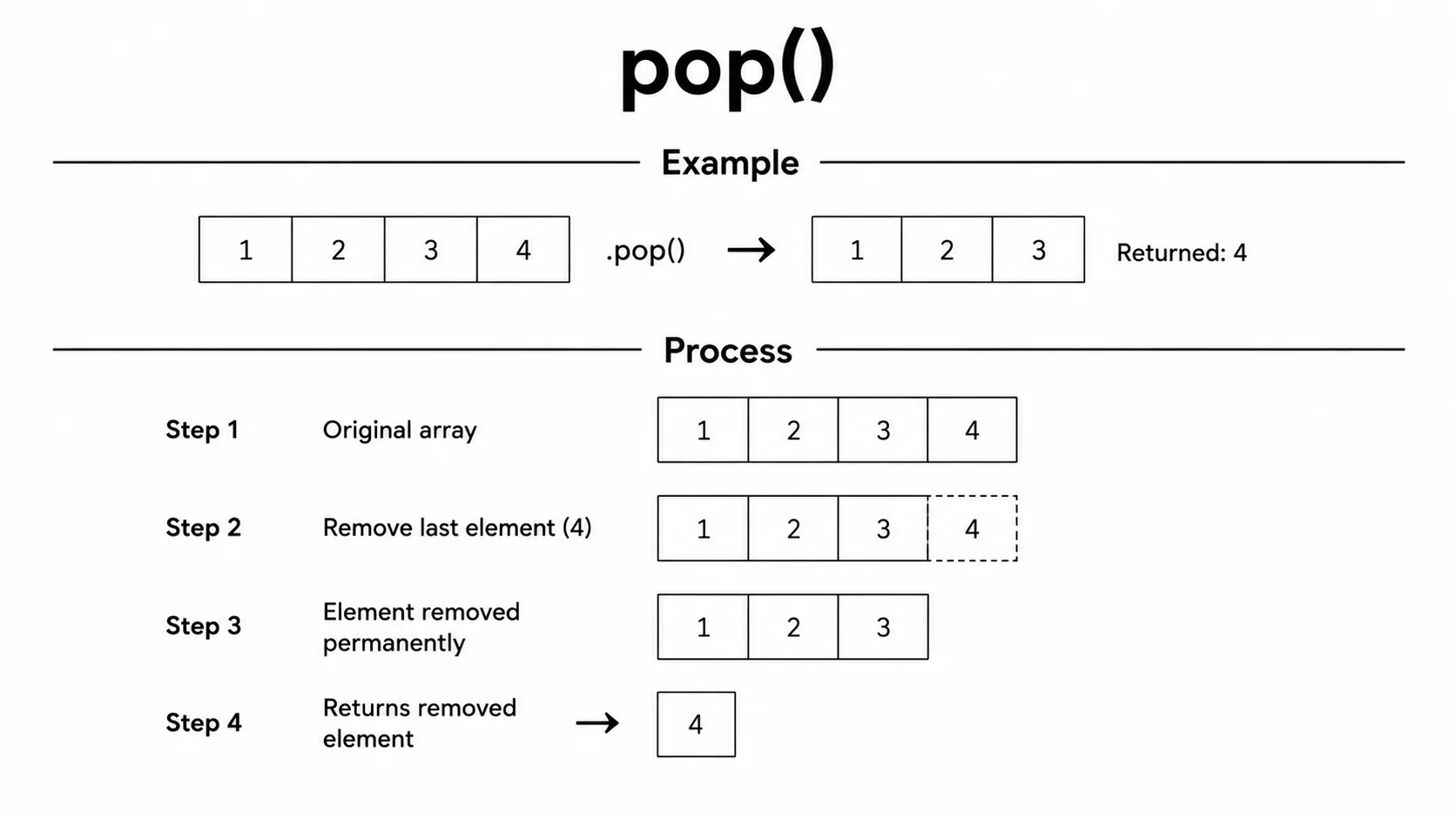
The pop() method removes the
last item from an array. It is useful when you want to
delete the most recently added element.
When an item is removed, pop() returns that removed value. At
the same time, the original array is updated automatically, and its
length decreases by one.
The pop() method is commonly used when you need to remove the
last product, message, task, or any recently added item from an array.
const cartItems = ["Laptop", "Mouse", "Keyboard"];

const removed = cartItems.pop();
console.log(removed); // Keyboard
console.log(cartItems);  // ["Laptop", "Mouse"]
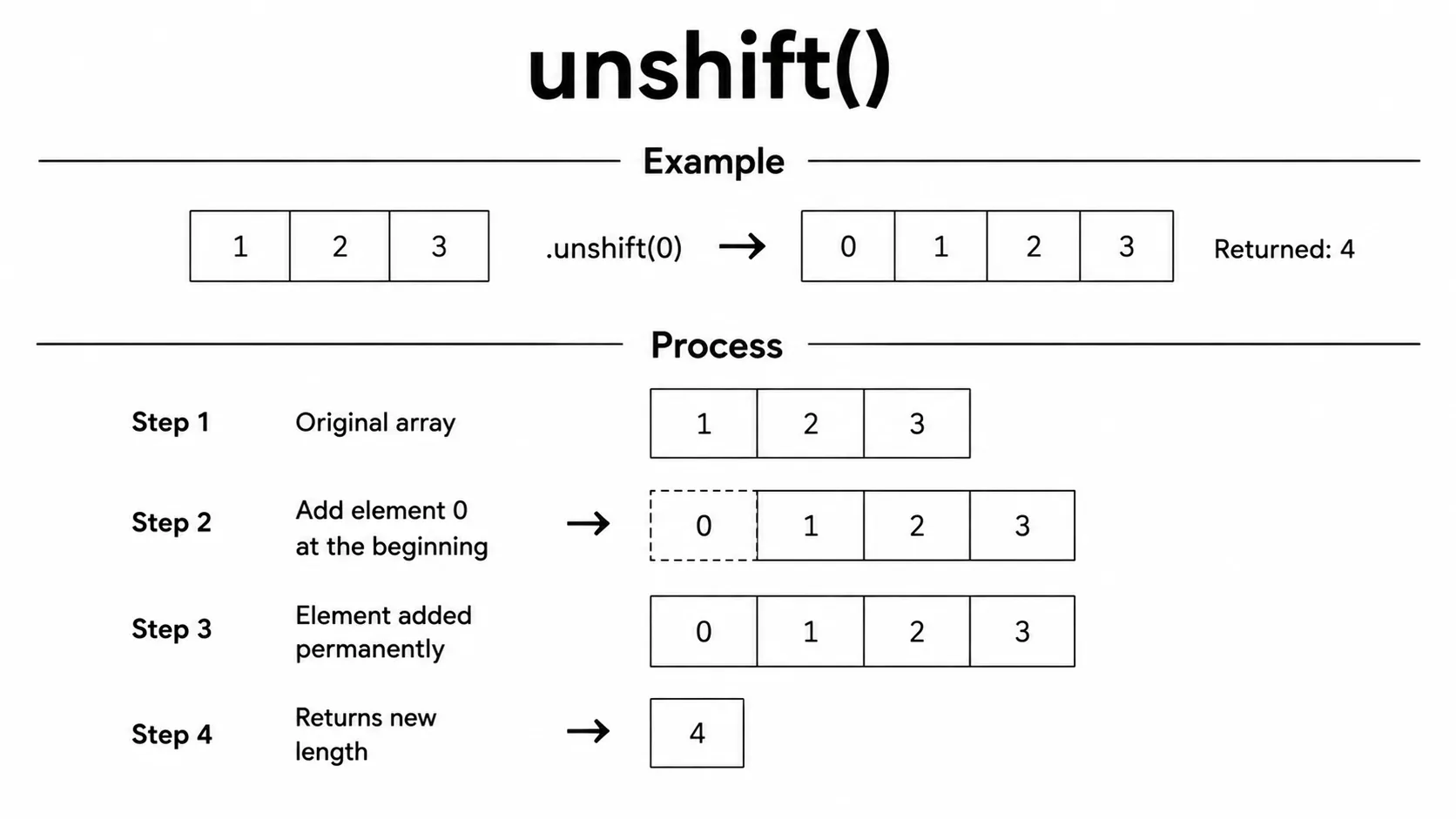
The unshift() method adds one or more items to the
beginning of an array. The new items are placed before the
existing elements, shifting the other items to the right.
After adding the items, unshift() returns the
new length of the array. The original array is updated
automatically, so you can use the new values immediately.
The unshift() method is useful when you want to add a new item
at the start of an array, such as adding a new notification, task, message,
or product to the beginning of a list.
const cartItems = ["Mouse", "Keyboard"];

cartItems.unshift("Laptop");
console.log(cartItems); // ["Laptop", "Mouse", "Keyboard"]
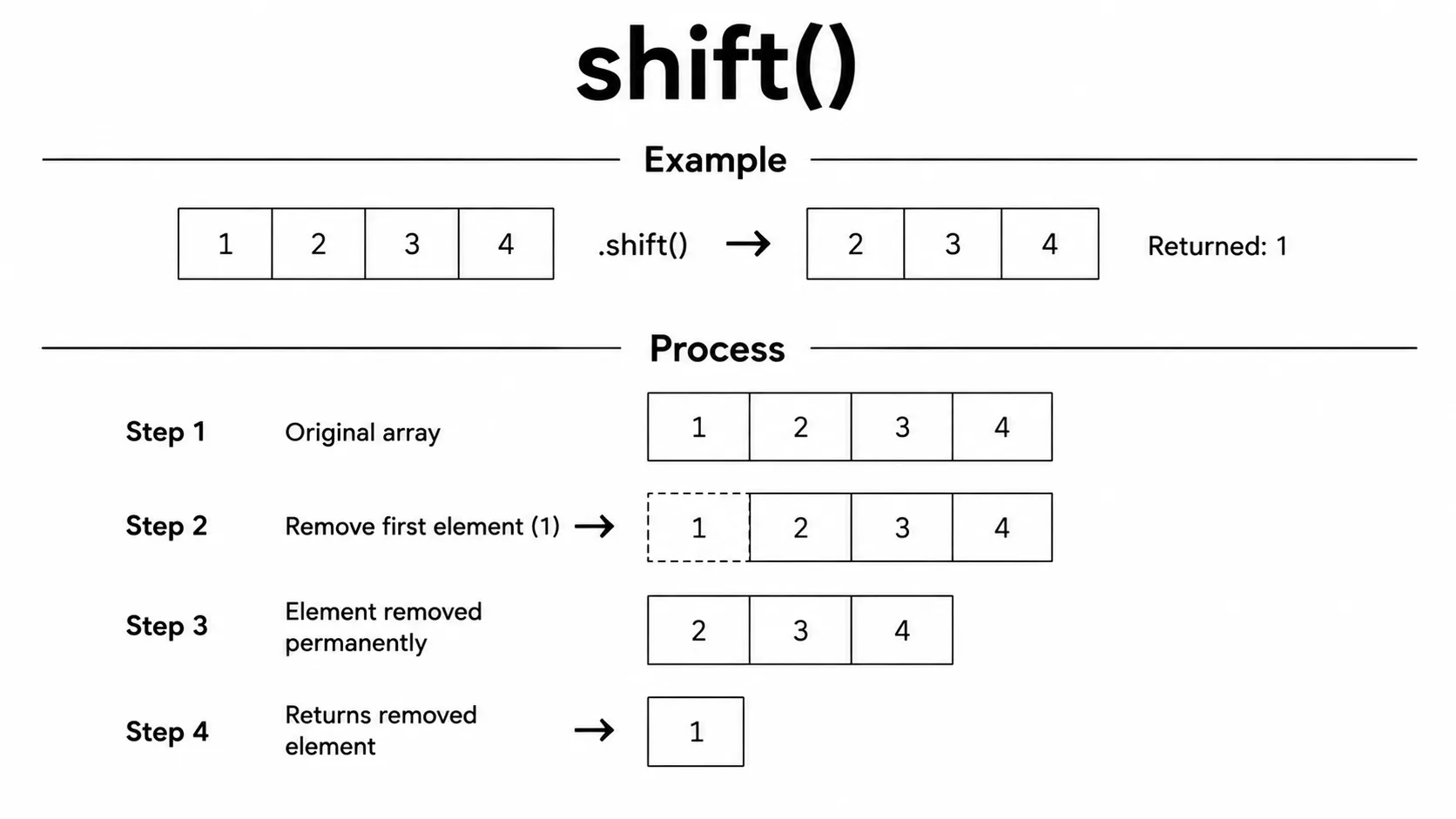
The shift() method removes the
first item from an array. After the first element is
removed, all the remaining items automatically move one position to the left.
When an item is removed, shift() returns that removed value. The
original array is updated automatically, and its
length decreases by one.
The shift() method is useful when you want to remove the oldest
item from an array, such as the first notification, message, task, or any
element at the beginning of a list.
const cartItems = ["Laptop", "Mouse", "Keyboard"];

const first = cartItems.shift();
console.log(first);  // Laptop
console.log(cartItems); // ["Mouse", "Keyboard"]
The toString() method converts all the items in an array into a
single string. By default, each item is separated with a comma
,.
This method does not change the original array. It simply returns a new string that you can store in a variable or display wherever needed.
The toString() method is useful when you want to display array
values as text, log them to the console, or use them in string operations.
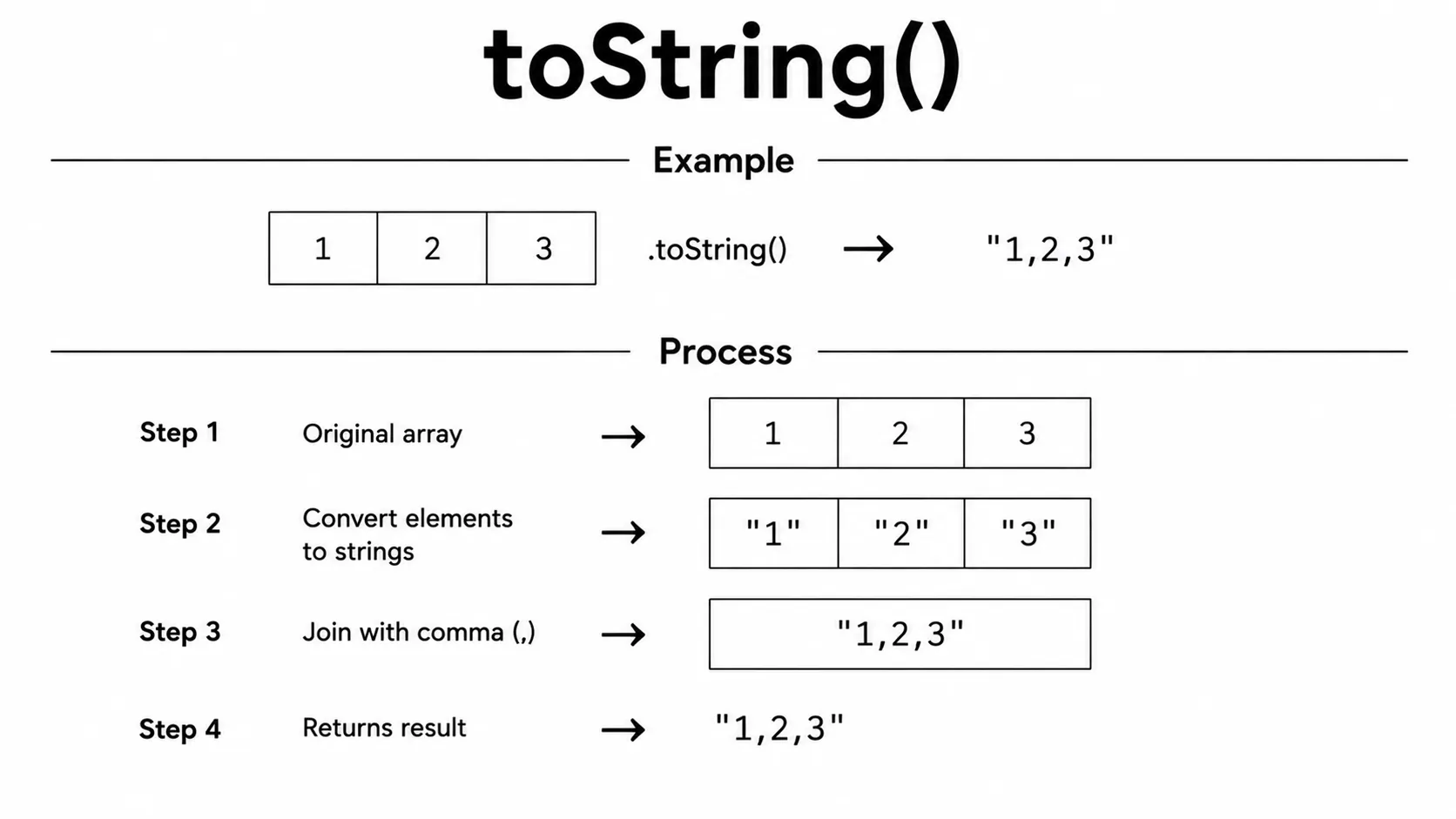
const cartItems = ["Laptop", "Mouse", "Keyboard"];

console.log(cartItems.toString()); // "Laptop,Mouse,Keyboard"
The join() method combines all the items in an array into a
single string. You can choose any separator, such as a comma, space, hyphen,
or pipe, to appear between the items.
If you do not provide a separator, JavaScript uses a comma
, by default. The original array remains unchanged because
join() returns a new string instead of modifying the array.
The join() method is useful for displaying array values,
creating readable text, generating CSV-style data, or formatting lists for
output.
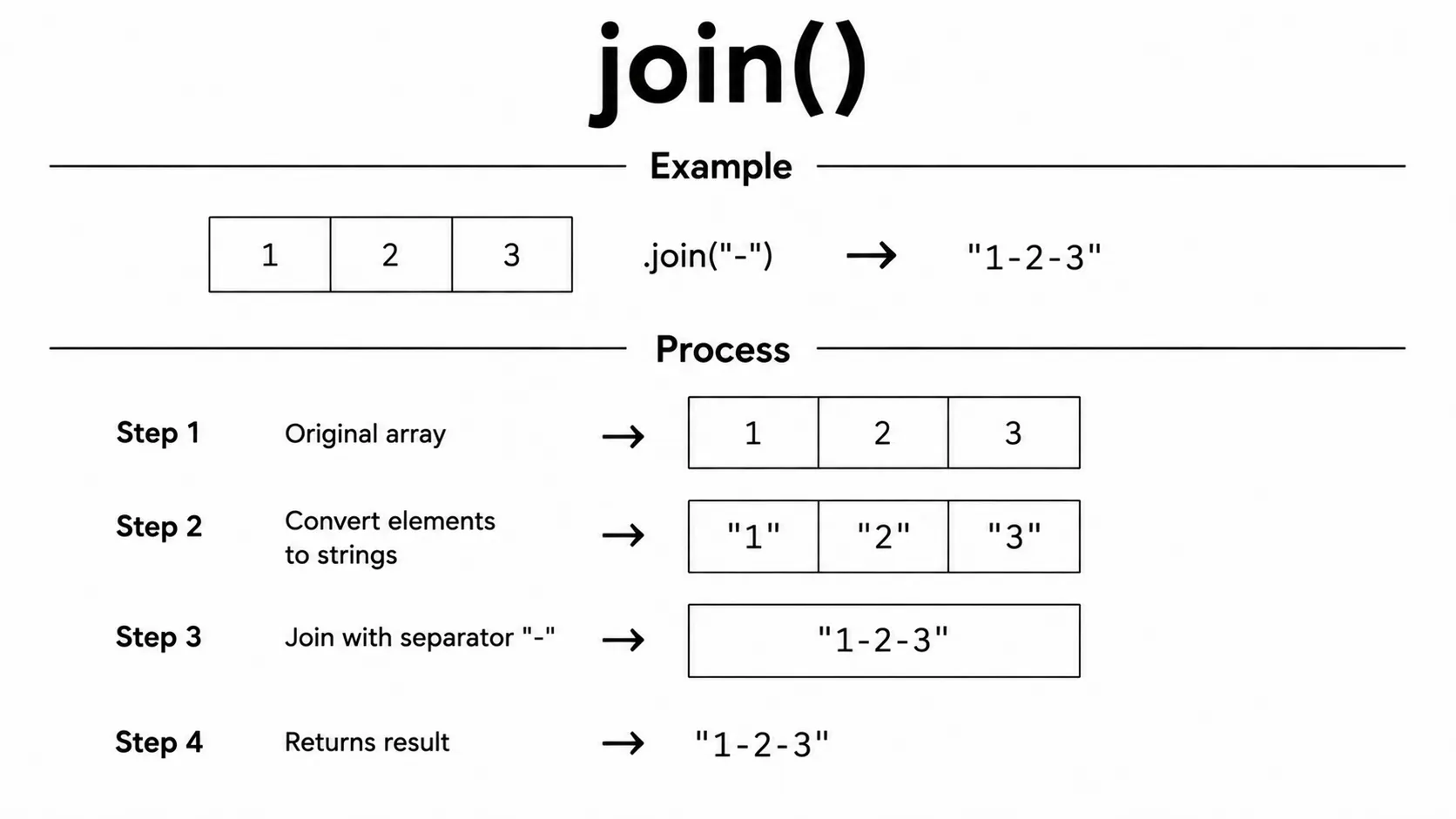
const cartItems = ["Laptop", "Mouse", "Keyboard"];

console.log(cartItems.join());      // "Laptop,Mouse,Keyboard"
console.log(cartItems.join(" | ")); // "Laptop | Mouse | Keyboard"
console.log(cartItems.join(""));    // "LaptopMouseKeyboard"
The concat() method combines two or more arrays into a
new array. It copies the values from each array and returns
the merged result.
The original arrays are not changed. Instead,
concat() creates and returns a new array, making it a safe way
to merge data without modifying existing arrays. The copy is shallow: nested
objects or arrays inside the result are still shared with the originals.
The concat() method is useful when you need to combine lists,
such as merging product arrays, user data, or multiple collections into a
single array.
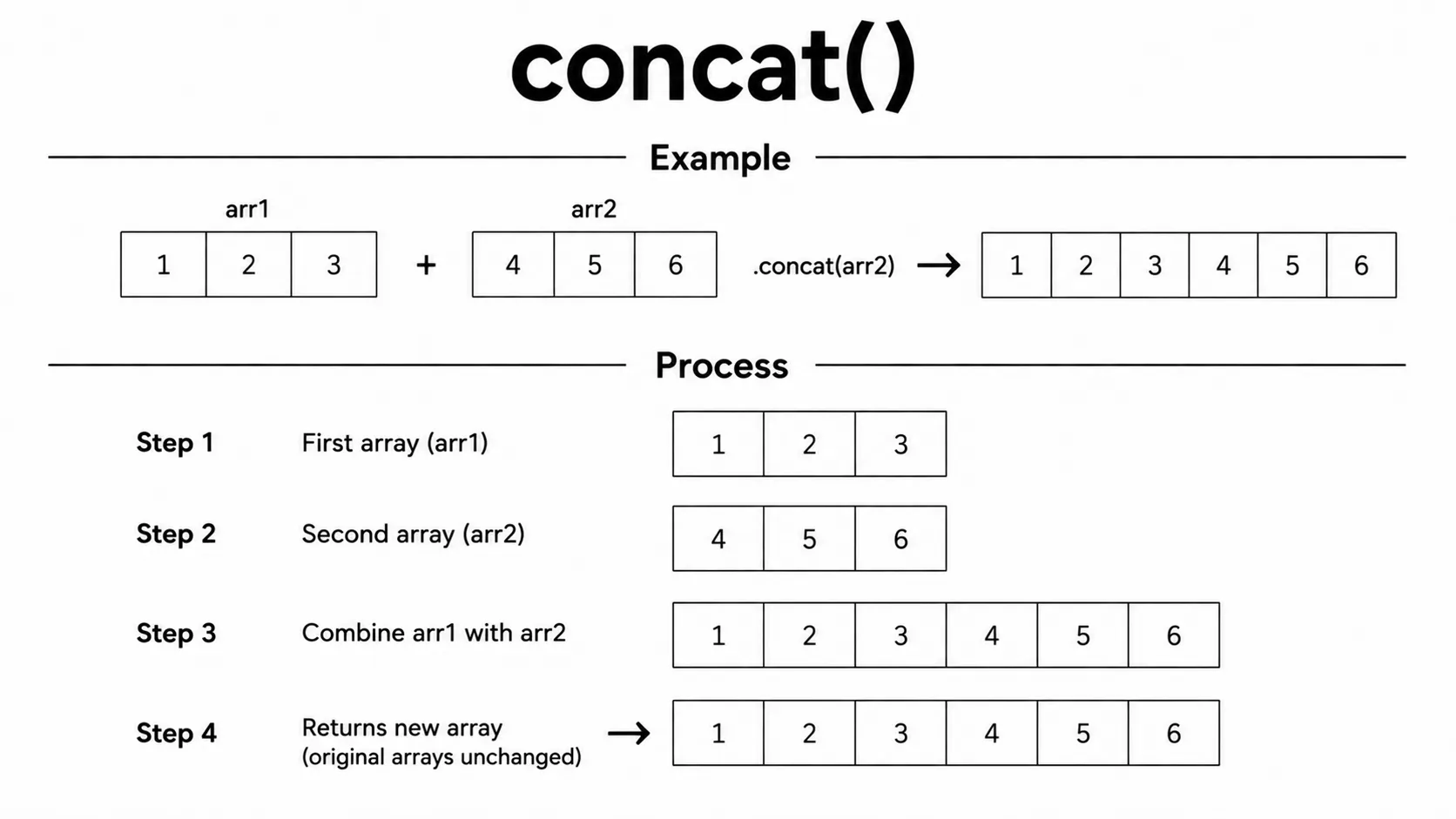
const a = [1, 2];
const b = [3, 4];
const c = [5, 6];

const result = a.concat(b, c);
console.log(result); // [1, 2, 3, 4, 5, 6]
The splice() method lets you add, remove, or replace items at
any position in an array. You simply specify the index where the change
should begin and what action you want to perform.
Unlike many other array methods, splice() changes the original
array directly. If any items are removed, it returns them as a new array,
making it easy to use the removed values later if needed.
The splice() method is useful for inserting new items, deleting
unwanted elements, or updating existing values without creating a new array.
Syntax: splice(startIndex, deleteCount, item1, item2, ...)
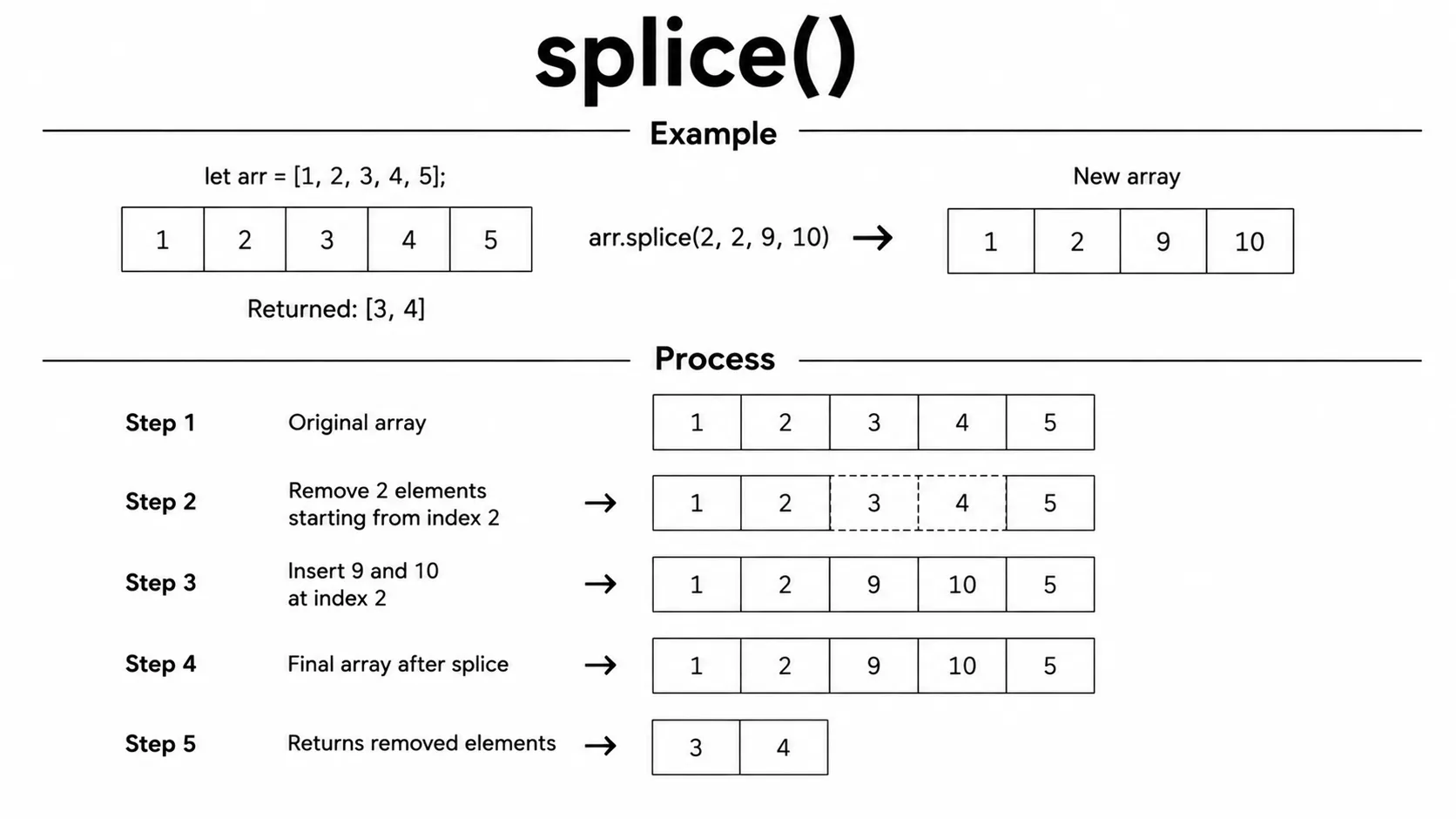
const cartItems = ["Laptop", "Mouse", "Keyboard", "Monitor"];

// Remove 1 element at index 1
const removed = cartItems.splice(1, 1);
console.log(removed); // ["Mouse"]
console.log(cartItems);  // ["Laptop", "Keyboard", "Monitor"]

// Insert at index 1 without removing
cartItems.splice(1, 0, "Webcam");
console.log(cartItems);  // ["Laptop", "Webcam", "Keyboard", "Monitor"]
The slice() method creates a new array by copying a selected
portion of an existing array. You can specify a start index and an optional
end index to choose which items you want to copy.
The original array is not modified. Instead,
slice() returns a new array containing the copied elements,
making it a safe way to work with array data. This is a shallow copy, so
changing a nested object through the copy can also affect the original.
The end index is not included in the result. If you omit the
end index, slice() copies all items from the start index to the
end of the array. It is commonly used to copy arrays or extract specific
items without changing the original array.
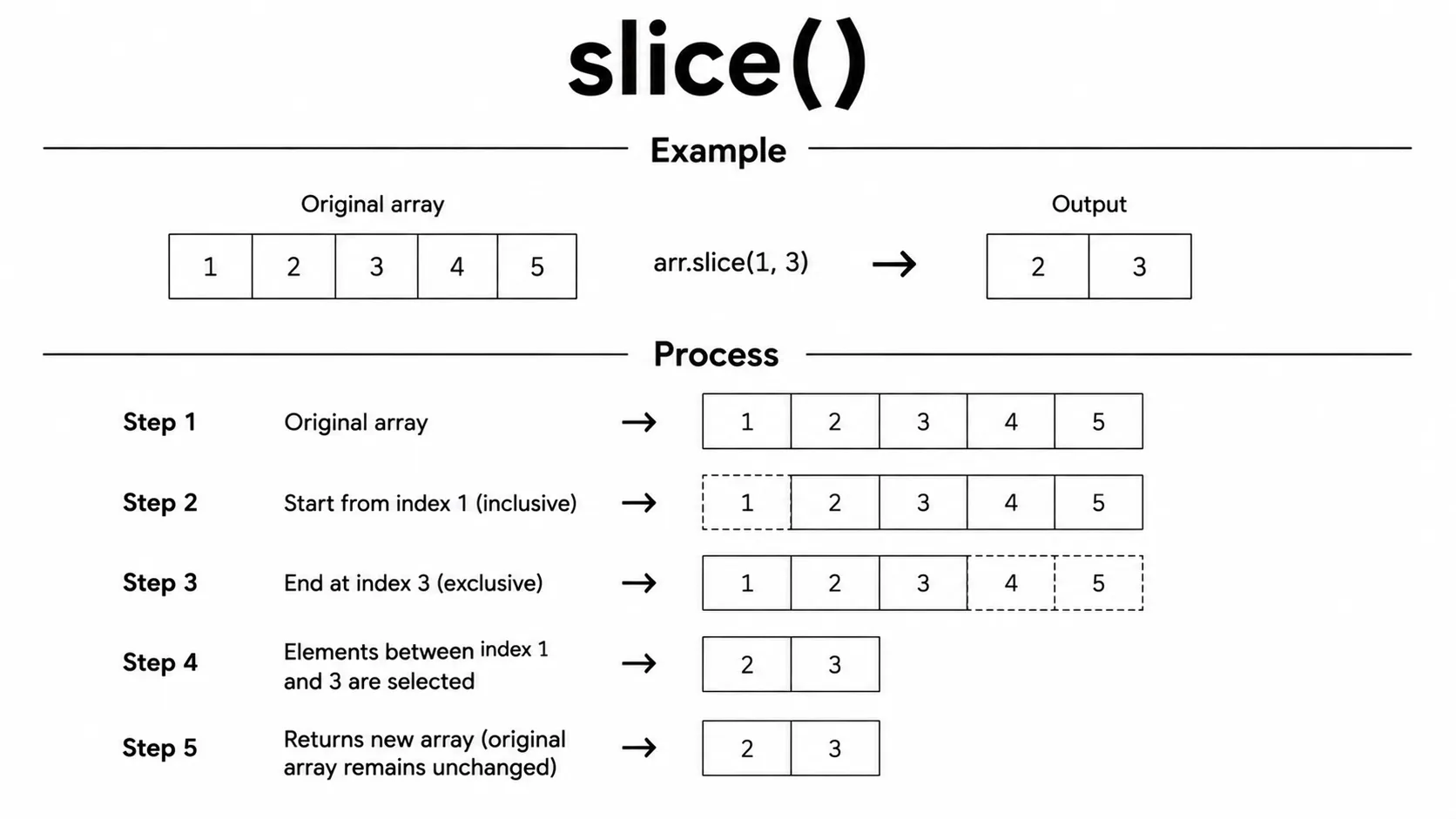
const cartItems = ["Laptop", "Mouse", "Keyboard", "Monitor", "Webcam"];

console.log(cartItems.slice(1, 3)); // ["Mouse", "Keyboard"]
console.log(cartItems.slice(2));    // ["Keyboard", "Monitor", "Webcam"]
console.log(cartItems);             // original is unchanged
The sort() method arranges the items in an array in a specific
order. By default, it compares values as strings and updates
the original array. It returns the same array after sorting, rather than
creating a separate sorted array. For text, the order is based on string
comparison, so it may not match human language rules for every locale.
When sorting numbers, the default behavior may produce unexpected results
because numbers are compared as strings. To sort numbers correctly, you
should provide a compare function to the
sort() method. For numbers, (a, b) => a - b
puts smaller values first, while (a, b) => b - a puts larger
values first.
The sort() method is commonly used to arrange names, products,
prices, scores, or other data in ascending or descending order, making it
easier to display and work with organized information.
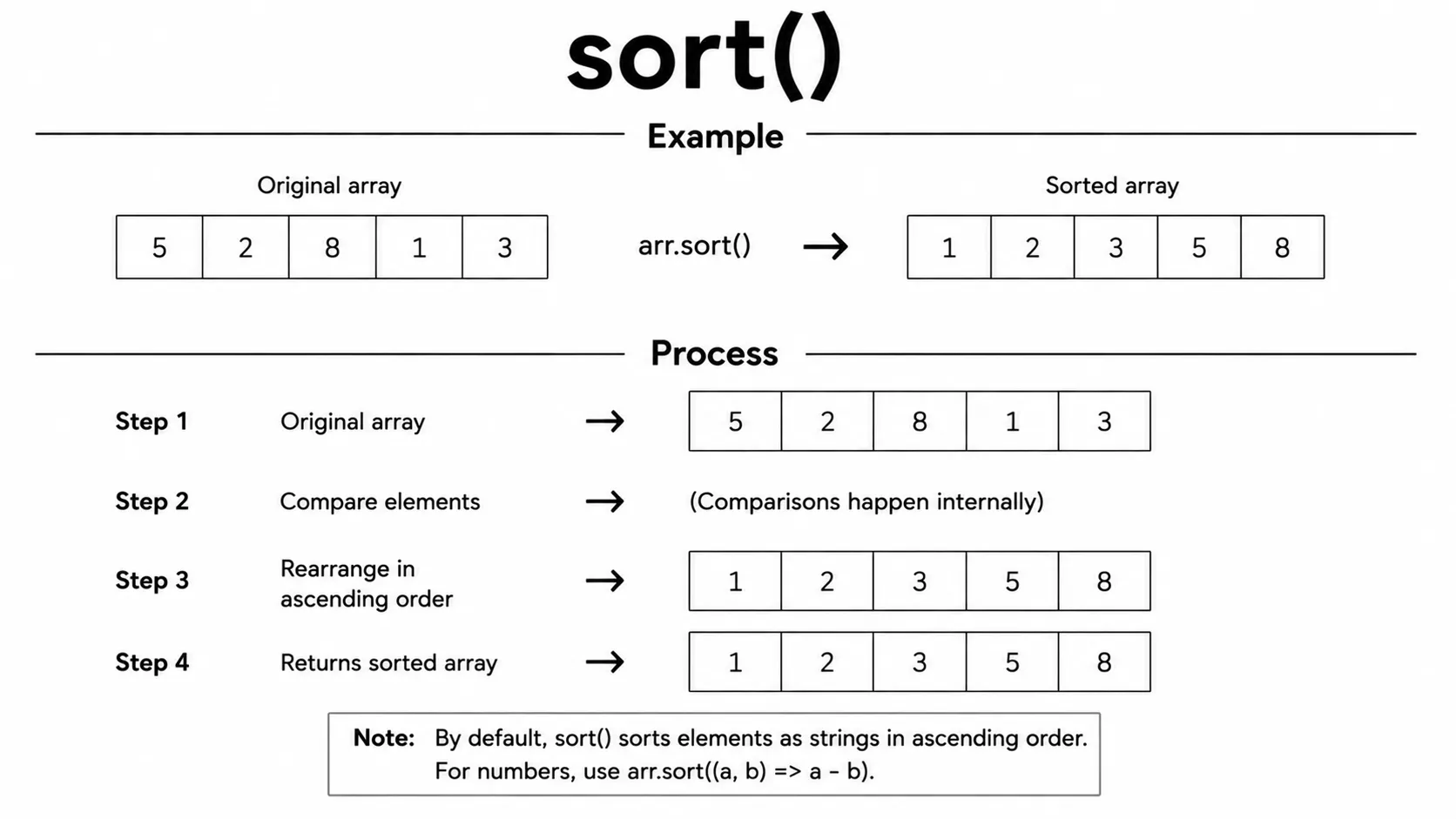
// Sorting strings
const cartItems = ["Mouse", "Keyboard", "Laptop"];
cartItems.sort();
console.log(cartItems); // ["Keyboard", "Laptop", "Mouse"]

// Sorting numbers
const nums = [10, 2, 30, 5];
nums.sort((a, b) => a - b); // ascending
console.log(nums); // [2, 5, 10, 30]
The reverse() method reverses the order of all items in an
array. After using this method, the first element becomes the last, the last
becomes the first, and all other items are reversed.
The reverse() method changes the original array directly. It
does not create a new array, so the existing array is updated with the
reversed order.
The reverse() method is useful when you want to display data in
the opposite order, such as showing the latest messages first, reversing a
list of products, or changing the order of any array.
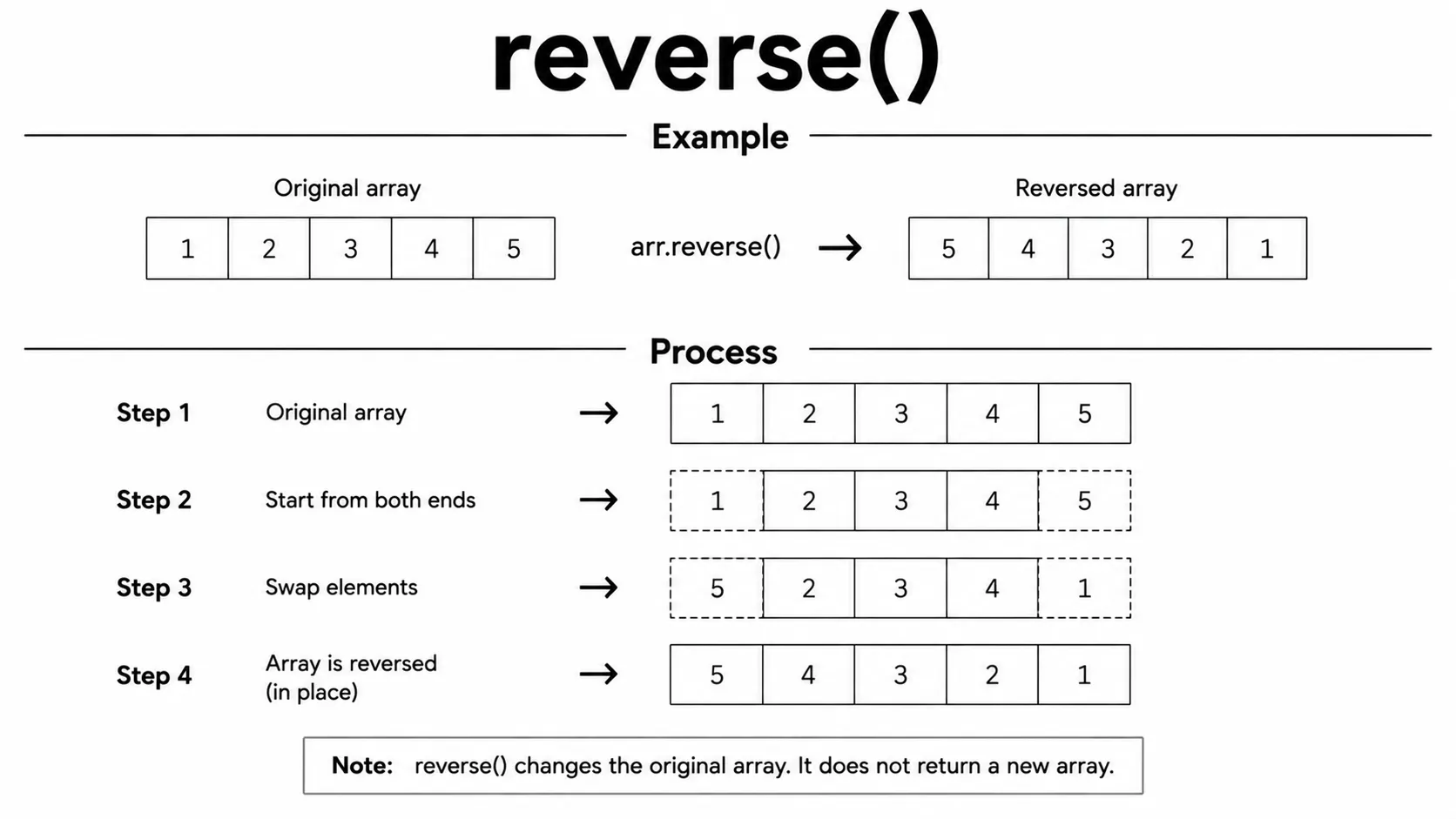
const nums = [1, 2, 3, 4, 5];

nums.reverse();
console.log(nums); // [5, 4, 3, 2, 1]
The forEach() method executes a function once for every item in
an array. It lets you perform the same action on each element without writing
a traditional for loop.
The forEach() method returns undefined; it does not
create a new array. Use it for side effects such as displaying data,
printing values, updating the page, or performing an action for each item.
Unlike a regular for loop, you cannot stop a
forEach() loop early using break or
continue. It runs until every existing item has been processed.
Use for...of or a regular for loop when you need
break, continue, or await in the loop.
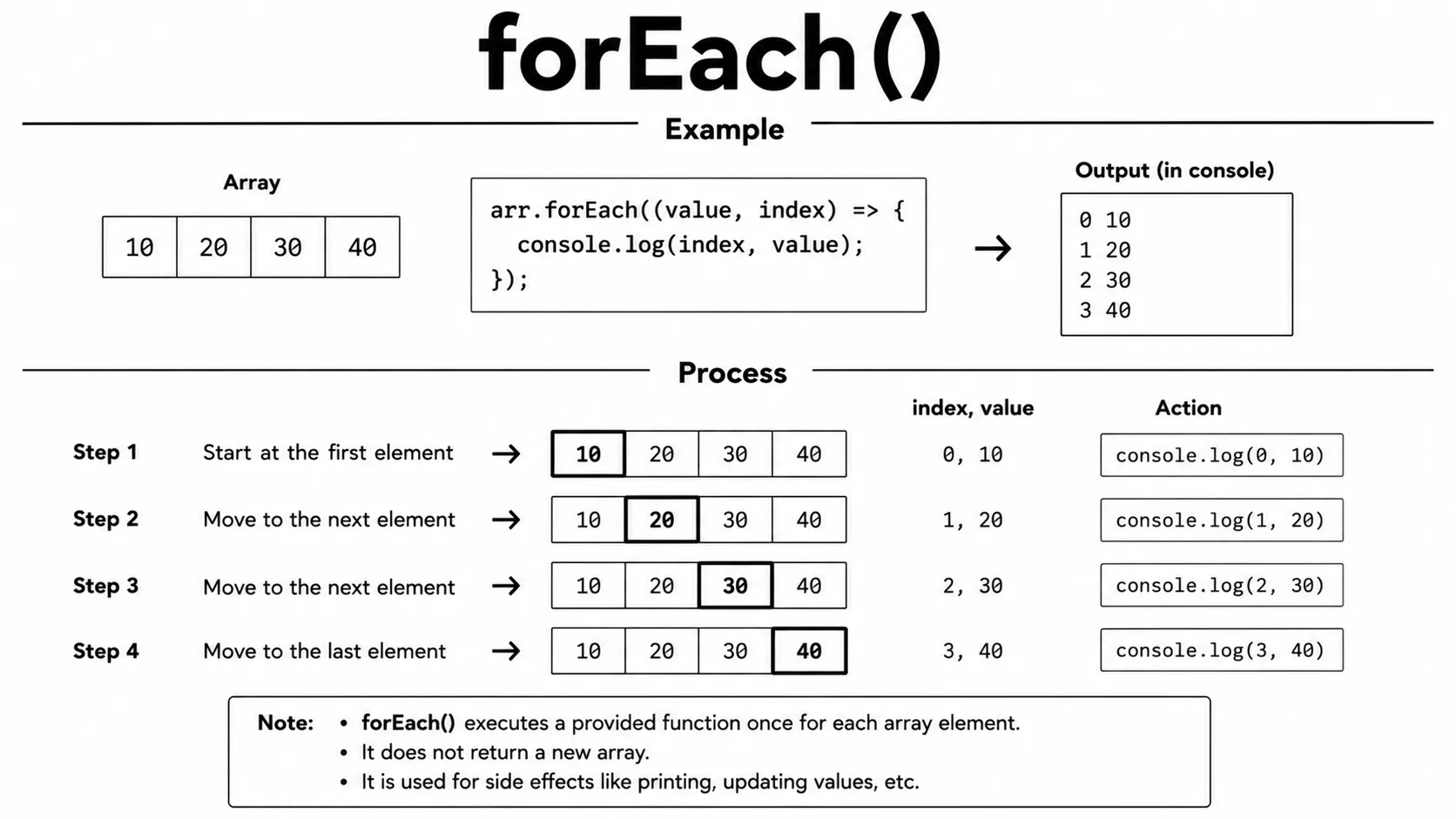
const nums = [1, 2, 3];

nums.forEach((num, index) => {
  console.log(index + ": " + num);
});
// 0: 1
// 1: 2
// 2: 3
The at() method returns the item at a specific index in an
array. It works like using square brackets [], but it also
supports negative indexes, making it easier to access items from the end of
an array.
A negative index starts counting from the last element. For example,
-1 returns the last item, -2 returns the second
last item, and so on. This makes your code cleaner and more readable when
working with the end of an array.
The at() method does not modify the original array. It simply
returns the requested value, making it a convenient and modern way to access
array elements.
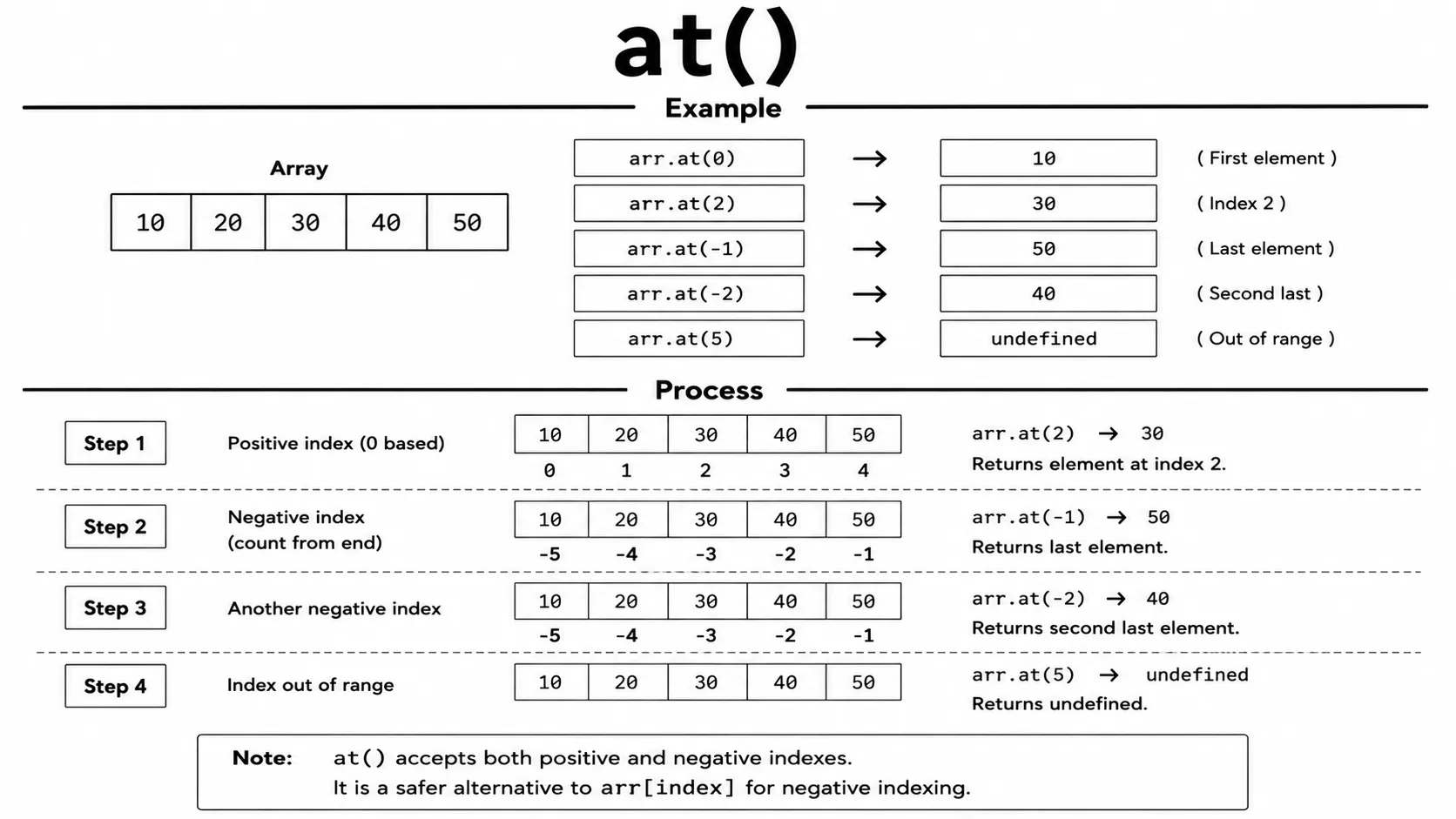
const cartItems = ["Laptop", "Mouse", "Keyboard"];

console.log(cartItems.at(0));  // Laptop
console.log(cartItems.at(-1)); // Keyboard (last element)
console.log(cartItems.at(-2)); // Mouse
The map() method creates a new array by
applying a function to every item in the original array. Each element is
processed one by one, and the returned values are stored in the new array.
The original array is not modified. Instead, map() returns a new
array with the same length. The callback's returned value becomes the item
at the matching index, so remember to return a value from the callback.
The map() method is commonly used to double numbers, format
text, extract object properties, or create a new array with updated values.
It is one of the most frequently used array methods in modern JavaScript.
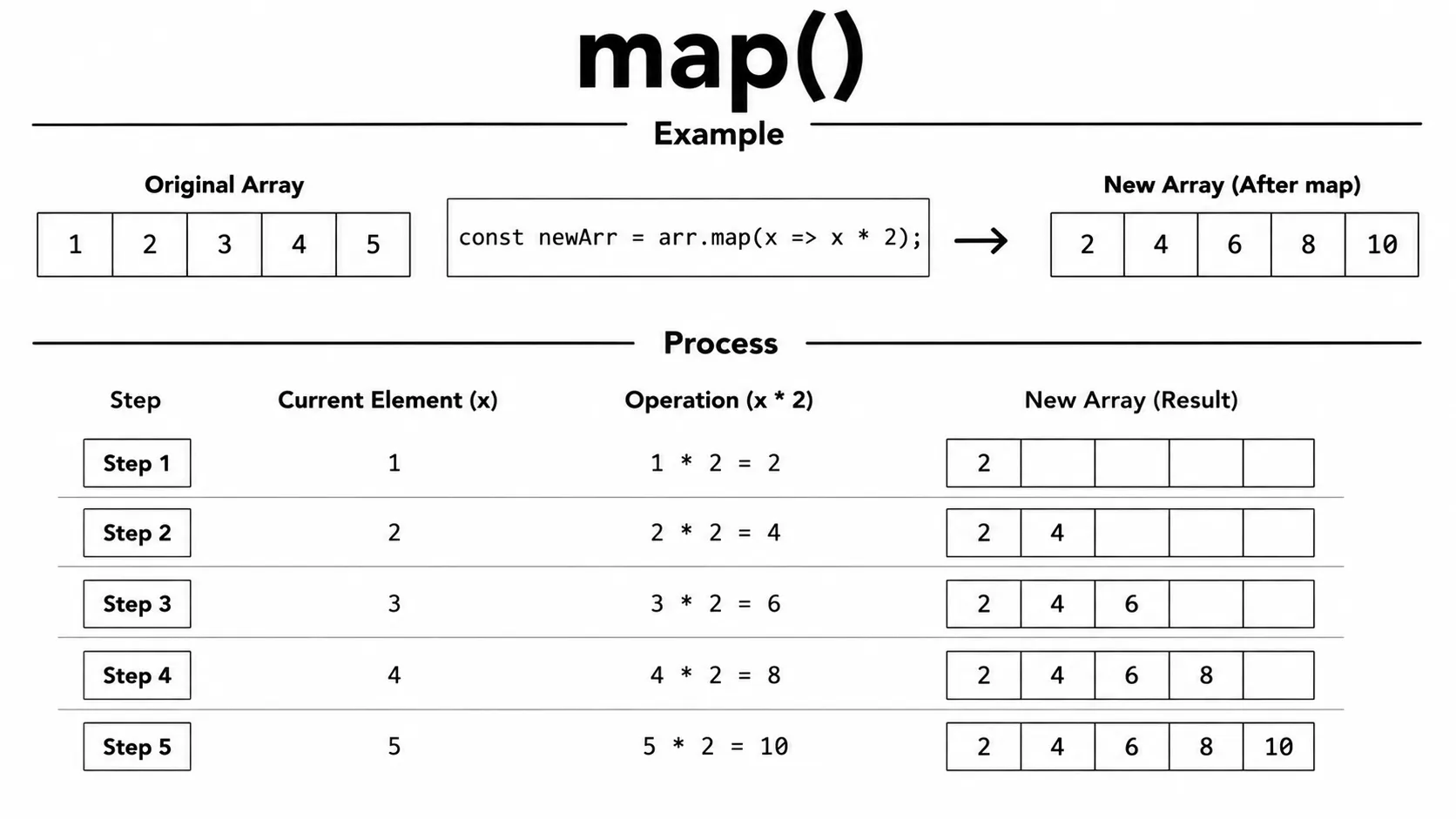
const nums = [1, 2, 3, 4];

const doubled = nums.map(n => n * 2);
console.log(doubled); // [2, 4, 6, 8]
console.log(nums);    // [1, 2, 3, 4] - original unchanged
The filter() method creates a new array by
selecting only the items that match a specific condition. Each element is
checked one by one, and only the items that return true are
included in the new array.
The original array is not changed. Instead, filter() returns a
new array containing only the matching elements, making it a safe and clean
way to work with array data.
The filter() method is commonly used to find active users,
products in stock, students who passed an exam, or numbers greater than a
specific value. It is one of the most useful array methods in modern
JavaScript.
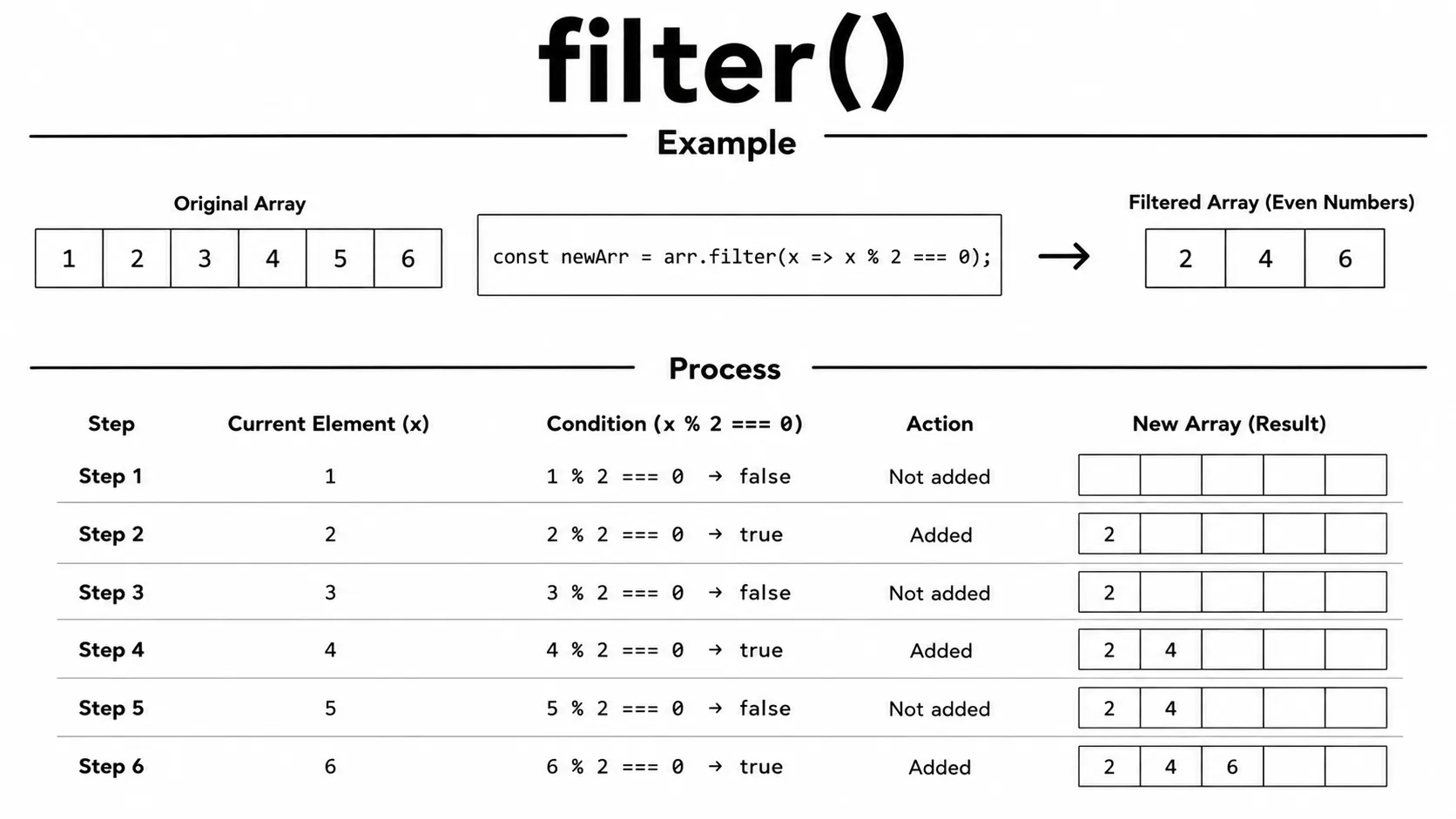
const nums = [1, 2, 3, 4, 5, 6];

const evens = nums.filter(n => n % 2 === 0);
console.log(evens); // [2, 4, 6]
The reduce() method processes every item in an array and
combines them into a single value. This final value can be a
number, string, object, array, or almost any other data type, depending on
how your callback function works.
The callback receives the accumulator, which stores the
running result, the current value, the current index, and
the original array. The second argument to reduce() is the
initial accumulator value. Providing an initial value is recommended because
it makes empty arrays safe and keeps the accumulator type clear.
Without an initial value, reduce() uses the first item as the
accumulator and starts with the second item. Calling it on an empty array
without an initial value throws a TypeError. The method is
commonly used to calculate totals,
multiply numbers, count items, group data, or convert an array into a single
object or value. It is one of the most powerful array methods in modern
JavaScript.
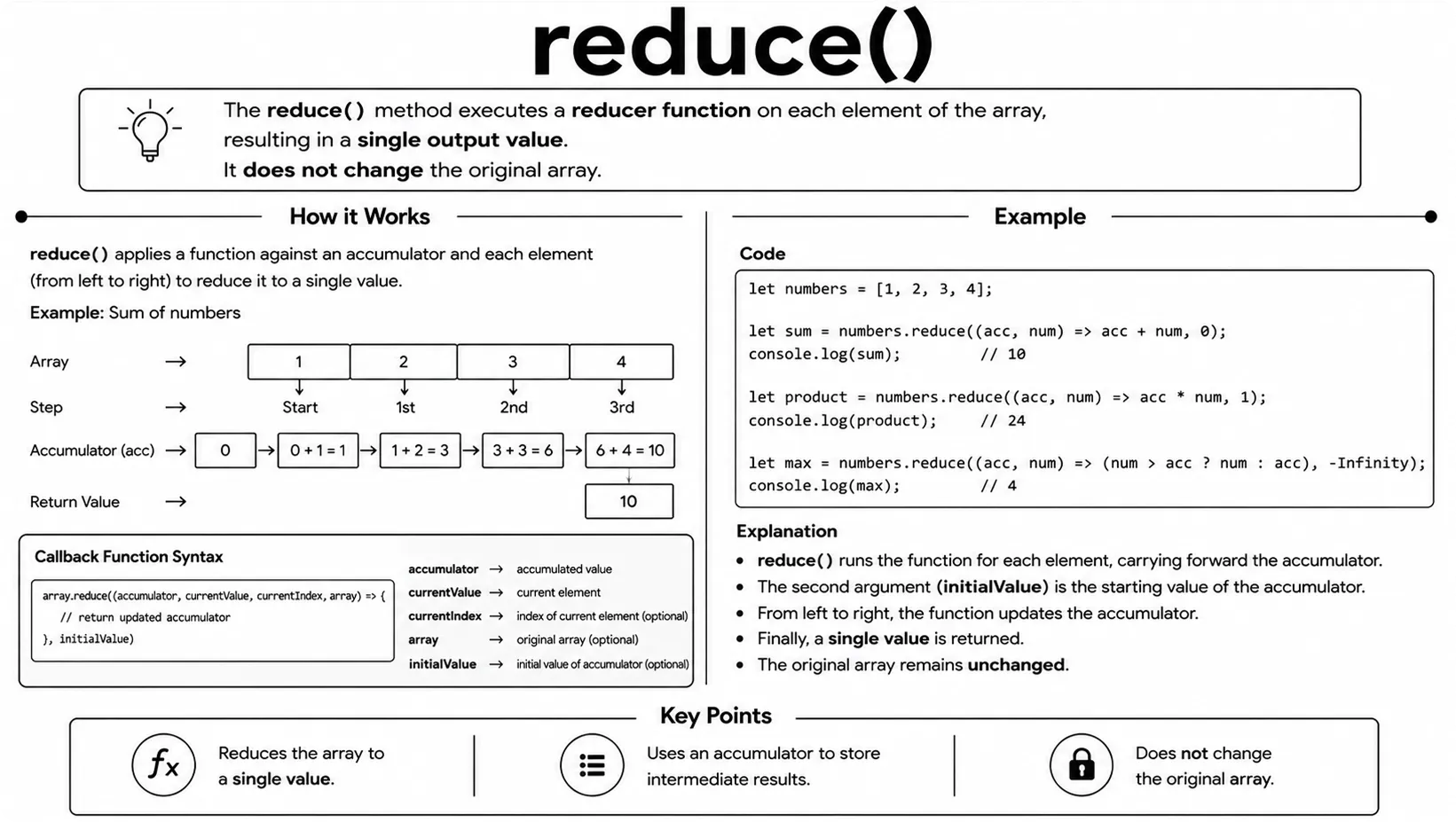
const nums = [1, 2, 3, 4, 5];

const sum = nums.reduce((acc, curr) => acc + curr, 0);
console.log(sum); // 15
Read the callback as a running conversation: start with acc = 0, add 1 to get 1, add 2 to get 3, then add 3, 4, and 5. The last accumulator value, 15, is the result returned by reduce().
const prices = [10, 20, 5];

const total = prices.reduce((runningTotal, price) => {
  return runningTotal + price;
}, 0);

console.log(total); // 35
Beginner rule: always choose an initial value that matches the result you want. Use 0 for a number, "" for a string, [] for a new array, and {} for a grouped object. If a loop is clearer than a complicated reducer, use the loop.
Tip: Keep reduce() callbacks short and clear. If the logic gets long, a for...of loop is often easier to read.
The find() method searches an array and returns the
first item that matches a given condition. As soon as a
matching element is found, the search stops and that item is returned.
If no item matches the condition, find() returns
undefined. The original array is not modified, making it a safe
way to search for data.
The find() method is commonly used to search for a specific
user, product, order, or any object in an array. It is useful when you only
need the first matching result instead of all matching
items.
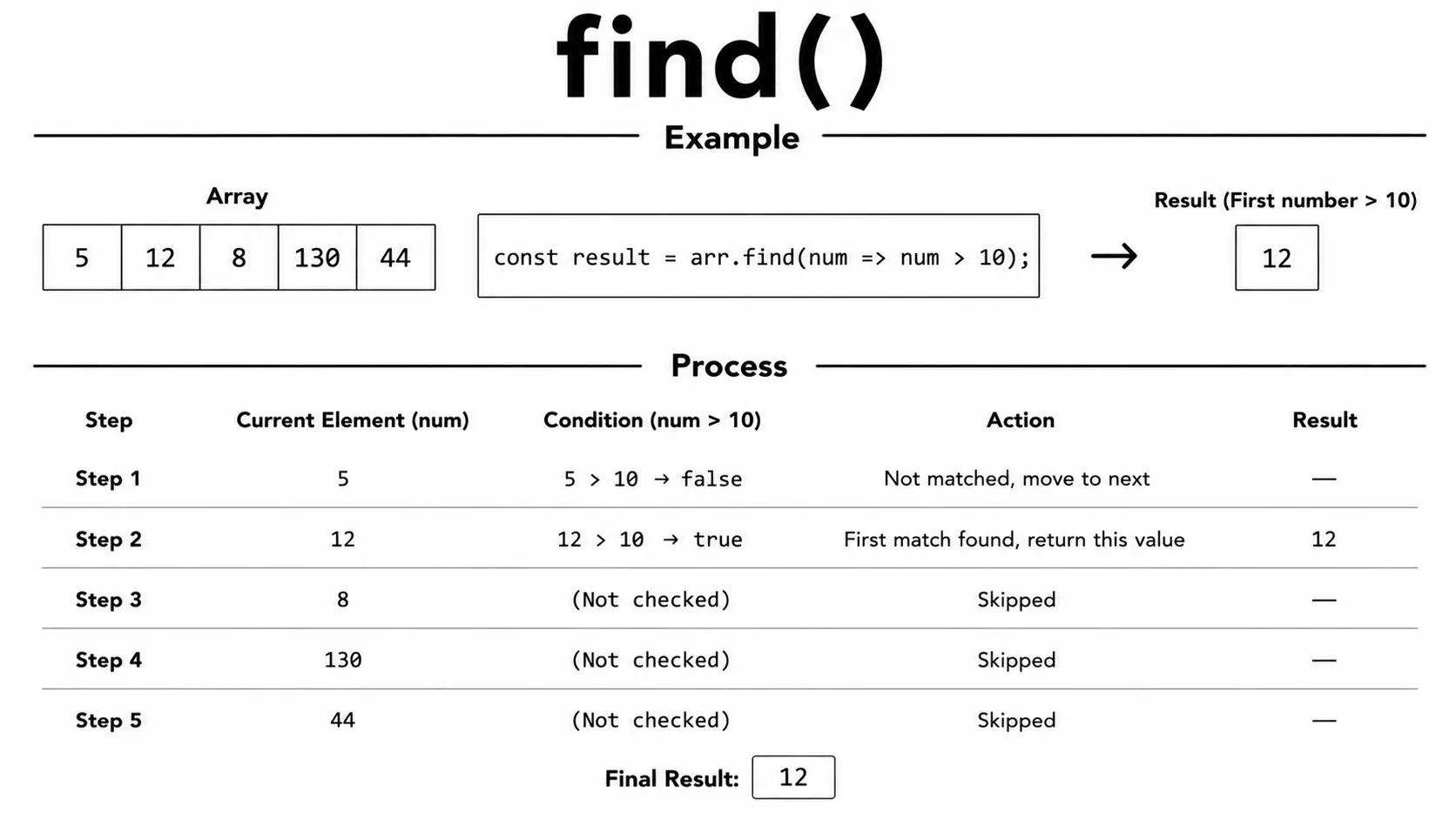
const nums = [3, 7, 12, 5, 20];

const firstBig = nums.find(n => n > 10);
console.log(firstBig); // 12
The findIndex() method searches an array and returns the
index of the first item that matches a given condition. As
soon as a matching element is found, the search stops and its position is
returned.
If no matching item is found, findIndex() returns
-1. The original array is not changed, so you can safely use
this method to locate elements without modifying your data.
The findIndex() method is useful when you need to know the
position of an item before updating, removing, or replacing it. It is
commonly used to find the index of a specific user, product, or object in an
array.
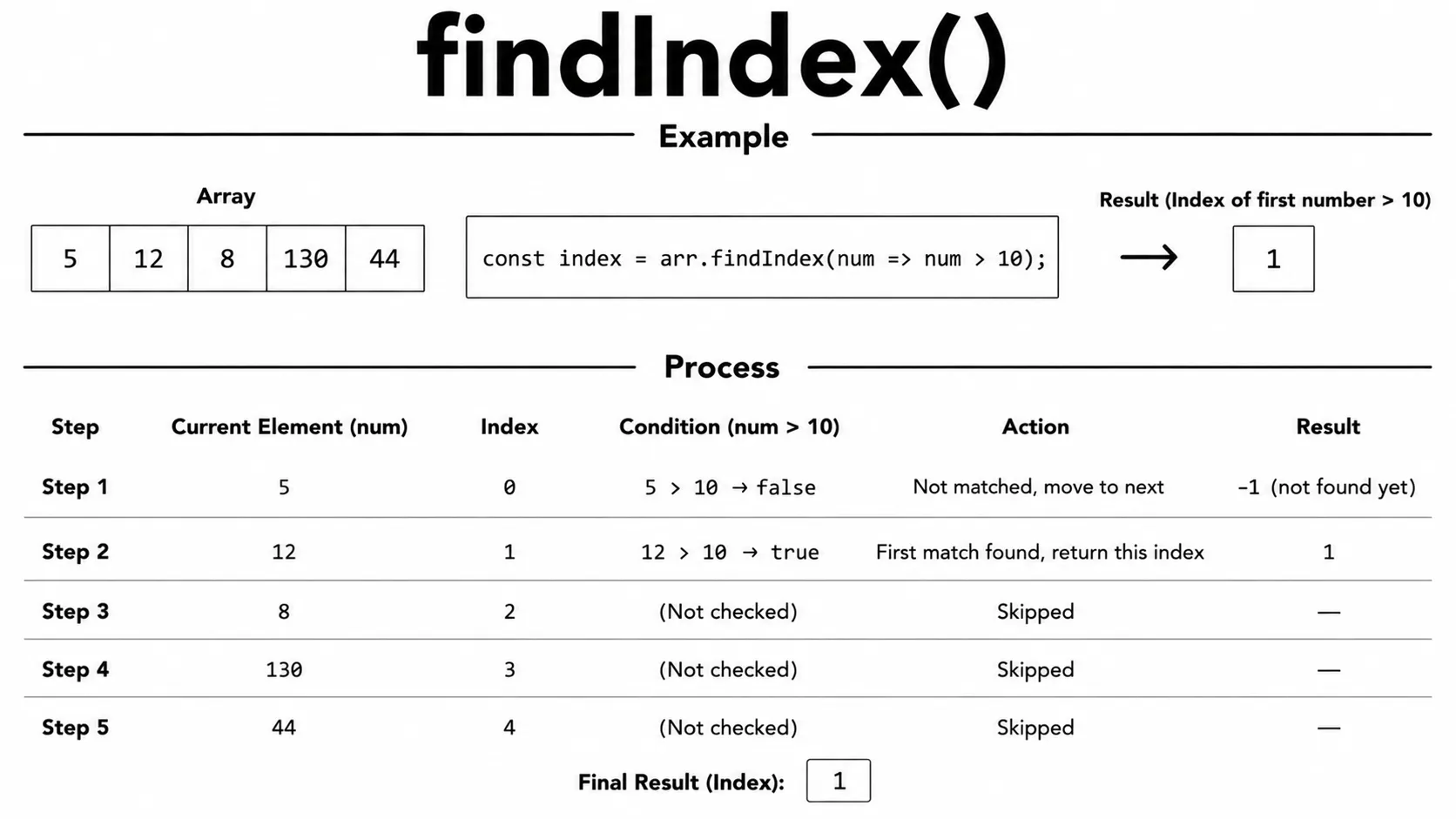
const nums = [3, 7, 12, 5, 20];

const index = nums.findIndex(n => n > 10);
console.log(index); // 2
The some() method checks whether
at least one item in an array matches a given condition. If
any element passes the test, the method immediately returns
true.
If no items satisfy the condition, some() returns
false. It does not change the original array and stops checking
as soon as it finds the first matching item, making it fast and efficient.
The some() method is commonly used to check if an array contains
an active user, a product in stock, a passing score, or any item that meets
a specific condition.
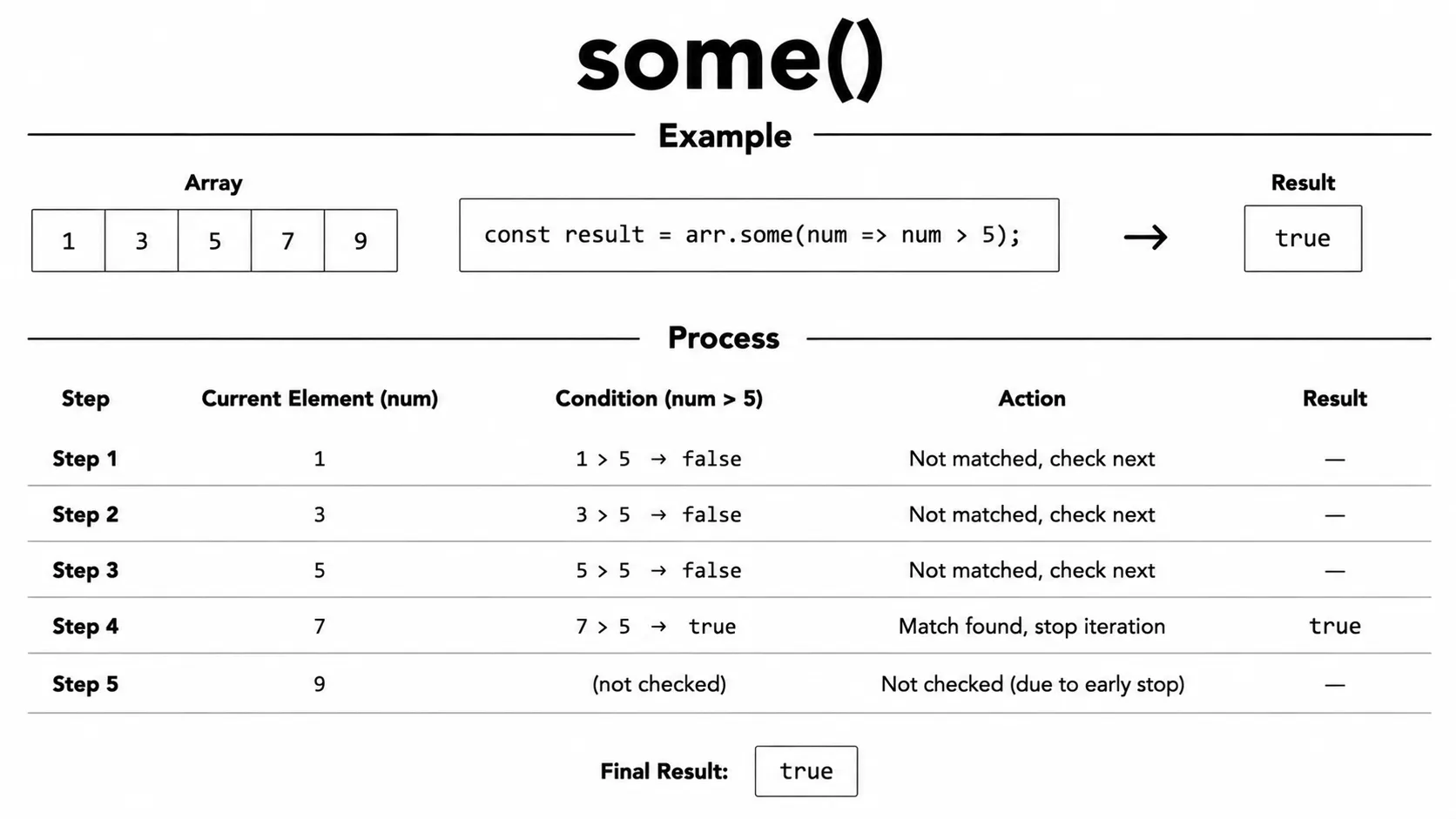
const nums = [1, 3, 5, 8];

console.log(nums.some(n => n % 2 === 0)); // true  (8 is even)
console.log(nums.some(n => n > 100));     // false
The every() method checks whether
all items in an array satisfy a given condition. It tests
each element one by one and returns true only if every item
passes the test.
If even one item does not meet the condition, every() immediately
returns false. For an empty array, it returns true
because there is no item that fails the condition. The original array is not
modified, making it a safe way to validate array data.
The every() method is commonly used to check if all students
passed an exam, all products are in stock, all numbers are positive, or all
users have completed a required action.
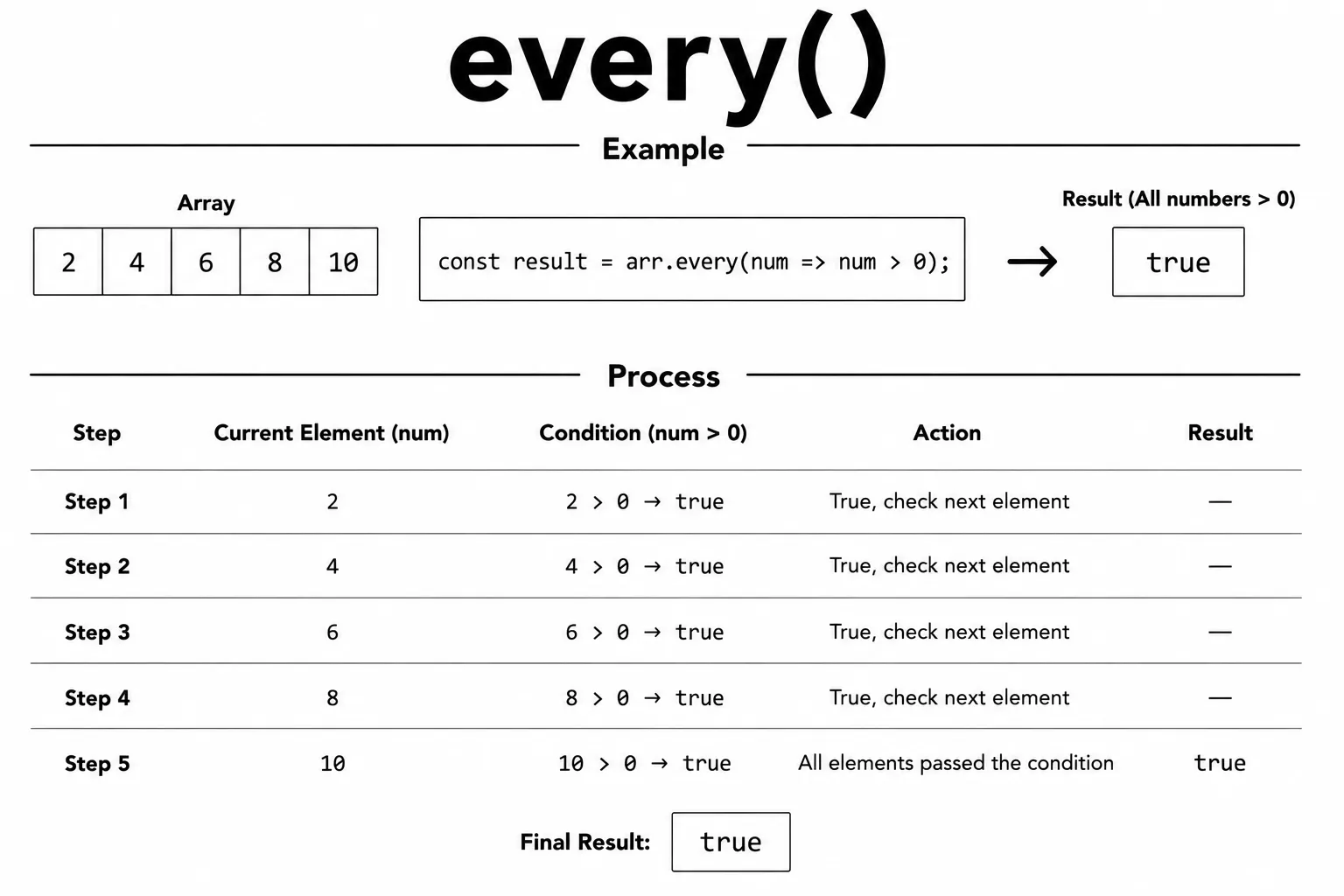
const nums = [2, 4, 6, 8];

console.log(nums.every(n => n % 2 === 0)); // true  (all are even)
console.log(nums.every(n => n > 5));       // false (2 and 4 are not)
The flat() method creates a new array by flattening nested
arrays into a single-level array. By default, it removes one level of nesting
and returns the flattened result.
You can also specify how many levels to flatten by passing a number as an
argument. The original array is not modified because
flat() always returns a new array.
The flat() method is useful when working with nested data, such
as categories, menus, or grouped lists, where you need all items in a single,
easy-to-use array.
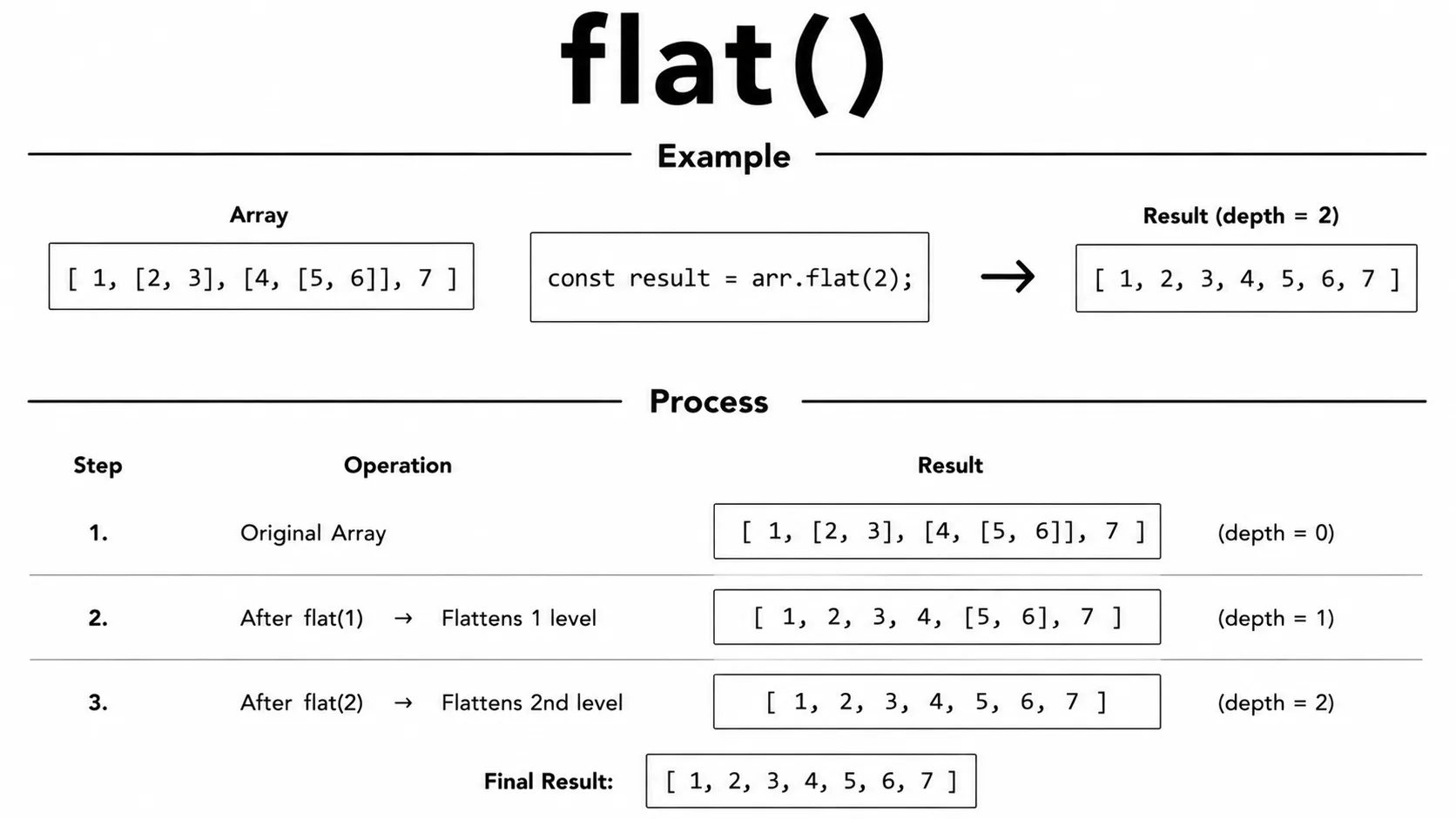
const nested = [1, [2, 3], [4, [5, 6]]];

console.log(nested.flat());    // [1, 2, 3, 4, [5, 6]]
console.log(nested.flat(2));   // [1, 2, 3, 4, 5, 6]
console.log(nested.flat(Infinity)); // [1, 2, 3, 4, 5, 6]
The flatMap() method applies a function to every item in an
array and then automatically flattens the result by one level. It combines
the work of map() and flat(1) into a single method.
The original array is not modified. Instead, flatMap() returns a
new array and flattens only one level. It is equivalent to calling
map() and then flat(1), but it cannot flatten deeper
levels in the same call.
The flatMap() method is useful when you need to split strings,
duplicate items, expand data, or create multiple values from a single array
element while keeping the result in one flat array.
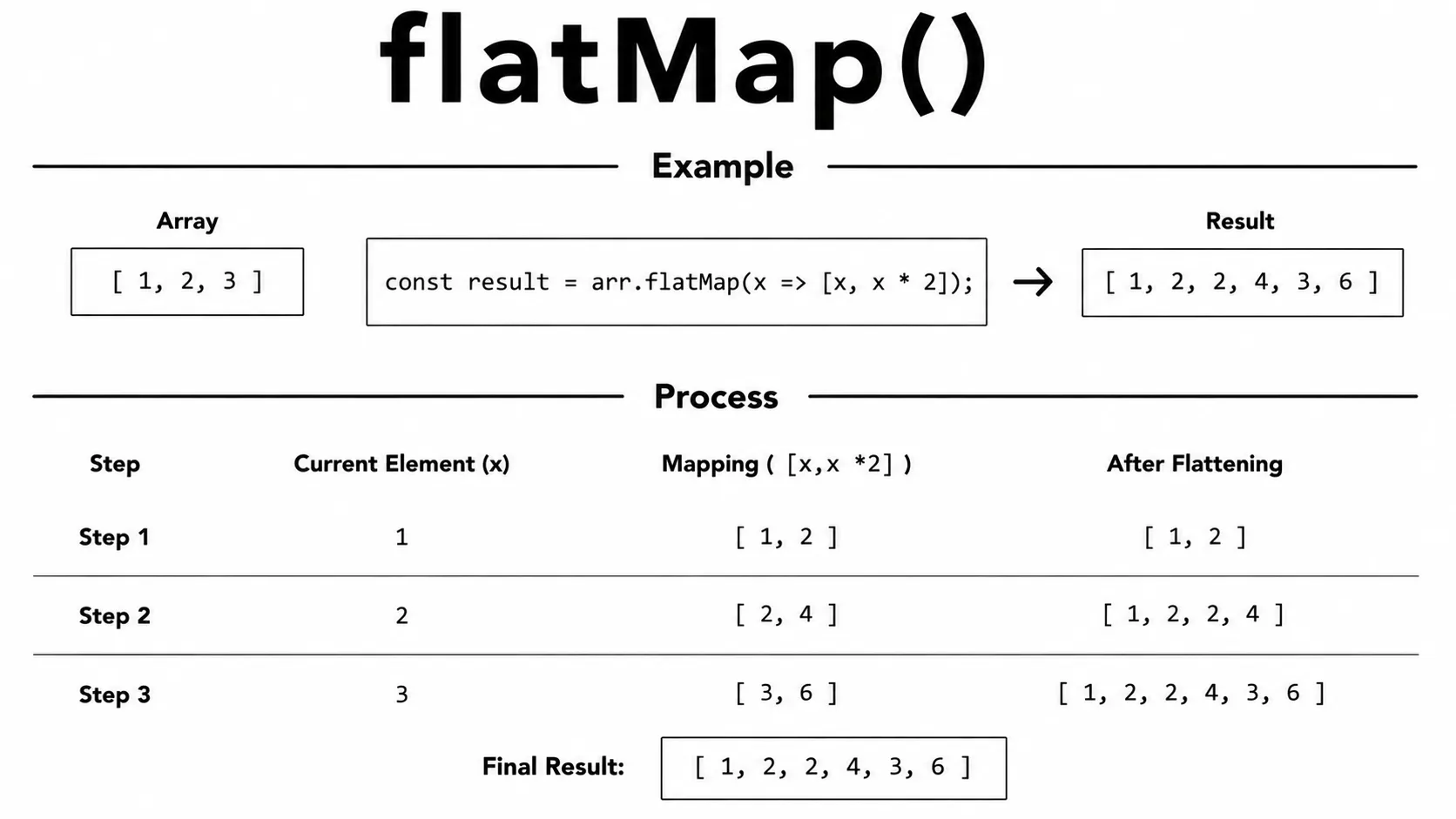
const sentences = ["hello world", "foo bar"];

const words = sentences.flatMap(s => s.split(" "));
console.log(words); // ["hello", "world", "foo", "bar"]
Why not just use map()? map() keeps the arrays returned by the callback nested, while flatMap() removes one level immediately.
const names = ["Ada", "Lin"];

console.log(names.map(name => [name, name.length]));
// [["Ada", 3], ["Lin", 3]]

console.log(names.flatMap(name => [name, name.length]));
// ["Ada", 3, "Lin", 3]
Remember: flatMap() flattens one level only. For deeper nesting, use flat() with an appropriate depth, or simplify the data in smaller steps.
Let's wrap up! Here's a quick recap of everything we covered:
- An array stores multiple values in a single variable.
- Array indexes start at 0.
- Use
constto declare arrays when the reference should not change. push/popadd or remove from the end.unshift/shiftadd or remove from the beginning.splicemodifies the array in place;slicereturns a copy.mapreturns a transformed array,filterkeeps matching items, andreducecombines items into one result.findandfindIndexsearch for elements by condition.someandeverycheck conditions across the array.flatandflatMapcreate new arrays for nested data;flatMapflattens one level.
What's next? Now that you can work with lists of values, let's learn how JavaScript stores data as key-value pairs in the next tutorial.
Try the exercises in order: start with array basics, then work through methods and problem-solving.
Exercise 1 Exercise 2 Exercise 3Videos for this topic will be added soon.