JavaScript Popup Boxes
Popup boxes are a quick way to communicate with users and collect simple input. They are useful for learning user interaction before moving to custom UI components.
JavaScript can display built-in browser dialogs that show a message, ask the user to confirm something, or collect simple text input.
alert()- show a messageconfirm()- ask for OK or Cancelprompt()- ask for text
These three methods are a simple way to begin learning how JavaScript interacts with users.
Popup boxes are browser-provided dialogs. They are built in, easy to call, and modal or blocking: while one is open, the user must respond before continuing to interact with the page.
alert("Hello!");

console.log("This runs after the alert is closed.");
JavaScript waits at the dialog call. After the user closes the popup, the next line runs.
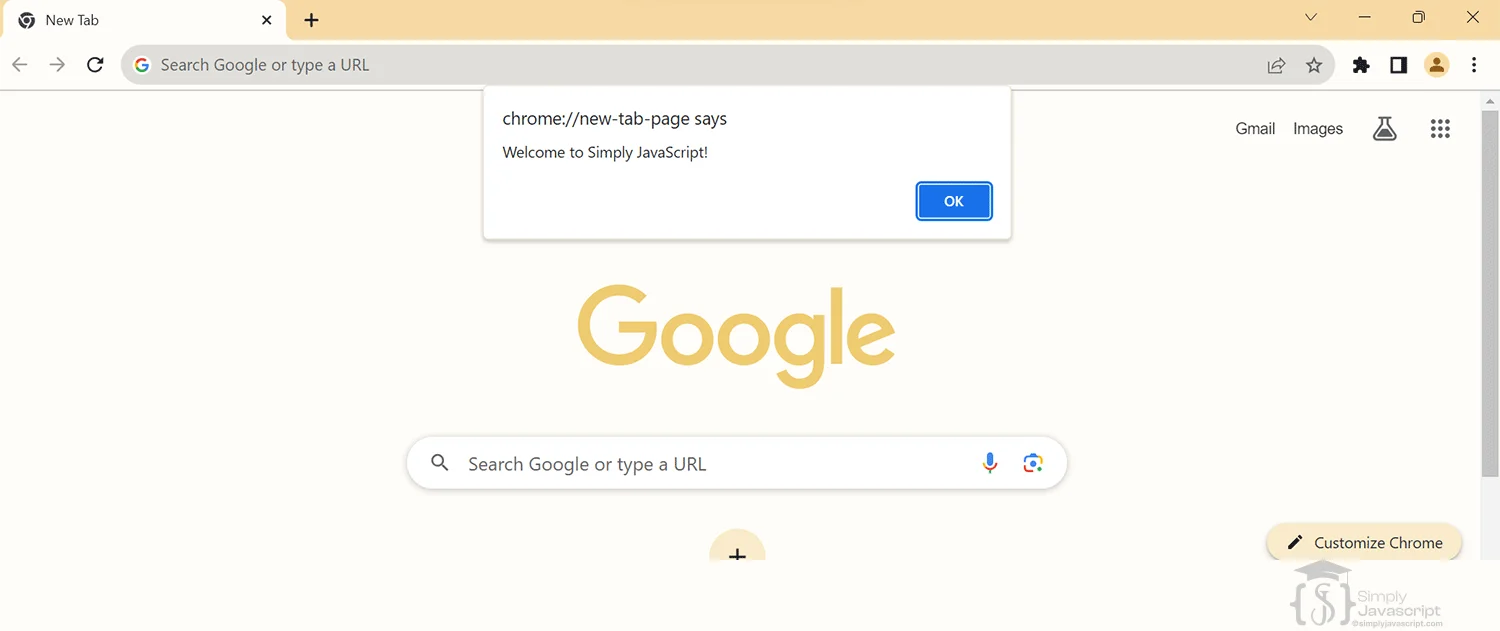
alert() displays a message with an OK button. The user reads the message, clicks OK, and JavaScript continues. It does not return useful user input.
alert("Welcome to SimplyJavaScript!");

console.log("This runs after the user closes the alert.");
Alerts are useful for learning and simple scripts. Too many alerts interrupt the user's workflow, so modern applications usually use contextual UI instead.
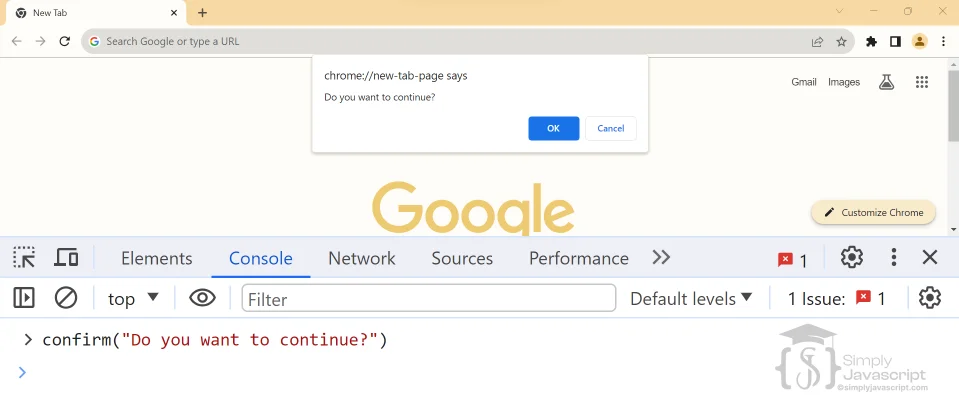
Use confirm() when the user needs to choose between OK and Cancel.
const result = confirm("Do you want to continue?");

if (result) {
  console.log("User clicked OK");
} else {
  console.log("User clicked Cancel");
}
OK returns true. Cancel or closing the dialog returns false. Your program can use that boolean to decide what to do next.
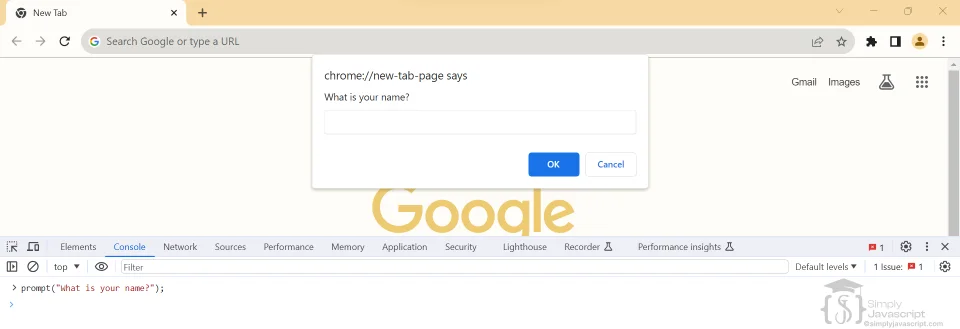
prompt() asks the user to enter text.
const answer = prompt("What is your name?");
console.log(answer);
When the user submits text, prompt() returns a string such as "John". When the user cancels or closes the dialog, it returns null.
| Method | Purpose | Buttons/Input | Return value |
|---|---|---|---|
alert() | Show a message | OK | undefined |
confirm() | Ask for confirmation | OK / Cancel | true / false |
prompt() | Collect simple text | Input / OK / Cancel | string / null |
Important: prompt() returns text. Typing 25 gives you "25", not the number 25.
const input = prompt("Enter your age:");

if (input !== null) {
  const age = Number(input);
  console.log(age);
}alert(), confirm(), and prompt() are synchronous browser dialogs. JavaScript waits for the user to respond before continuing past the dialog call.
console.log("Before");
alert("Hello");
console.log("After");
The order is: Before, the popup appears, the user closes it, then After. This is why native dialogs can interrupt a workflow.
Native dialogs are useful for learning, demos, very simple scripts, and simple confirmations. They are not inherently inaccessible, but the browser controls their appearance and behavior.
- Limited styling and layout
- Blocking interaction
- Little surrounding page context
- Only basic text input from
prompt() - Not a good fit for many rich product workflows
Modern applications often need custom UI for forms, validation, rich content, and consistent styling. Native dialogs are useful for simple cases; they are not always the right tool.
When an application needs a styled form, validation, richer content, or more control over the experience, developers can use a custom dialog. Modern browsers also provide the semantic <dialog> element.
<dialog>represents the dialog.showModal()opens it as a modal dialog.form method="dialog"lets the form close it.- Buttons provide explicit actions.
aria-labelledbyassociates the dialog with its heading.focus()places keyboard focus where it belongs.- The
closeevent lets the application restore focus.
Important: this is an introduction. A semantic <dialog> does not solve every accessibility or design problem automatically.
<button id="open-settings" type="button">Open settings</button>

<dialog id="settings-dialog" aria-labelledby="settings-title">
  <form method="dialog">
    <h2 id="settings-title">Settings</h2>
    <label>Display name <input id="display-name" name="displayName" required></label>
    <button value="cancel">Cancel</button>
    <button value="save">Save</button>
  </form>
</dialog>

<script>
const openButton = document.querySelector("#open-settings");
const dialog = document.querySelector("#settings-dialog");

openButton.addEventListener("click", () => {
  dialog.showModal();
  dialog.querySelector("input").focus();
});

dialog.addEventListener("close", () => openButton.focus());
</script>
The dialog has a heading, a labeled input, explicit buttons, focus when it opens, and focus returned to the opener when it closes.
Accessible custom dialogs should:
- Have a clear visible heading and associated labels.
- Move focus into the dialog when it opens.
- Support keyboard interaction and allow Escape to close when appropriate.
- Return focus to the element that opened the dialog.
- Show validation and error messages clearly.
- Avoid hiding critical information only inside popups.
Keyboard and screen-reader users should be able to understand and operate the dialog without becoming trapped.
- Use
alert(): for a very simple message, learning, or a quick script. - Use
confirm(): for a simple yes/no choice when blocking is acceptable. - Use
prompt(): for very simple text input in a small demo or learning exercise. - Use a custom dialog: for forms, validation, rich content, consistent styling, contextual UX, or careful accessibility behavior.
These are practical guidelines, not absolute rules. Choose the simplest approach that gives users enough context and control.
- Thinking
alert()returns the message: it displays a message and returnsundefined. - Forgetting that
confirm()returns a boolean: store itstrueorfalseresult. - Assuming
prompt()returns a number: input such as"25"is text; useNumber()when needed. - Forgetting Cancel: a cancelled prompt returns
null. - Assuming native dialogs are normal UI: they have limited styling and block interaction.
- Overusing alerts: repeated interruptions create a frustrating experience.
- Display
"Welcome to JavaScript"usingalert(). - Use
confirm()to ask “Do you want to continue?” and print a message for each result. - Ask for a name with
prompt()and printHello, <name>. - What is the type of
const age = prompt("Enter your age");? - What happens when the user cancels
prompt("Enter your name")? - Predict the order:
console.log("1"); alert("Hello"); console.log("2");.
Answers: 1. Call alert("Welcome to JavaScript"). 2. Check the boolean result. 3. Combine the returned name with the greeting. 4. It is "string" when text is submitted. 5. The result is null. 6. 1, popup, then 2 after it closes.
alert()displays a message and waits for the user to close it.confirm()returnstrueorfalse.prompt()returns a string ornull.- Native dialogs are browser-controlled and blocking.
- Convert prompt input explicitly when a number is needed.
- Native dialogs are useful for simple scripts and learning.
- Custom dialogs suit richer workflows, but need labels, focus management, keyboard support, and clear actions.
Now that you know how JavaScript can interact with users and receive simple input, let's learn how operators work with the values in your program. Continue to JavaScript Operators.
- What are the different popup boxes available in core JavaScript?
- What are the limitations of alert boxes?
- How does
confirm()work? - How does
prompt()collect input? - When is using a prompt box appropriate for a web application?
- How do alert, confirm, and prompt compare?
Popup Boxes: Alert, Prompt, and Confirm