JavaScript Events
Events are what make websites feel alive. Once you understand them, you can build buttons, forms, and interactive UI that respond exactly when users click, type, scroll, or submit.
An event is something that happens in the browser, like a click, a key press, a mouse movement, or a page finishing loading. You can use JavaScript to listen for these events and run code when they happen.
Events are the bridge between your user and your code. Without them, a page is mostly read-only content. With them, your app can react, validate input, show feedback, and feel responsive.
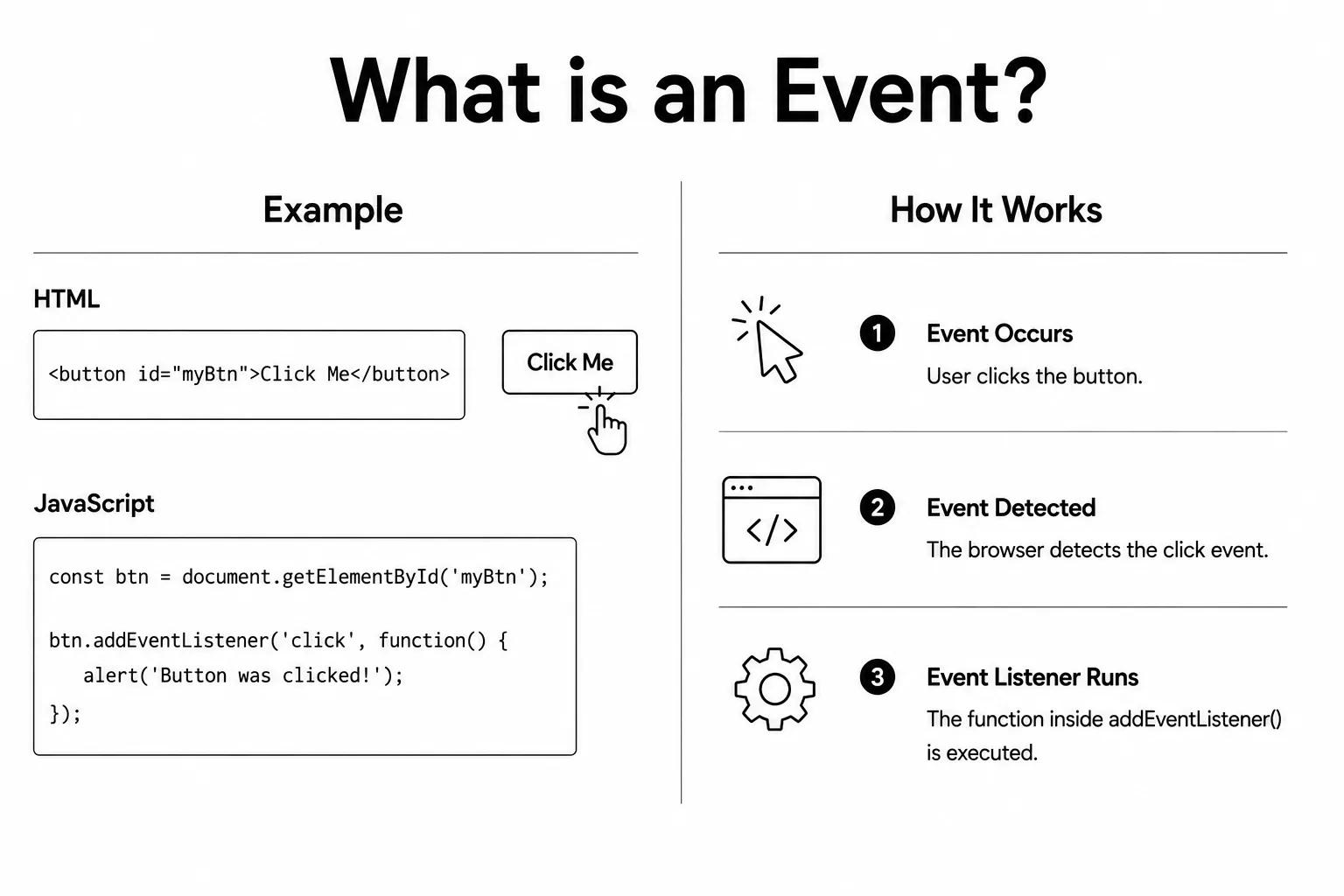
// Listen for a click on a button
const btn = document.getElementById("myBtn");

btn.addEventListener("click", function () {
  console.log("Button was clicked!");
});
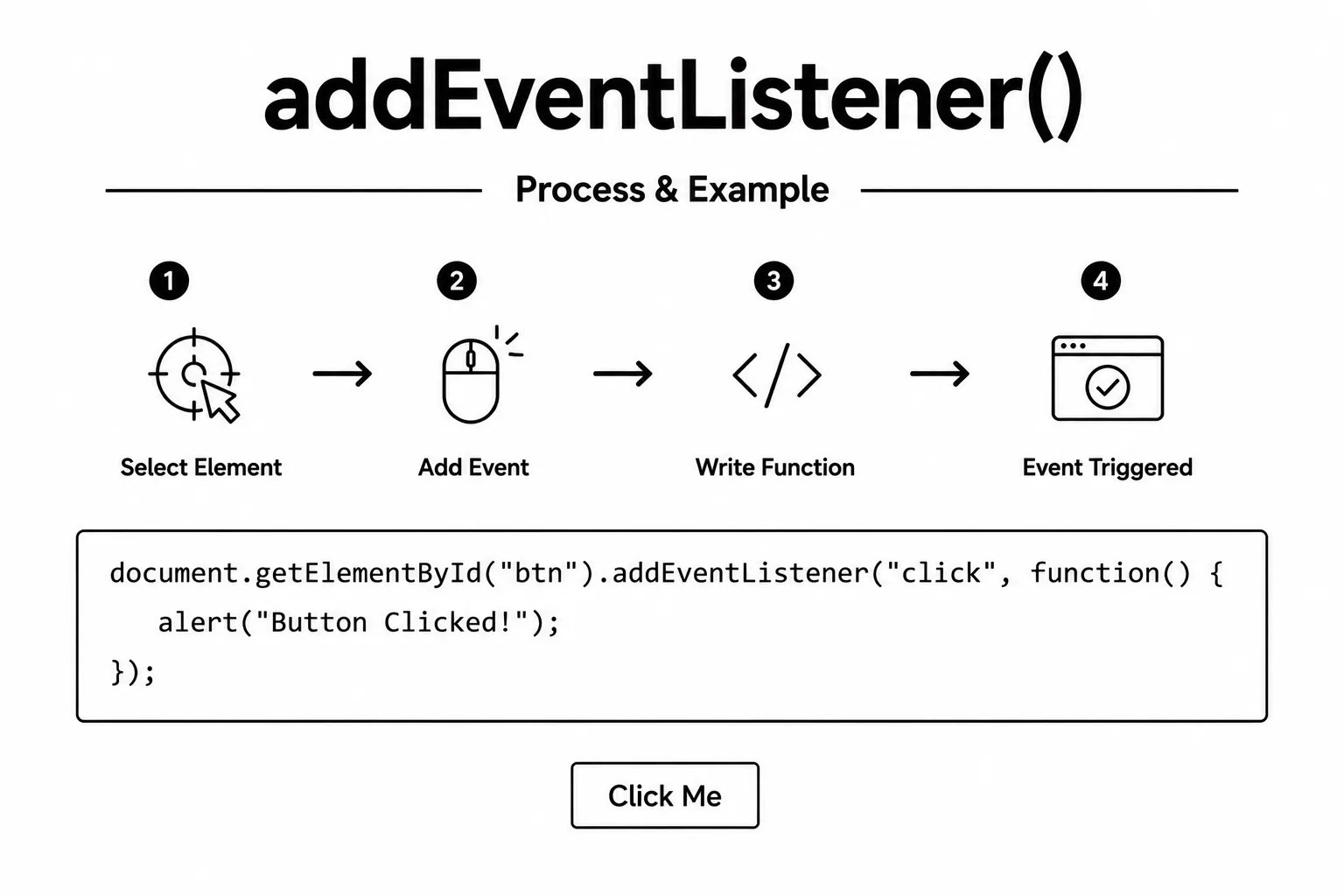
The best way to listen for events is
addEventListener(event, handler). You can
attach multiple listeners to the same element, and
remove them later with
removeEventListener.
Think of it like giving the browser a clear instruction: "When this event happens, run this function." This pattern keeps your code organized and easy to scale.
const btn = document.getElementById("btn");

function handleClick() {
  console.log("Clicked!");
}

// Add listener
btn.addEventListener("click", handleClick);

// Remove listener (must pass the same function reference)
btn.removeEventListener("click", handleClick);

// Arrow function shorthand
btn.addEventListener("click", (event) => {
  console.log("Event type:", event.type); // Output: click
  console.log("Target element:", event.target);
});
Every handler receives an event object
with details about what happened, like the event type,
which element triggered it (event.target),
and methods to control how the event behaves.
The event.target is the element where the
event started. event.currentTarget is the
element whose listener is currently running. These can
be different when an event bubbles from a child to a
parent.
To remove a listener, pass the same event type, the same function object, and the same capture setting that you used when adding it. Writing a new matching arrow function does not remove the original listener.
function handleResize() {
  console.log("Window resized");
}

window.addEventListener("resize", handleResize);
window.removeEventListener("resize", handleResize); // works

// This does not remove the listener because it creates a new function:
window.removeEventListener("resize", function handleResize() {
  console.log("Window resized");
});

function handleClick() {
  console.log("Captured click");
}

button.addEventListener("click", handleClick, true);
button.removeEventListener("click", handleClick, true);The click event is triggered when a user clicks an element with a mouse or taps it on a touch screen. It is one of the most commonly used events in JavaScript for responding to user interactions.
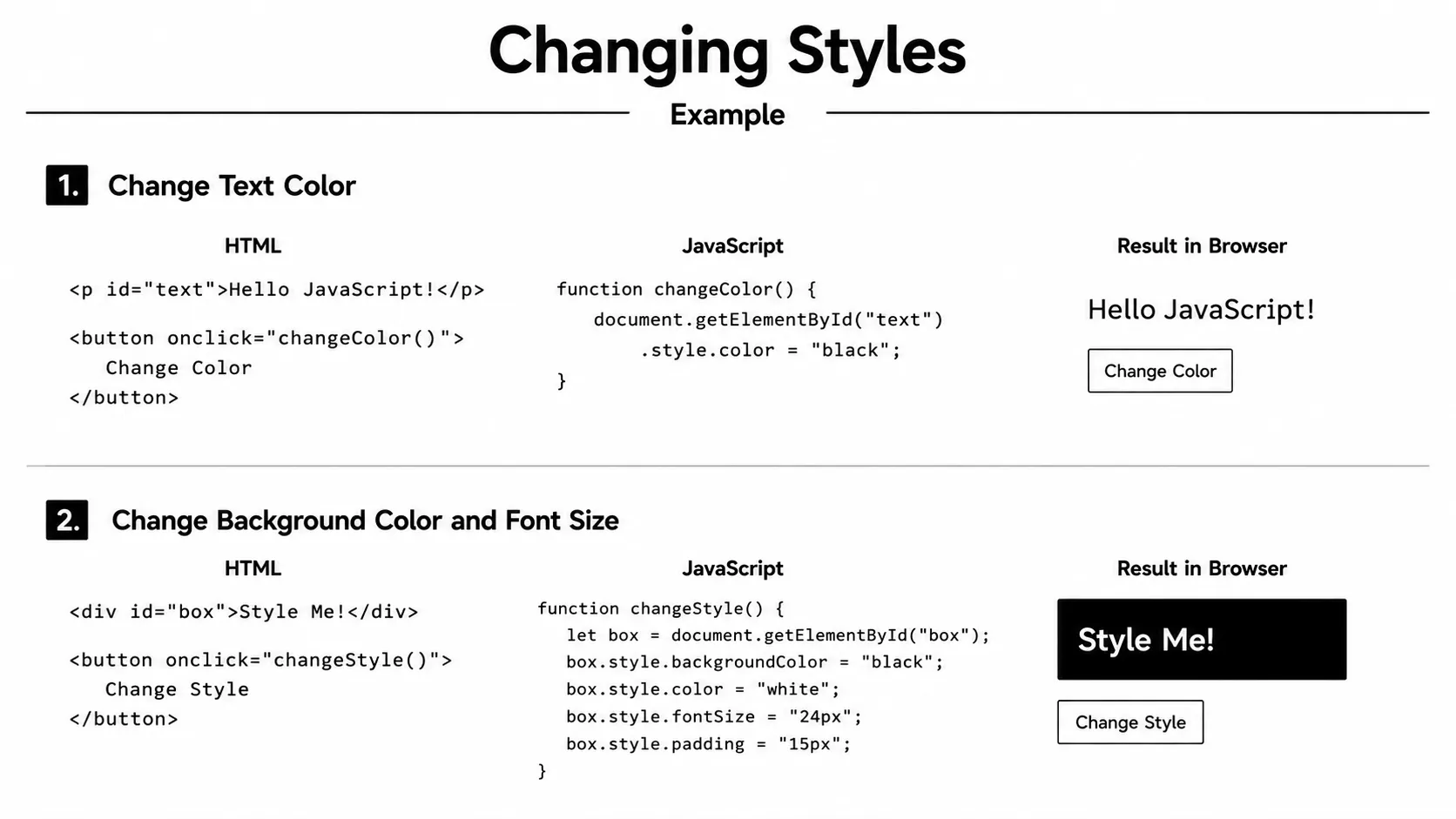
You can attach a click event to buttons, links, images, cards, icons, or any other HTML element. When the event occurs, JavaScript runs a function that can perform actions such as updating text, changing styles, opening menus, submitting forms, or displaying messages.
The click event is widely used to build interactive web applications. It allows users to trigger actions like showing or hiding content, adding items to a cart, opening popups, deleting elements, and navigating through different parts of a website.
Because of its simplicity and flexibility, the click event is usually the first JavaScript event developers learn and is an essential part of creating dynamic, user-friendly web pages.
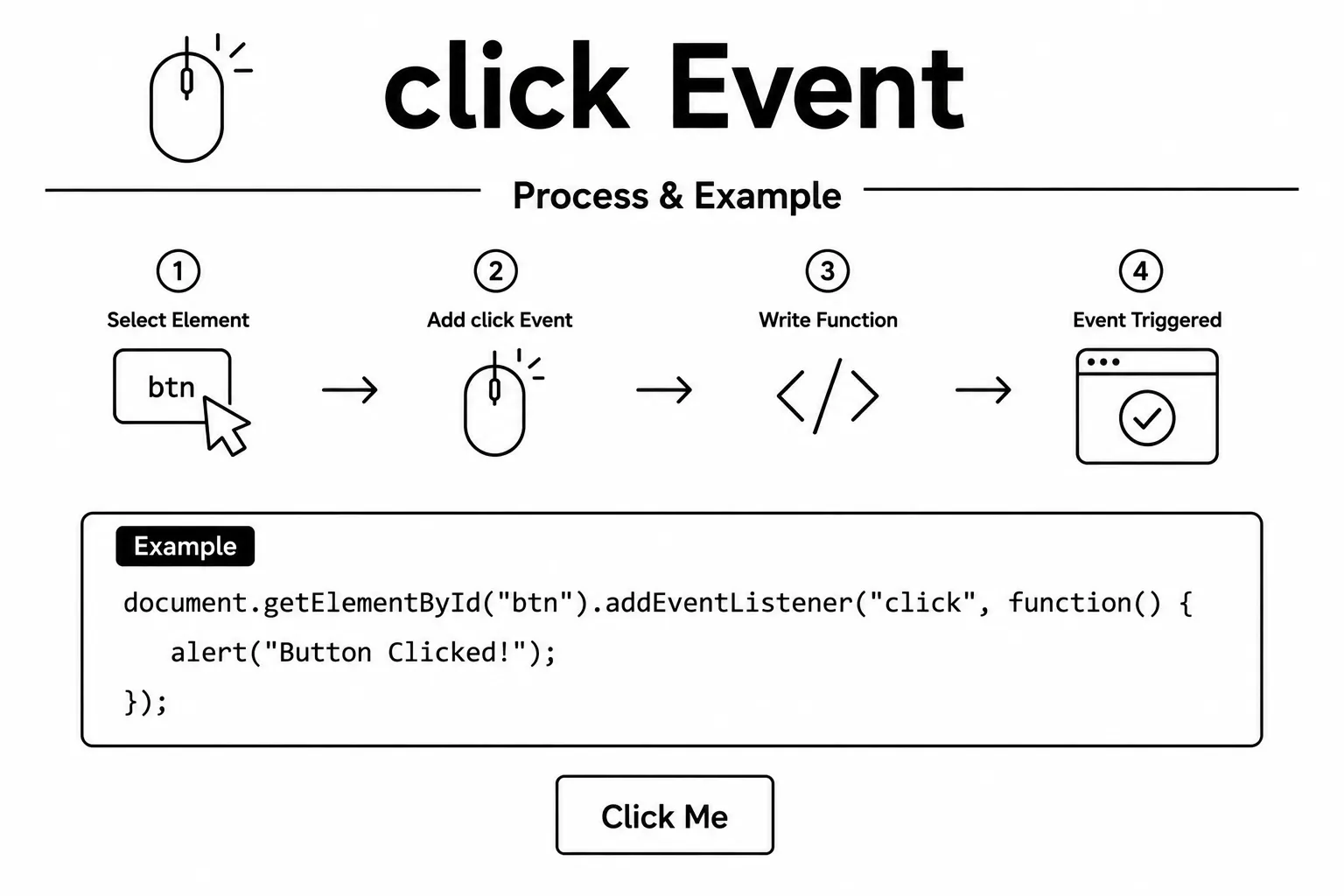
const btn = document.getElementById("btn");

btn.addEventListener("click", function (e) {
  console.log("Clicked at:", e.clientX, e.clientY);
  // e.clientX/Y = mouse position relative to the viewport
});
The change event is triggered when the value of a form
element changes. It is commonly used with
<input>, <select>, and
<textarea> elements to detect when a user has selected,
entered, or modified a value.
For text fields, the change event usually fires after the
user finishes editing and the field loses focus. For elements like
<select> or checkboxes, it fires as soon as the selected
value changes.
The change event is commonly used to validate form data, update page content, calculate values, filter results, preview user input, and respond whenever a user changes a form field.
It is an essential event for building interactive forms and improving the user experience by reacting immediately whenever form values are updated.
// HTML: <select id="color">
//   <option value="red">Red</option>
//   <option value="blue">Blue</option>
// </select>

const select = document.getElementById("color");

select.addEventListener("change", function (e) {
  console.log("Selected:", e.target.value); // e.g. "blue"
});
For real-time updates as the user types, use the
input event instead of change.
The input event fires for each value
change, while change usually waits until
the user finishes editing and leaves the field.
Mouse events are triggered when a user interacts with a web page using a mouse or trackpad. They allow JavaScript to respond to actions such as clicking, double-clicking, moving the pointer, or pressing and releasing mouse buttons.
Mouse events are commonly used to create interactive user interfaces. You can use them to open menus, highlight elements, drag items, display tooltips, trigger animations, and perform many other actions based on user interaction.
click: left button clickdblclick: double clickmouseover: pointer moves onto an elementmouseout: pointer leaves an elementmousemove: pointer moves over an elementmousedown: mouse button is pressedmouseup: mouse button is released
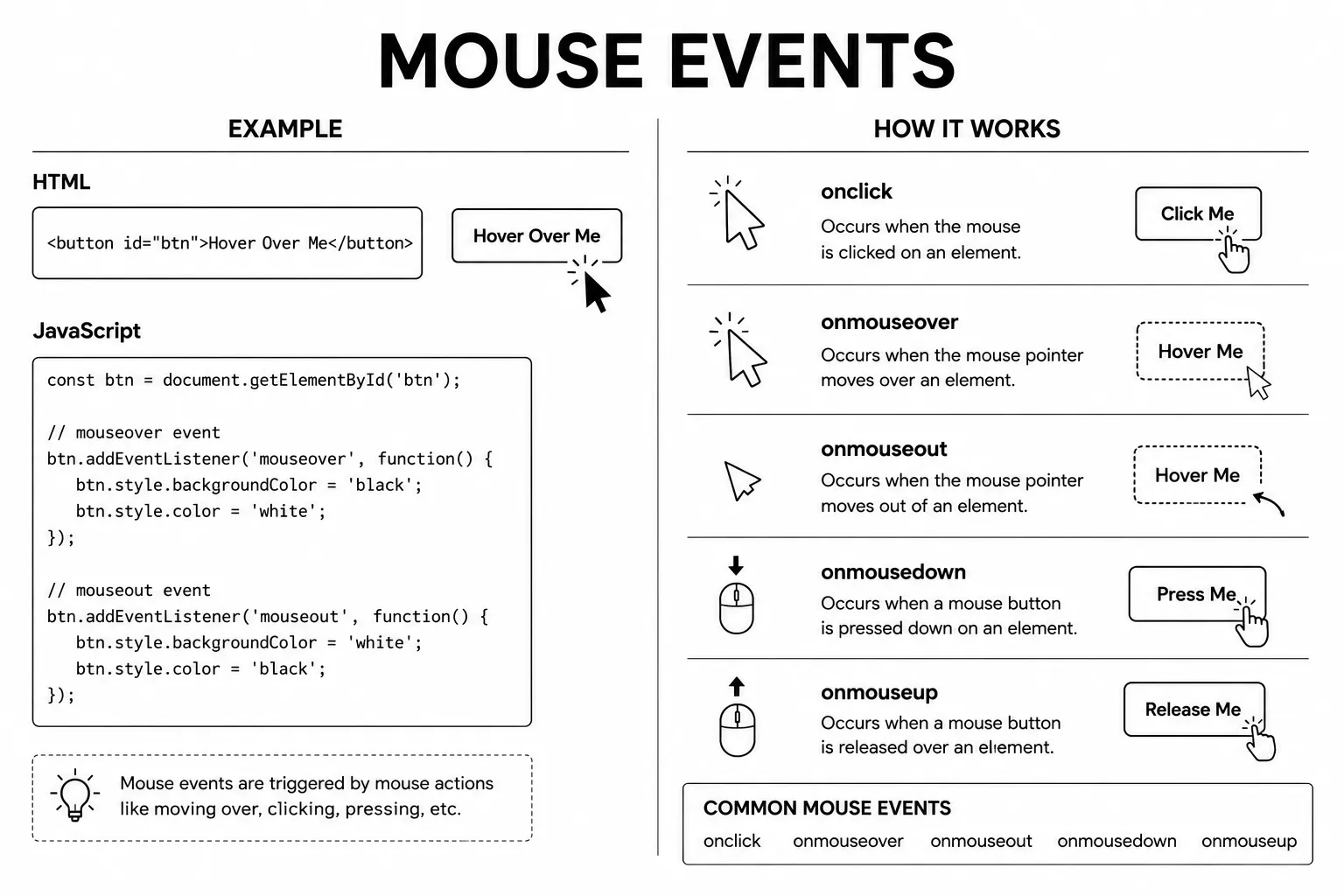
const box = document.getElementById("box");

box.addEventListener("mouseover", () => {
  box.style.backgroundColor = "yellow";
});

box.addEventListener("mouseout", () => {
  box.style.backgroundColor = "";
});

box.addEventListener("mousemove", (e) => {
  console.log("Mouse at:", e.clientX, e.clientY);
});
Keyboard events are triggered when a user presses or releases a key on the keyboard. They allow JavaScript to detect keyboard input and respond by performing different actions in your application.
Keyboard events are commonly used for handling shortcuts, validating form input, controlling games, searching as the user types, navigating with the keyboard, and improving the overall user experience.
The two most commonly used keyboard events are
keydown and keyup. Together, they let you detect
when a key is pressed and when it is released.
-
keydown: Fires as soon as a key is pressed. If the key is held down, the event continues to fire repeatedly until the key is released. -
keyup: Fires once when the user releases the pressed key. It is useful when you want to perform an action after the key press is complete.
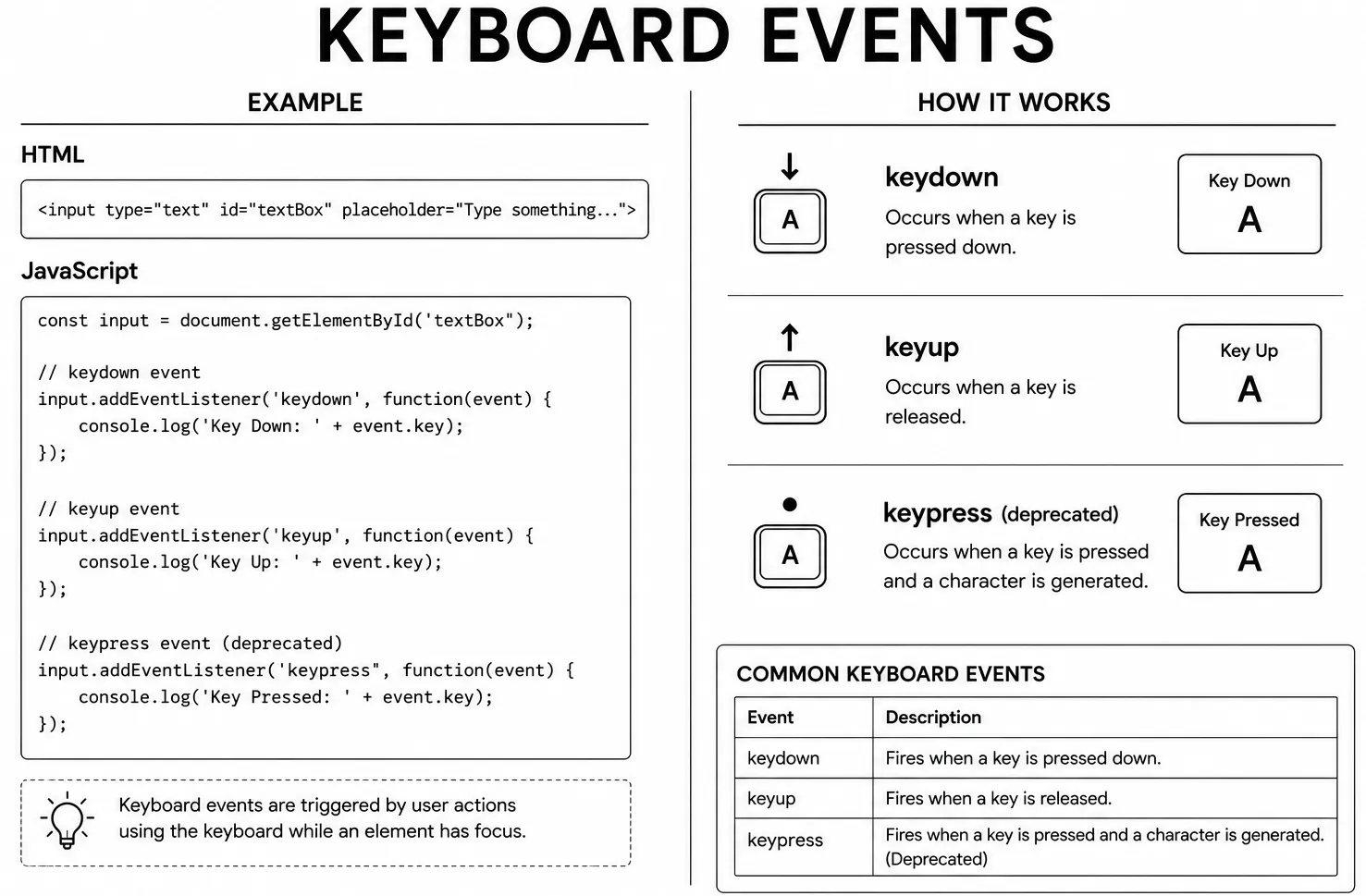
document.addEventListener("keydown", function (e) {
  console.log("Key pressed:", e.key);
  // e.key gives a readable name like "Enter", "a", "ArrowUp"

  if (e.key === "Enter") {
    console.log("Enter was pressed!");
  }
});

document.addEventListener("keyup", function (e) {
  console.log("Key released:", e.key);
});
Use e.key to get the name of the pressed
key. Use e.ctrlKey, e.shiftKey,
or e.altKey to check if modifier keys are
held.
Event bubbling is the default behavior of most JavaScript
events. When an event occurs on an element, it first runs on that element and
then automatically travels upward through its parent elements until it
reaches the document.
For example, if you click a button inside a <div>, the
click event first fires on the button, then on the parent
<div>, then on the <body>, and finally
on the document. This behavior is called
event bubbling.
Event bubbling is useful for event delegation, where you can attach a single event listener to a parent element instead of adding listeners to many child elements. This improves performance and keeps your code cleaner.
If you do not want an event to continue bubbling to parent elements, you can
stop it by calling event.stopPropagation() inside the event
handler. This controls the event's travel through the DOM, but it does not
cancel the browser's default action, such as following a link or submitting
a form. Use event.preventDefault() to cancel that default action.
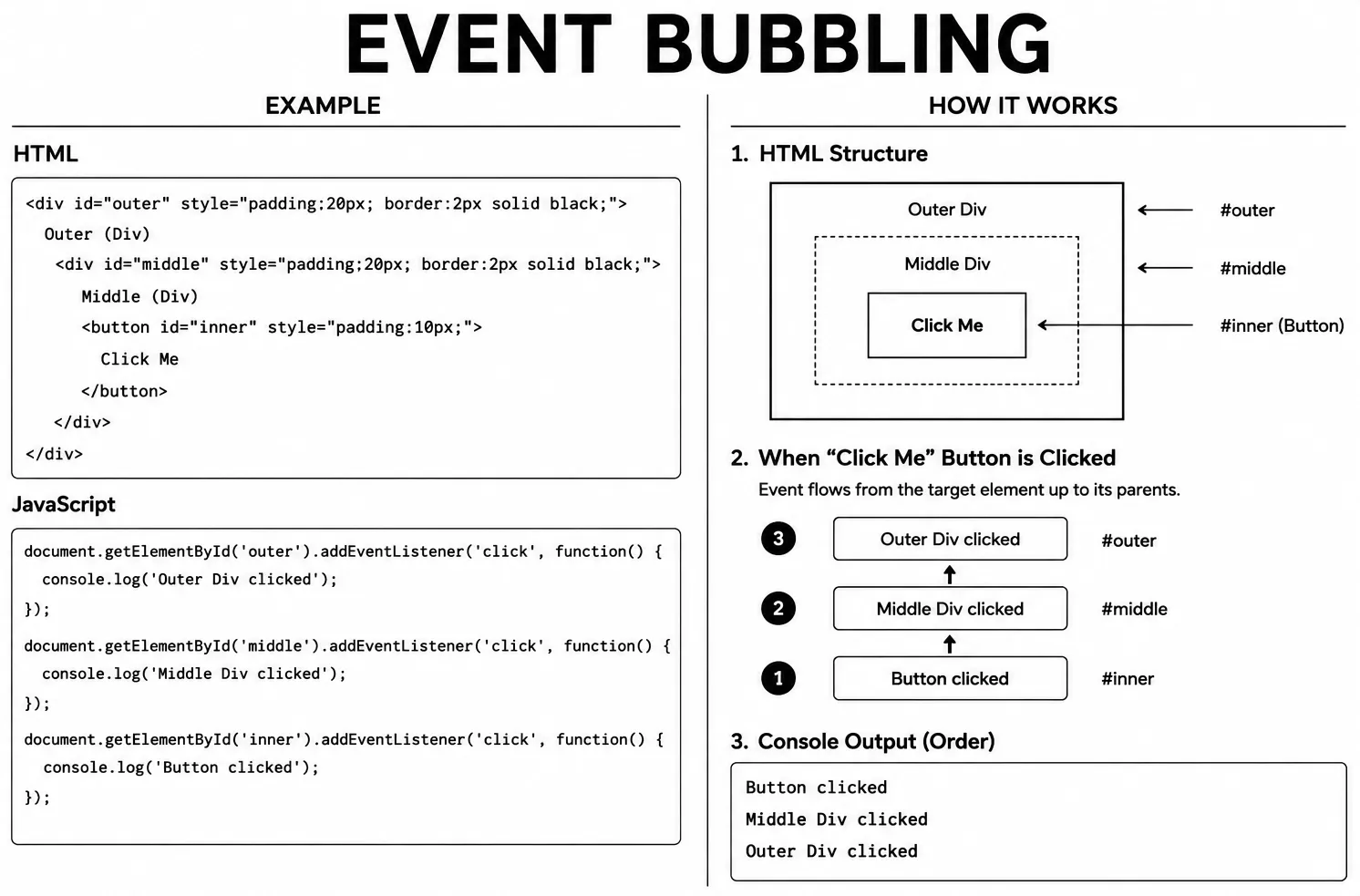
// HTML: <div id="parent"><button id="child">Click</button></div>

document.getElementById("child").addEventListener("click", () => {
  console.log("child clicked");
});

document.getElementById("parent").addEventListener("click", () => {
  console.log("parent clicked");
});

// Clicking the button outputs:
// child clicked
// parent clicked  (event bubbled up!)

// To stop bubbling, call stopPropagation()
document.getElementById("child").addEventListener("click", (e) => {
  e.stopPropagation();
  console.log("only child");
});Every JavaScript event goes through three phases: capturing, target, and bubbling. In most cases, event listeners run during the bubbling phase, which means the event starts at the target element and then moves upward through its parent elements.
If you pass true as the third argument to
addEventListener(), the event listener runs during the
capturing phase instead. In this phase, the event travels
from the document down through the parent elements until it
reaches the target element.
You can think of an event as taking a round trip. First, it travels downward from the root of the document to the target element during the capturing phase. After reaching the target, it travels back upward through the parent elements during the bubbling phase.
In modern JavaScript, the bubbling phase is used most of the time because it works well with event delegation. The capturing phase is mainly used when you need an event listener to run before the target element or its child elements handle the event.
One event, three phases
document → parent Target
clicked element Bubbling
parent → document
event.target stays the element where the event started; event.currentTarget changes to the element whose listener is running.
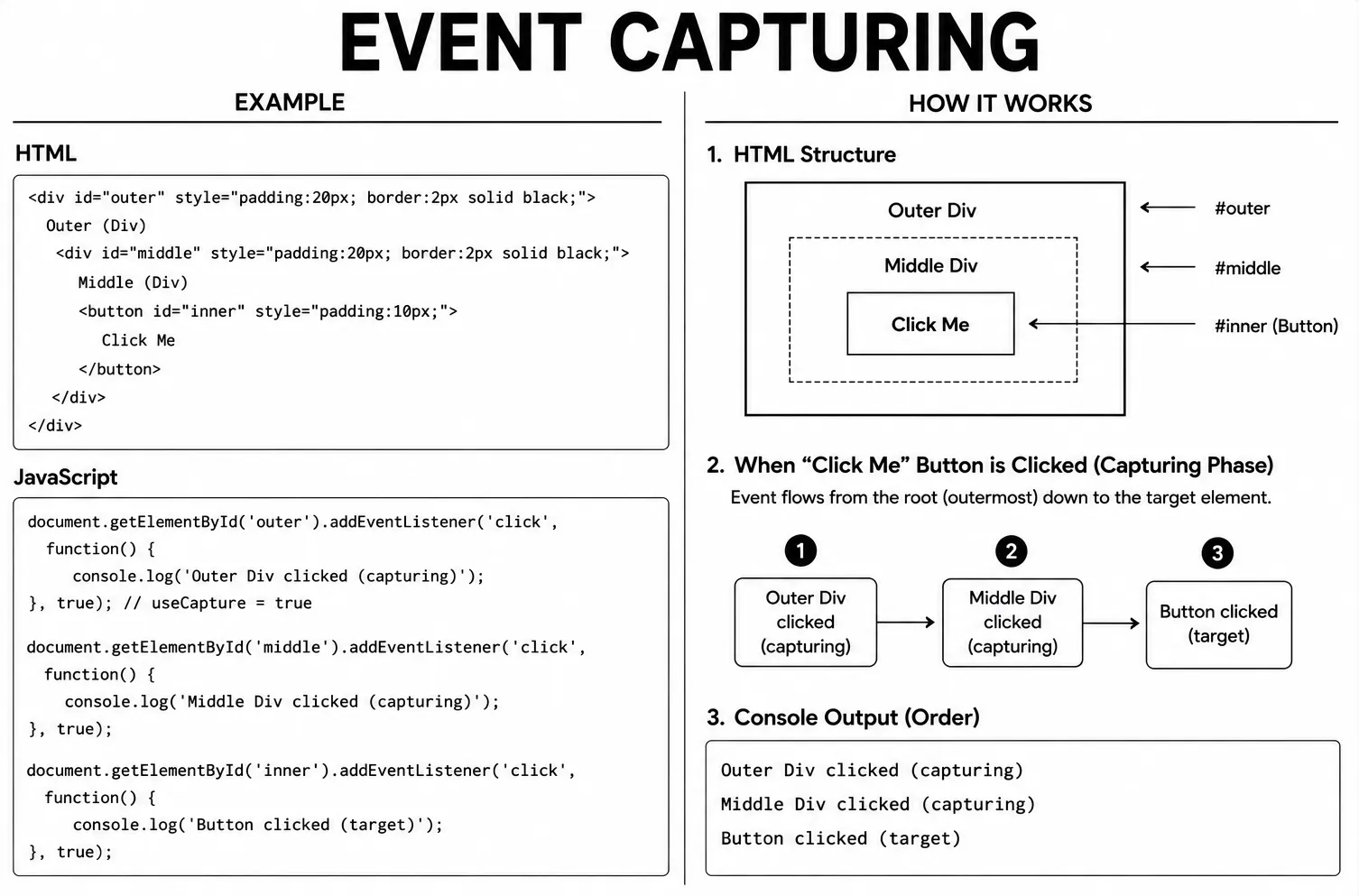
// HTML: <div id="parent"><button id="child">Click</button></div>

// useCapture = true means capturing phase
document.getElementById("parent").addEventListener("click", () => {
  console.log("parent (capturing)");
}, true);

document.getElementById("child").addEventListener("click", () => {
  console.log("child (bubbling)");
});

// Clicking the button outputs:
// parent (capturing)  -- fires FIRST during capture phase
// child (bubbling)
Event delegation is a technique where you attach a single event listener to a parent element instead of adding separate listeners to each child element. Because events bubble up through the DOM, the parent can detect and handle events that occur on any of its children.
When an event reaches the parent, you can identify which child element
triggered it by using properties such as event.target. This
allows one event listener to manage many child elements, making your code
simpler and easier to maintain.
Event delegation is especially useful for dynamic content. If new buttons, list items, cards, or table rows are added to the page later, they will automatically work with the same parent event listener without adding new listeners for each element.
Using event delegation improves performance by reducing the number of event listeners on the page. It is a common technique in modern JavaScript applications for handling menus, lists, tables, forms, and other interactive user interface elements.
When a child contains nested elements, event.target may be the
nested element rather than the item you want to handle. Use
closest() to find the intended child and check that it is still
inside the delegated parent before using it.
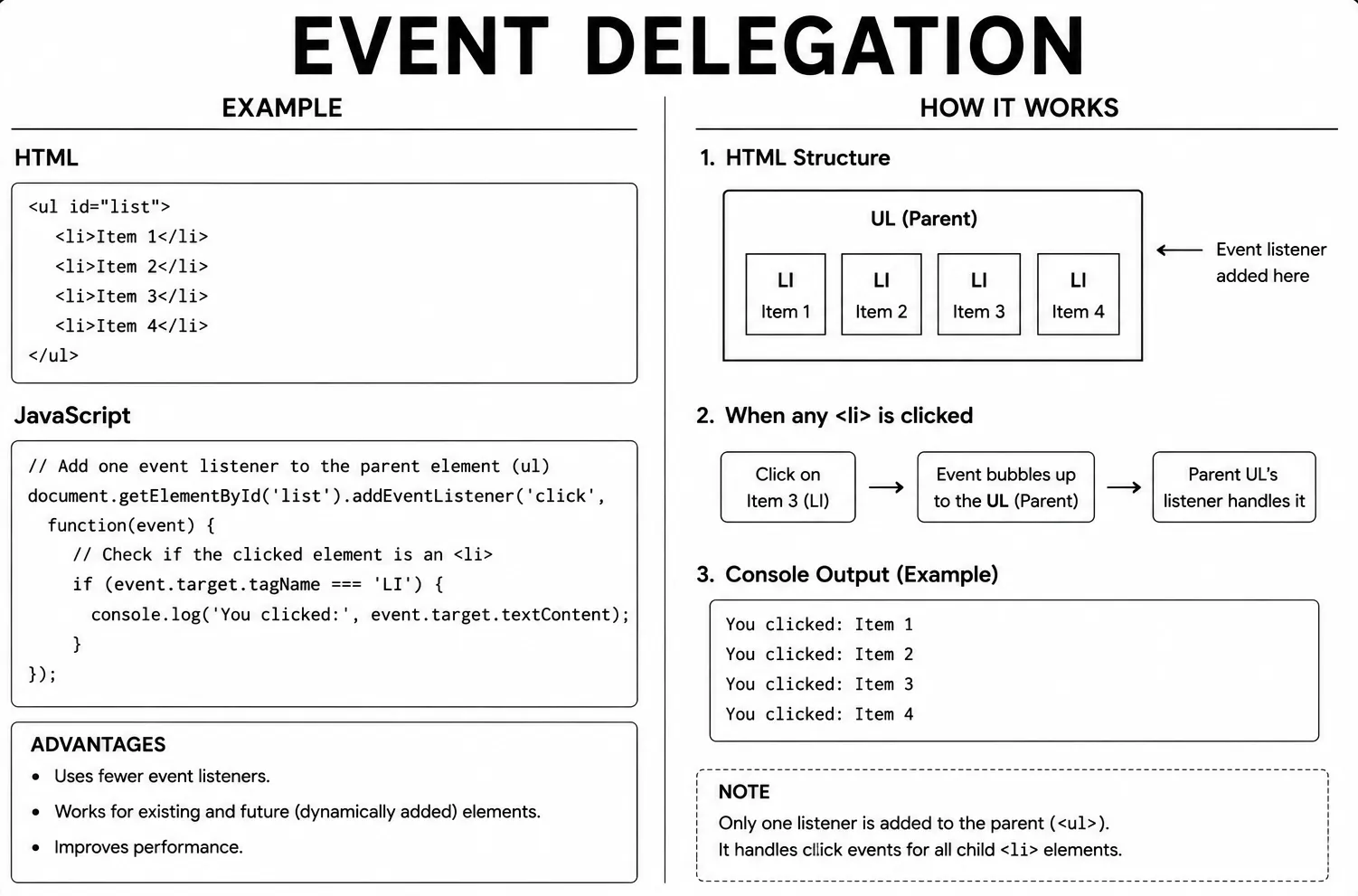
// HTML: <ul id="list">
//   <li>Item 1</li>
//   <li>Item 2</li>
// </ul>

const list = document.getElementById("list");

// One listener on the parent handles clicks on all <li> children
list.addEventListener("click", function (e) {
  if (e.target.tagName === "LI") {
    console.log("Clicked:", e.target.textContent);
  }
});

// Works even for items added to the list later
const newItem = document.createElement("li");
newItem.textContent = "Item 3";
list.appendChild(newItem); // No new listener needed- An event is a signal that something happened in the browser.
- addEventListener is the standard way to respond to events.
- The event object passed to the handler has information about the event.
- click fires on mouse click or touch; change fires when an input value changes.
- Mouse events (mouseover, mouseout, mousemove) respond to pointer movement.
- Keyboard events (keydown, keyup) respond to key presses.
-
Event bubbling: events travel up from
the target to the root. Use
stopPropagation()to prevent this. -
Event capturing: the opposite
direction; enabled by passing
truetoaddEventListener. - removeEventListener: remove a listener with the same event type, function reference, and capture option used when adding it.
- Event delegation: attach one listener to a parent to handle events for all children.