JavaScript Numbers and Dates
Real apps constantly work with prices, counts, timers, and calendars. If numbers and dates are clear for you, building reliable features becomes much easier.
JavaScript uses a single number type for both whole numbers and decimal values.
For example, 5 and 5.5 are both stored as values of type number.
You do not need separate types for integers and floating-point numbers in JavaScript.
Numbers can be used for calculations such as addition, subtraction, multiplication, and division.
JavaScript also provides special numeric values such as Infinity and NaN for specific situations.
let age = 25;
let price = 9.99;

console.log(typeof age);   // number
console.log(typeof price); // number
JavaScript number values use IEEE 754 double-precision floating-point representation.
Some decimal fractions cannot be represented exactly in binary, so calculations such as 0.1 + 0.2 can produce a small precision difference.
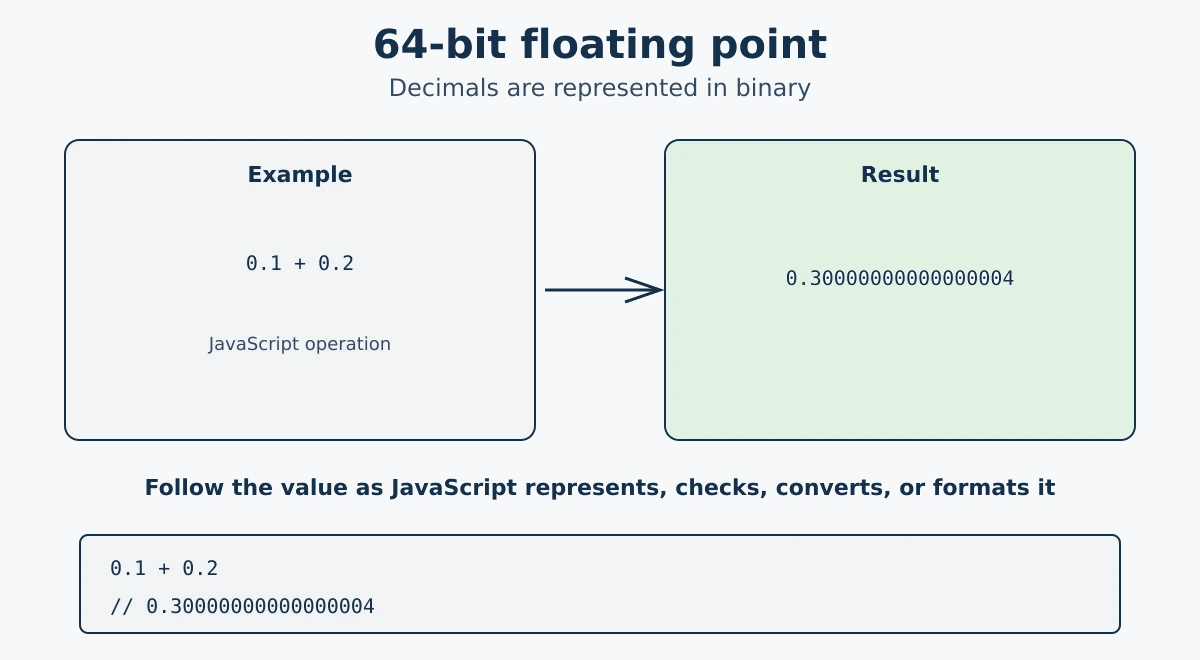
console.log(0.1 + 0.2); // 0.30000000000000004 (not exactly 0.3)

// Fix: round the result
console.log((0.1 + 0.2).toFixed(1)); // "0.3"
The difference comes from how the decimal fractions are represented in binary. Use toFixed() when you need formatted output with a specific number of decimal places.
In real-world projects, you often need to convert values between strings and numbers.
JavaScript provides several built-in methods and operators for performing these conversions.
You can use methods such as Number(), parseInt(), and parseFloat() to convert strings into numbers.
To convert a number into a string, you can use String() or the toString() method.
Understanding these conversions helps prevent unexpected results when working with user input, forms, calculations, and APIs.
Number() requires the whole value to be numeric, while
parseInt() and parseFloat() read the numeric part
from the beginning of a string. An empty string becomes 0 with
Number(), but non-numeric text becomes NaN. Validate
user input before using a converted value in a calculation.
// String to Number
console.log(Number("42"));    // 42
console.log(Number("3.14"));  // 3.14
console.log(Number(""));      // 0
console.log(Number("abc"));   // NaN

// Number to String
console.log(String(42));      // "42"
console.log((42).toString()); // "42"

// Unary + operator (quick conversion)
console.log(+"55");  // 55
console.log(+"");    // 0
JavaScript supports four common number systems: decimal, binary, octal, and hexadecimal.
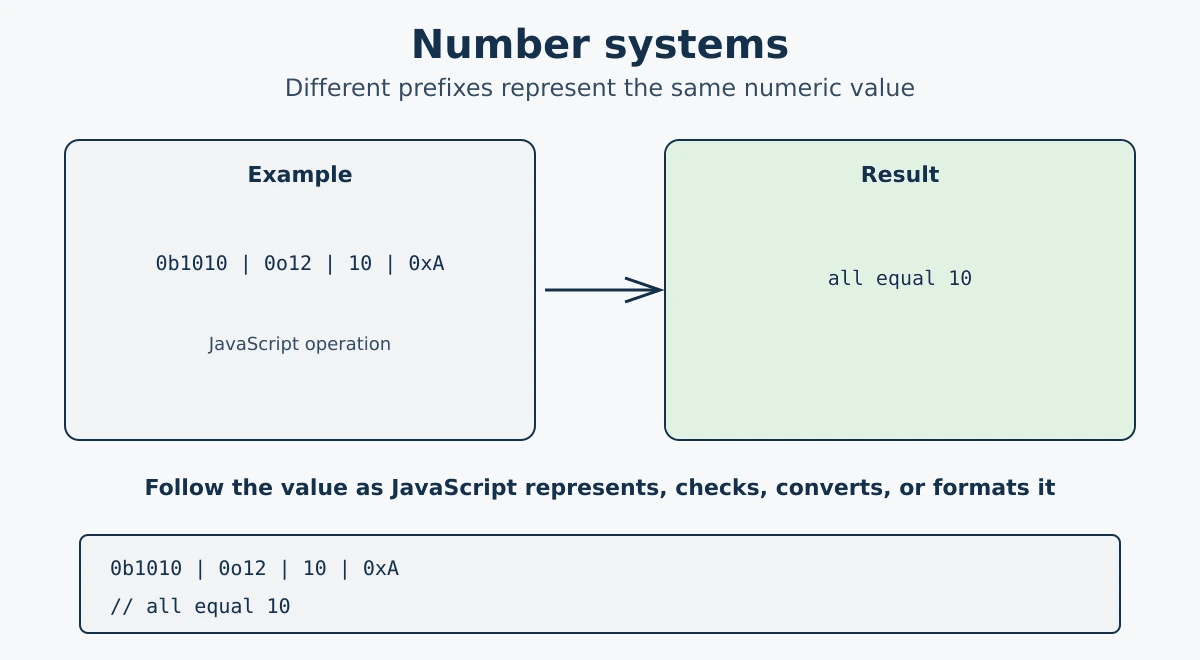
Decimal numbers are written normally, while binary uses 0b, octal uses 0o, and hexadecimal uses 0x.
For example, 0b1010, 0o12, and 0xA all represent the number 10.
These different formats are mainly useful when working with specific types of data or low-level programming concepts.
Even though the numbers can be written in different formats, JavaScript stores them using the same number type.
Binary (Base 2)
Uses digits 0 and 1. Prefix: 0b
let binary = 0b1010; // binary for 10
console.log(binary); // 10
Octal (Base 8)
Uses digits 0 to 7. Prefix: 0o
let octal = 0o17; // octal for 15
console.log(octal); // 15
Decimal (Base 10)
The everyday number system we use. No prefix needed.
let decimal = 255;
console.log(decimal); // 255
Hexadecimal (Base 16)
Uses digits 0-9 and letters a-f. Prefix: 0x. Widely used in colors and memory addresses.
let hex = 0xff; // hexadecimal for 255
console.log(hex); // 255
JavaScript provides several methods to check whether a value is a valid number and determine what kind of numeric value it represents.
You can use Number.isNaN() to check for NaN, which represents an invalid numeric result.
Number.isInteger() checks whether a value is a whole number without a decimal part.
Number.isFinite() checks whether a value is a finite number and not Infinity, -Infinity, or NaN.
These methods are useful for validating user input and preventing unexpected results in calculations.
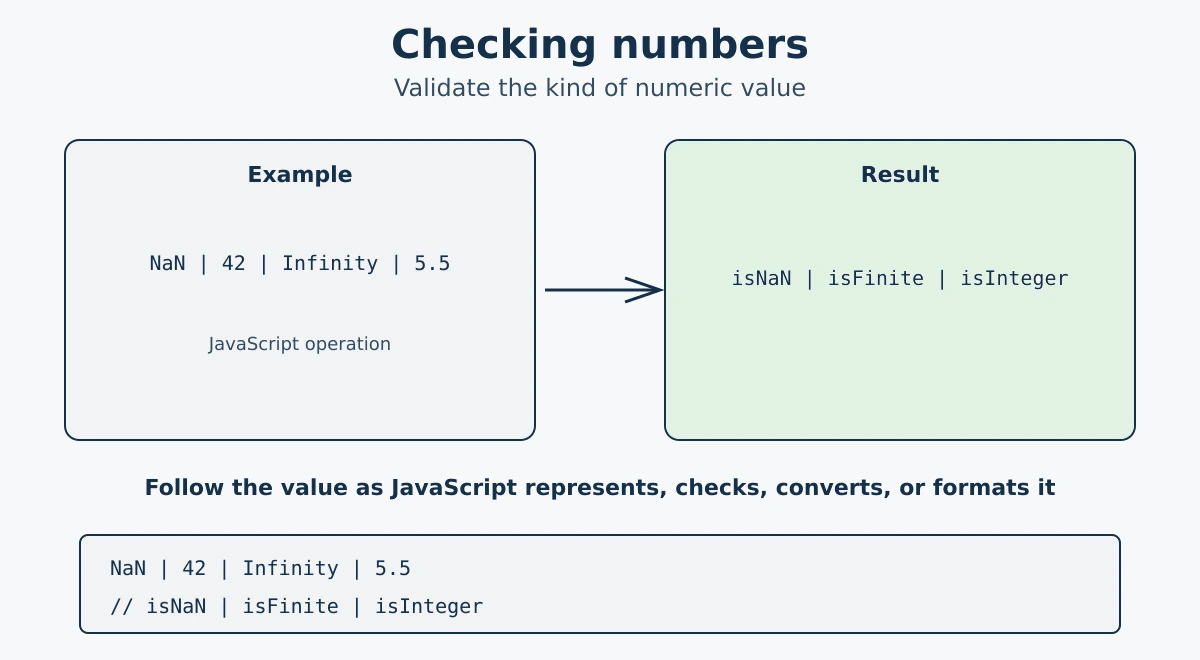
console.log(Number.isNaN(NaN));       // true
console.log(Number.isNaN(42));        // false
console.log(Number.isNaN("hello"));   // false (use this over global isNaN)

console.log(Number.isFinite(100));    // true
console.log(Number.isFinite(Infinity)); // false

console.log(Number.isInteger(5));     // true
console.log(Number.isInteger(5.5));   // false
Number.isNaN() checks whether the value is actually NaN without coercing it. The global isNaN() first converts the value to a number.
The Math object provides a collection of built-in methods and constants for performing common mathematical operations in JavaScript.
You can use methods such as Math.round(), Math.floor(), and Math.ceil() for rounding numbers.
It also includes methods like Math.sqrt() for square roots and Math.pow() for calculating powers.
Math.random() generates a random number between 0 and 1.
These tools make it easier to perform calculations without writing mathematical logic from scratch.
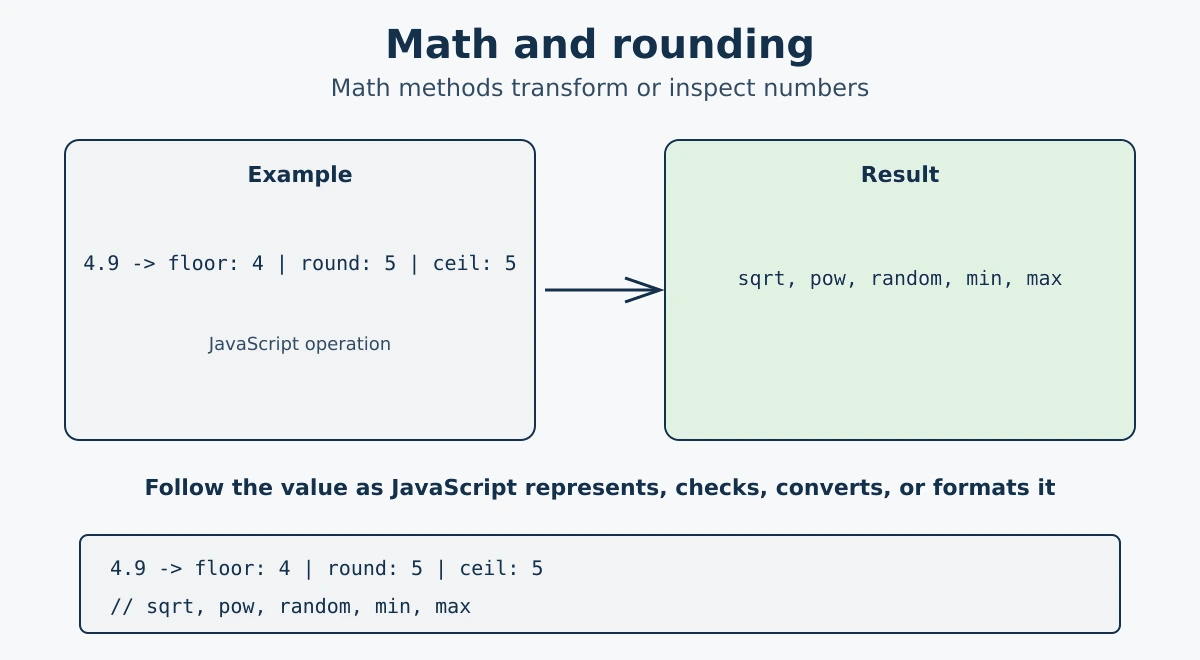
console.log(Math.round(4.5));  // 5  (rounds to nearest integer)
console.log(Math.floor(4.9));  // 4  (rounds down)
console.log(Math.ceil(4.1));   // 5  (rounds up)
console.log(Math.trunc(4.7));  // 4  (removes decimal part)

console.log(Math.sqrt(16));    // 4
console.log(Math.pow(2, 8));   // 256
console.log(Math.abs(-10));    // 10
console.log(Math.max(1, 5, 3)); // 5
console.log(Math.min(1, 5, 3)); // 1
console.log(Math.random());    // random number between 0 and 1
To get a random integer between two values:
// Random integer between min and max (inclusive)
function getRandomInt(min, max) {
  return Math.floor(Math.random() * (max - min + 1)) + min;
}
console.log(getRandomInt(1, 10)); // e.g. 7
The remainder operator % returns the leftover value after one number is divided by another.
For example, 10 % 3 returns 1 because 1 is left after dividing 10 by 3.
It is useful when you need to work with repeating patterns or cycles in your code.
One of its most common uses is checking whether a number is even or odd.
If number % 2 is 0, the number is even; otherwise, it is odd.
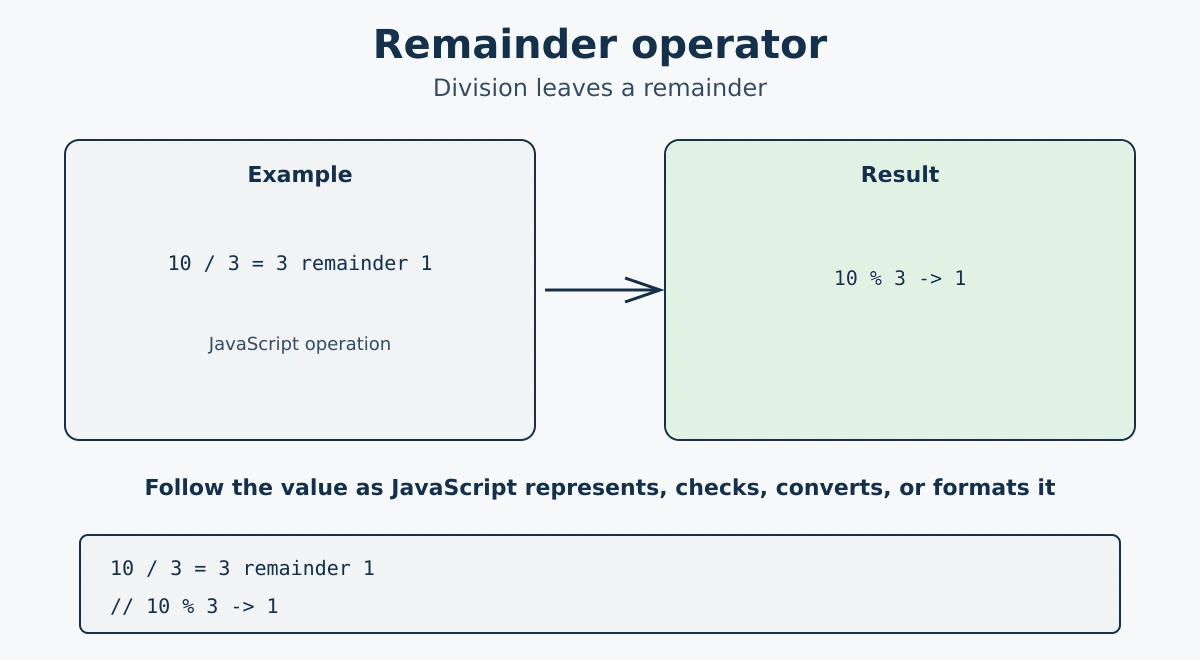
console.log(10 % 3); // 1  (10 divided by 3 leaves remainder 1)
console.log(8 % 2);  // 0  (8 divided by 2 leaves no remainder)

// Check even or odd
let n = 7;
if (n % 2 === 0) {
  console.log("Even");
} else {
  console.log("Odd"); // Output: Odd
}
Numeric separators (_) were introduced in ES2021 to make large numeric values easier to read.
You can place underscores between digits to visually group numbers, such as 1_000_000.
The separator is only used for readability and does not change the actual numeric value.
For example, 1_000 has exactly the same value as 1000.
Numeric separators are especially useful when working with large numbers, financial values, and other data where readability matters.
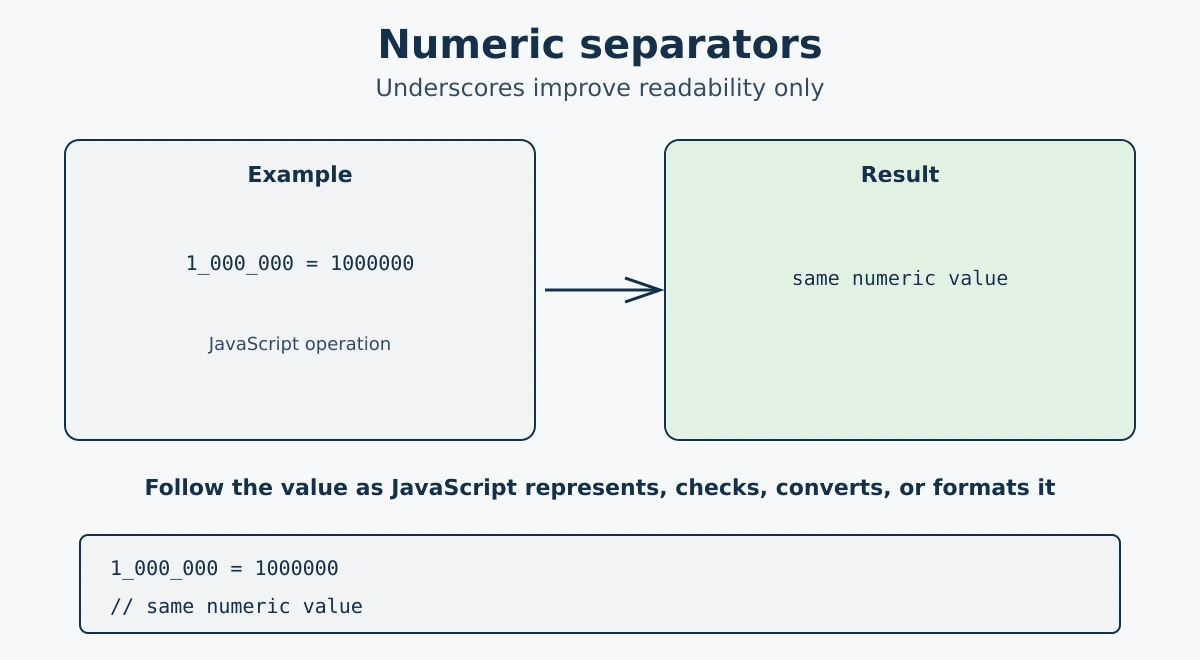
// Without separator - hard to read
let salary = 1000000;

// With separator - easy to read
let salary2 = 1_000_000;

console.log(salary === salary2); // true (same value)

// Works with decimals and other number types
let price = 1_234.56_78;
let binary = 0b1010_0001;
let hex = 0xFF_FF_FF;
BigInt is used for arbitrarily large integers when number cannot safely represent the integer exactly.
It can represent integers larger than Number.MAX_SAFE_INTEGER, which is 253 - 1.
You can create a BigInt by adding n to the end of an integer, such as 123456789n.
You can also create one by using the BigInt() function, but BigInt values cannot be mixed directly with regular number values.
You create a BigInt by adding n at the end of a number, or by calling BigInt().
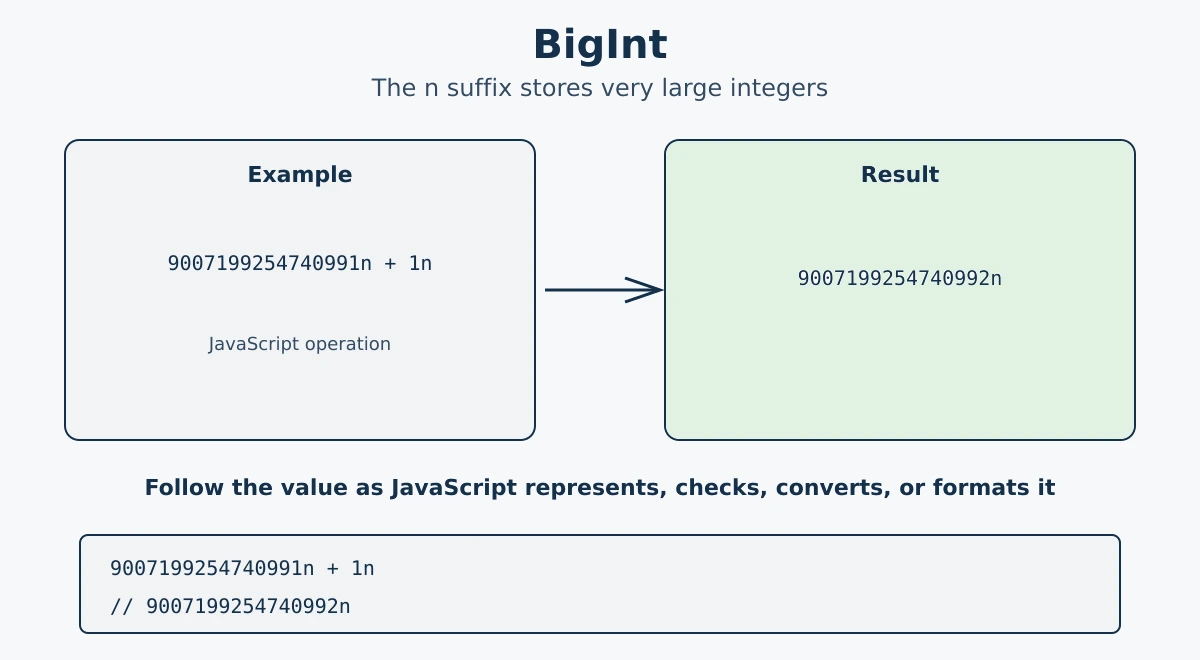
const big = 9007199254740991n;
const big2 = BigInt(9007199254740991);

console.log(typeof big);  // bigint
console.log(big + 1n);    // 9007199254740992n
BigInt supports standard arithmetic operators such as +, -, *, /, and %.
When performing calculations, both operands must be BigInt values rather than regular number values.
For example, 10n + 5n returns 15n.
BigInt division removes the decimal portion and returns only the whole-number result.
For example, 7n / 2n results in 3n instead of 3.5.
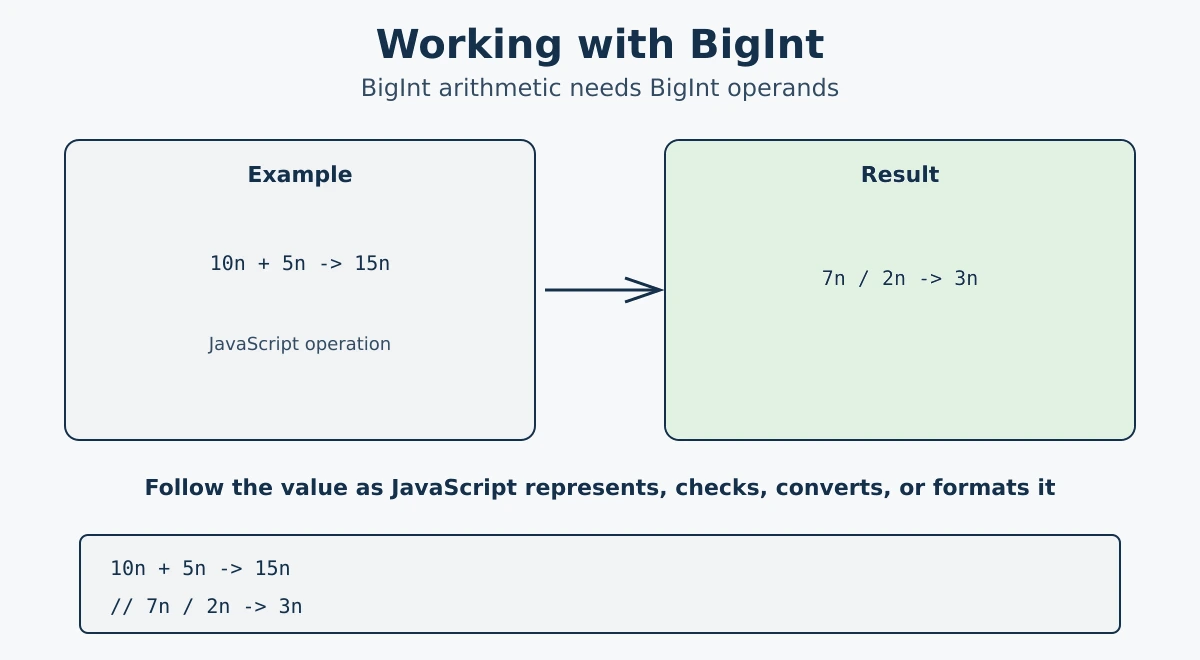
console.log(10n + 5n);  // 15n
console.log(10n - 5n);  // 5n
console.log(10n * 5n);  // 50n
console.log(10n / 3n);  // 3n  (decimal part is dropped)
console.log(10n % 3n);  // 1n

// Comparison works across types
console.log(10n === 10);  // false (different types)
console.log(10n == 10);   // true  (loose equality)
BigInt has a few important limitations that you should keep in mind when using it in JavaScript.
BigInt values cannot be directly mixed with regular number values in arithmetic operations.
They do not support decimal or fractional values because BigInt is designed only for whole numbers.
BigInt values also cannot be used with the Math object, which works with regular numbers.
Because of these limitations, BigInt should be used mainly when you need to safely handle very large integer values.
Converting a very large BigInt to a regular
Number can lose precision. BigInt values also need special
handling when converting to JSON because standard JSON does not support the
bigint type directly.
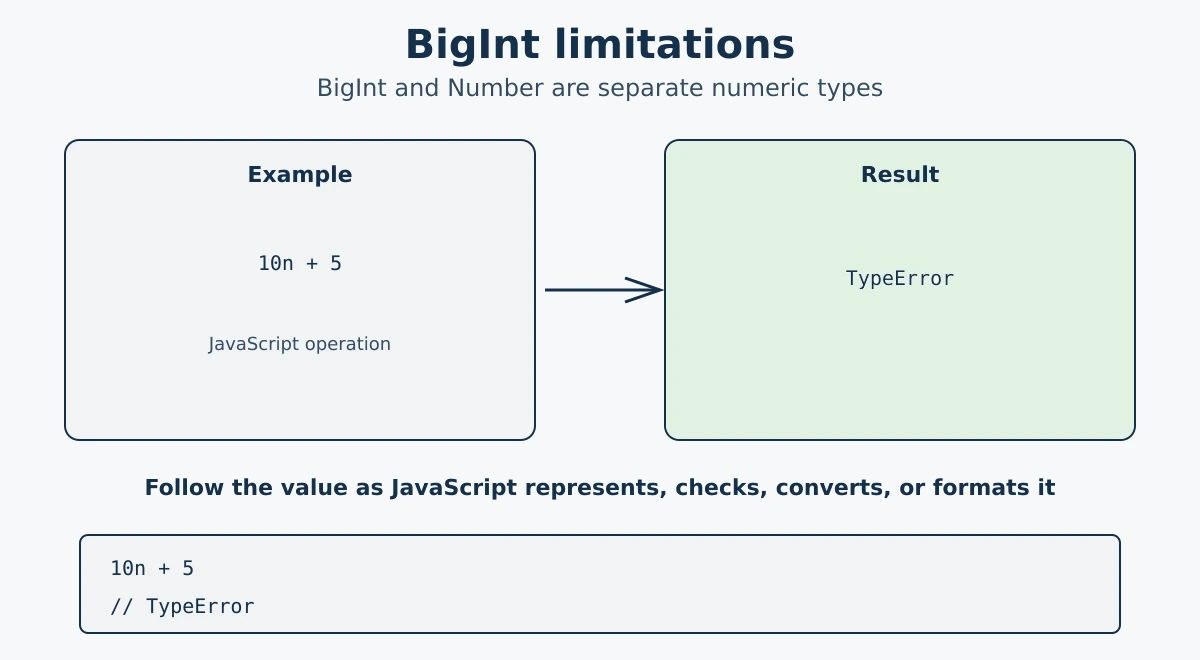
// Cannot mix BigInt with regular numbers in arithmetic
console.log(10n + 5);  // TypeError: Cannot mix BigInt and other types, use explicit conversions

// Math methods do not work with BigInt
console.log(Math.sqrt(16n)); // TypeError: Cannot convert a BigInt value to a number

// BigInt cannot be used where a floating point is expected
const x = 1.5n; // SyntaxError: Invalid or unexpected token

// To convert BigInt to Number (may lose precision for very large values)
console.log(Number(42n)); // 42
JavaScript provides several useful methods that you can call directly on number values.
These methods allow you to format numbers, convert them into strings, or control how decimal values are displayed.
For example, toFixed() can format a number with a specific number of decimal places.
The toString() method converts a number into a string representation.
These built-in methods are helpful when displaying and formatting numeric values in your applications.
toFixed()
Rounds a number to a specified number of decimal places and returns it as a string.
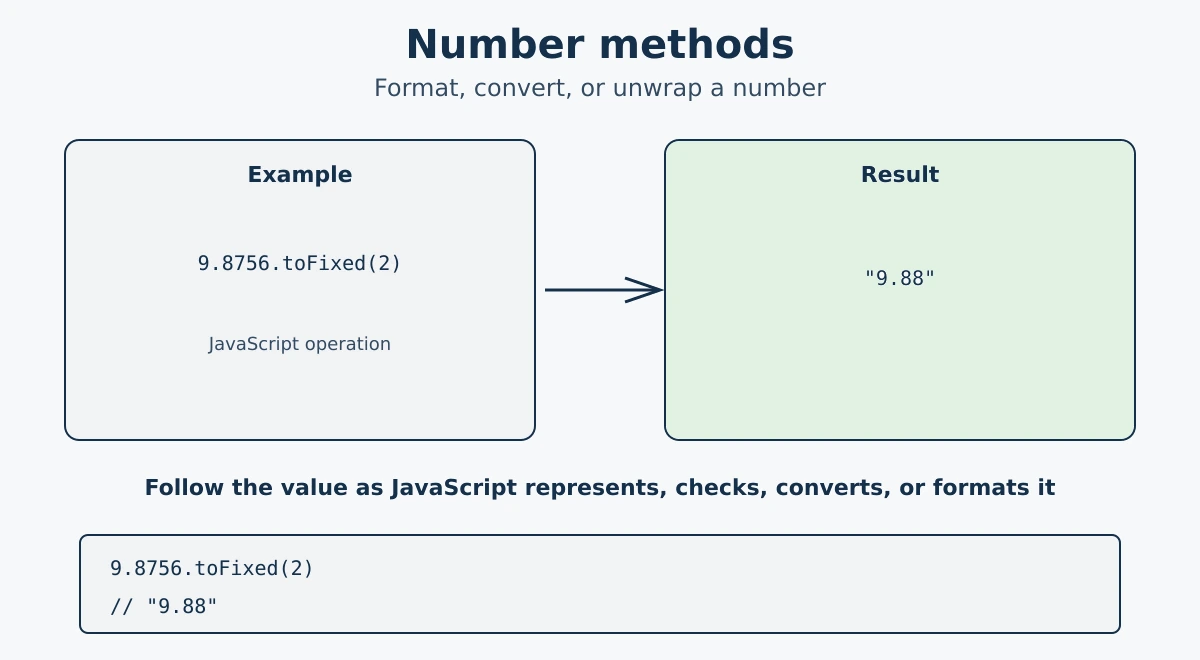
let price = 9.8756;
console.log(price.toFixed(2)); // "9.88"
console.log(price.toFixed(0)); // "10"
toString()
Converts a number to a string. You can pass a base (radix) to convert to a different number system.
let num = 255;
console.log(num.toString());    // "255"   (decimal, default)
console.log(num.toString(2));   // "11111111" (binary)
console.log(num.toString(16));  // "ff"    (hexadecimal)
valueOf()
Gives you the plain number back from a Number object. JavaScript calls this automatically in most cases, so you'll rarely need it yourself.
let n = new Number(42);
console.log(n.valueOf()); // 42
console.log(typeof n.valueOf()); // "number"
The Number object provides several built-in methods for working with numeric values in JavaScript.
You can use methods such as Number() to convert values into numbers when needed.
Methods like Number.isInteger() and Number.isFinite() help check whether a value meets specific numeric conditions.
Number.parseInt() and Number.parseFloat() can be used to parse numeric values from strings.
These methods are useful for validating, converting, and safely handling numbers in JavaScript applications.
parseInt()
Parses a string and returns an integer. It stops reading at the first non-numeric character.
Pass a radix when the input may use a different number
system, for example parseInt("101", 2)
reads the string as binary. For ordinary decimal
input, use parseInt(value, 10) explicitly
so the intended base is clear.
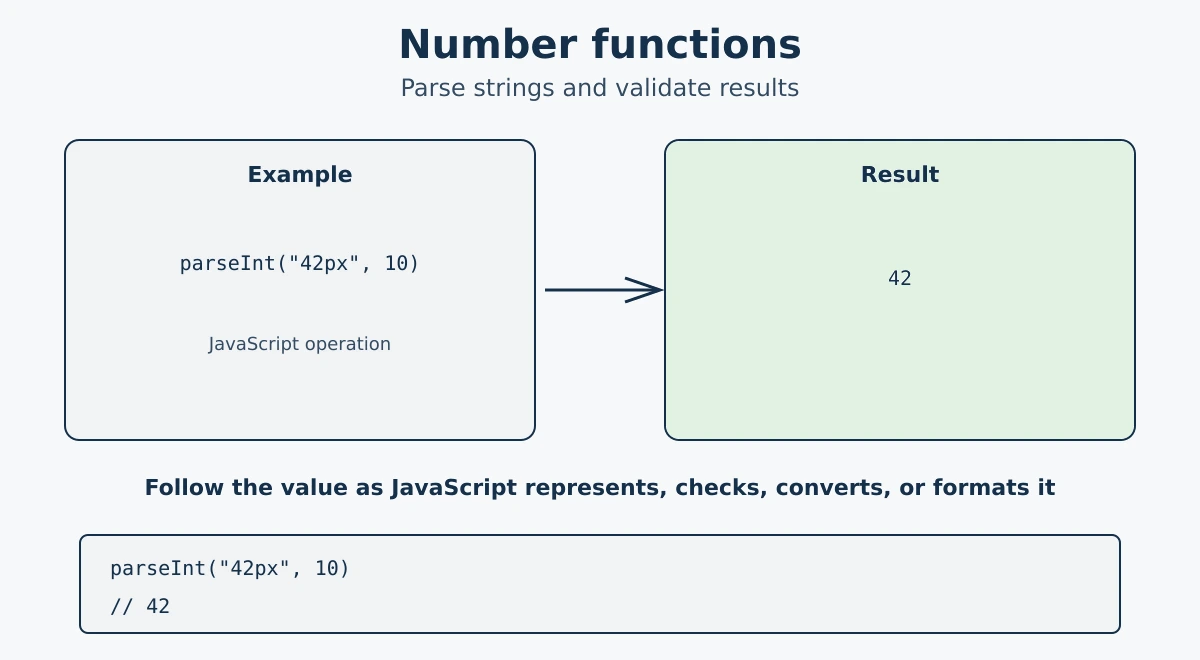
console.log(parseInt("42px"));    // 42
console.log(parseInt("3.9"));     // 3  (decimal part dropped)
console.log(parseInt("abc"));     // NaN
console.log(parseInt("0xff", 16)); // 255 (parse hex)
parseFloat()
Parses a string and returns a floating point number.
console.log(parseFloat("3.14em")); // 3.14
console.log(parseFloat("42"));    // 42
console.log(parseFloat("abc"));   // NaN
isNaN()
Number.isNaN() checks strictly whether a value is NaN without coercing it. This is different from the global isNaN().
console.log(Number.isNaN(NaN));       // true
console.log(Number.isNaN(undefined)); // false
console.log(Number.isNaN("abc"));     // false

// Global isNaN coerces the value first (less reliable)
console.log(isNaN("abc")); // true  (coerces "abc" to NaN first)
The Number object provides several built-in constants that describe important numeric limits in JavaScript.
Number.MAX_VALUE represents the largest positive number JavaScript can work with.
Number.MIN_VALUE represents the smallest positive number greater than zero.
Number.MAX_SAFE_INTEGER defines the largest integer that can be represented safely and precisely.
Number.MIN_VALUE is the smallest positive non-zero number, while Number.MIN_SAFE_INTEGER is the smallest integer that can be represented safely.
These constants are useful when checking numeric limits and understanding how JavaScript handles different number values.
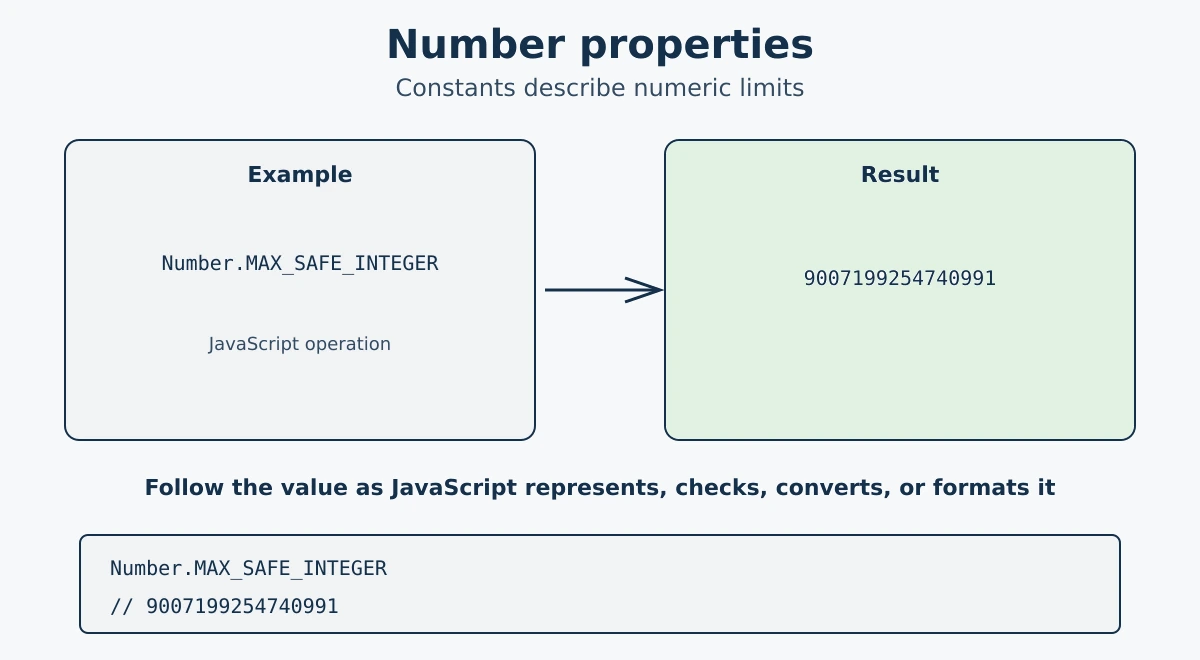
// Largest representable number
console.log(Number.MAX_VALUE); // 1.7976931348623157e+308

// Smallest positive number greater than 0
console.log(Number.MIN_VALUE); // 5e-324

// Largest safe integer (2^53 - 1)
console.log(Number.MAX_SAFE_INTEGER); // 9007199254740991

// Smallest safe integer (-(2^53 - 1))
console.log(Number.MIN_SAFE_INTEGER); // -9007199254740991

// Positive and Negative Infinity
console.log(Number.POSITIVE_INFINITY); // Infinity
console.log(Number.NEGATIVE_INFINITY); // -Infinity
console.log(1 / 0);  // Infinity
console.log(-1 / 0); // -Infinity

// NaN (Not a Number)
console.log(Number.NaN); // NaN
console.log(0 / 0);      // NaN

// Global Infinity (same as Number.POSITIVE_INFINITY)
console.log(Infinity);  // Infinity
The Intl.NumberFormat API is used to format numbers according to a specific language and region.
It can automatically apply the correct separators, decimal formatting, and number styles for different locales.
You can use it to display currencies such as dollars, euros, or rupees in a user-friendly format.
It also supports formatting percentages and large numbers with appropriate grouping.
This makes it especially useful when building applications for users from different countries and regions.
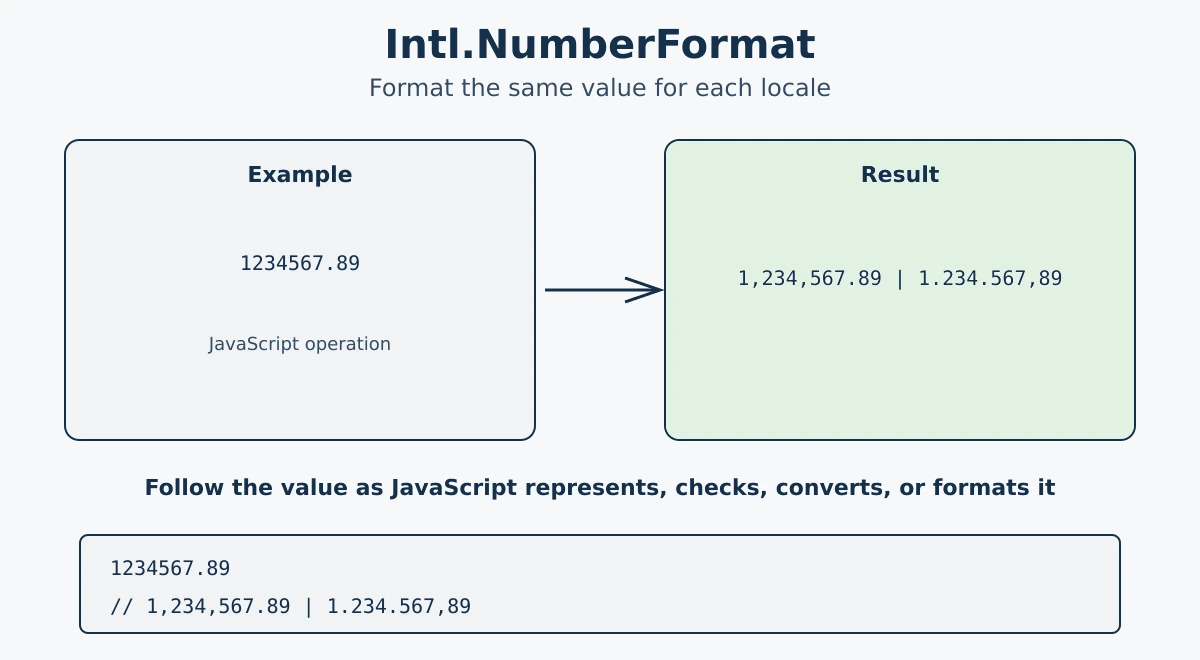
const num = 1234567.89;

// US English format
console.log(new Intl.NumberFormat("en-US").format(num));
// 1,234,567.89

// German format (uses dots for thousands, comma for decimal)
console.log(new Intl.NumberFormat("de-DE").format(num));
// 1.234.567,89

// Currency formatting
console.log(new Intl.NumberFormat("en-US", {
  style: "currency",
  currency: "USD"
}).format(num));
// $1,234,567.89

// Percentage
console.log(new Intl.NumberFormat("en-US", {
  style: "percent"
}).format(0.75));
// 75%
JavaScript's Date object is used to represent a specific point in time and to read, calculate, and format date/time values.
It allows you to create dates, read individual date components, and perform calculations with time values.
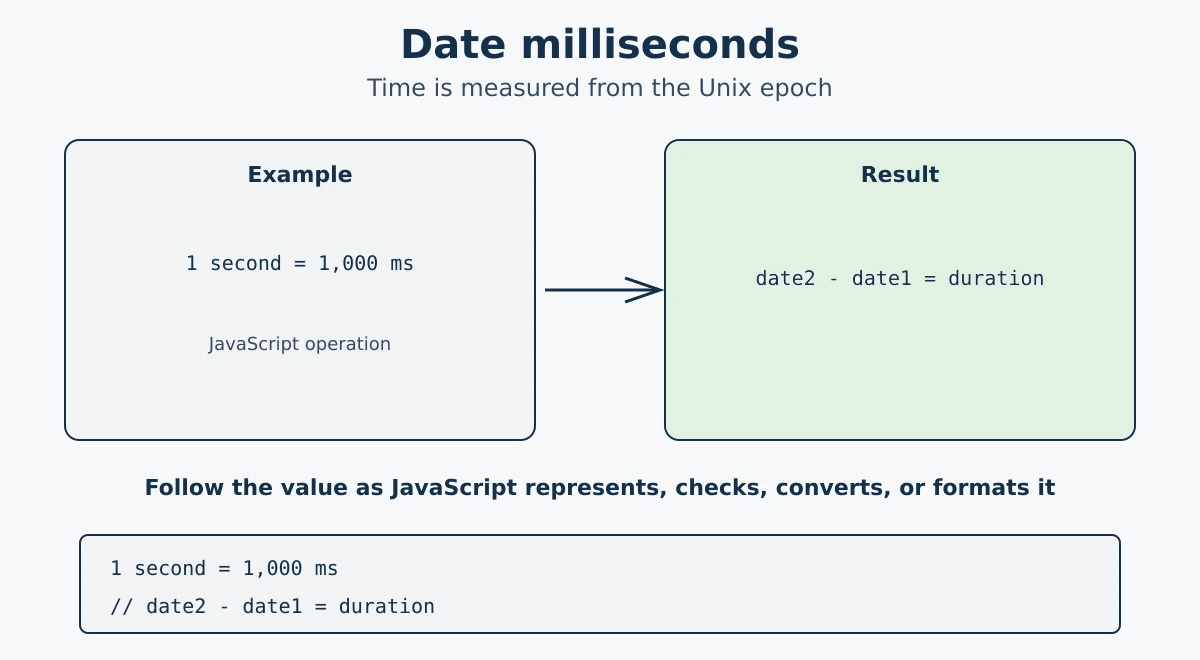
Internally, a Date represents a specific point in time using milliseconds.
This value is measured from January 1, 1970 (UTC), which is known as the Unix epoch.
Understanding this timestamp system helps when comparing dates, calculating time differences, and working with APIs.
You can use it to get the current date and time, calculate durations, compare dates, and format dates for display.
const now = new Date();
console.log(now); // Current date and time
console.log(typeof now); // "object"
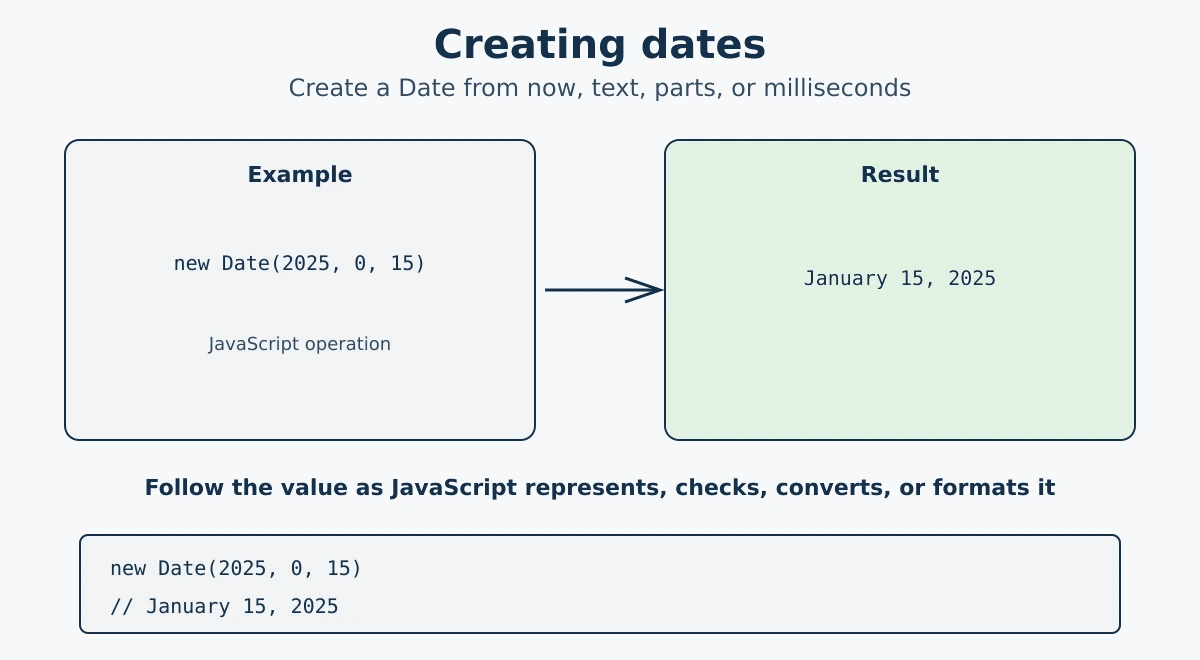
There are four common ways to create a Date object in JavaScript.
Current date and time
Calling new Date() with no arguments gives you the current date and time.
const now = new Date();
console.log(now); // e.g. Mon Mar 03 2025 10:30:00 GMT+0000
From a date string
You can pass a date string in ISO format or a common format, but complete ISO 8601 timestamps are the most predictable choice for an exact moment.
For API data representing an exact moment, prefer a complete ISO 8601 timestamp with an explicit time zone, such as 2025-01-15T10:30:00Z. Date-only strings and date-time strings without an explicit time zone can have different interpretation rules, so do not assume they always represent the same kind of time.
const d1 = new Date("2025-01-15");
console.log(d1); // Wed Jan 15 2025

const d2 = new Date("January 15, 2025 10:30:00");
console.log(d2); // Wed Jan 15 2025 10:30:00
From individual components
Pass year, month (0-11), day, hours, minutes, seconds, and milliseconds directly. Month starts at 0 (January = 0, December = 11), the day of the month starts at 1, and this constructor uses local time.
The month is the only zero-based component: January is
0 and December is 11. The day
of the month starts at 1. The resulting
date uses the browser's local time zone unless you use
a UTC method or an ISO string with an explicit zone.
// new Date(year, month, day, hours, minutes, seconds, ms)
const d = new Date(2025, 0, 15, 10, 30, 0);
// month 0 = January
console.log(d); // Wed Jan 15 2025 10:30:00
From a timestamp (milliseconds)
Pass the number of milliseconds since the Unix epoch.
const d = new Date(0);
console.log(d); // Thu Jan 01 1970 00:00:00 (Unix epoch)

const d2 = new Date(1_000_000_000_000);
console.log(d2); // Sat Sep 09 2001 01:46:40JavaScript stores dates as milliseconds since the Unix epoch. There are 1000 milliseconds in a second. Knowing this helps you convert between time units.
const now = new Date();

// Get timestamp (ms since Unix epoch)
console.log(now.getTime()); // e.g. 1741000000000

// Time unit conversions
const ms = 1000;
const seconds = ms * 60;       // 60,000 ms = 1 minute
const minutes = seconds * 60;  // 3,600,000 ms = 1 hour
const hours = minutes * 24;    // 86,400,000 ms = 1 day

// Calculate days between two dates
const date1 = new Date("2025-01-01");
const date2 = new Date("2025-03-01");
const diffMs = date2 - date1;
const diffDays = diffMs / hours;
console.log(diffDays); // 59
You can also use Date.now() to quickly get the current timestamp without creating a Date object.
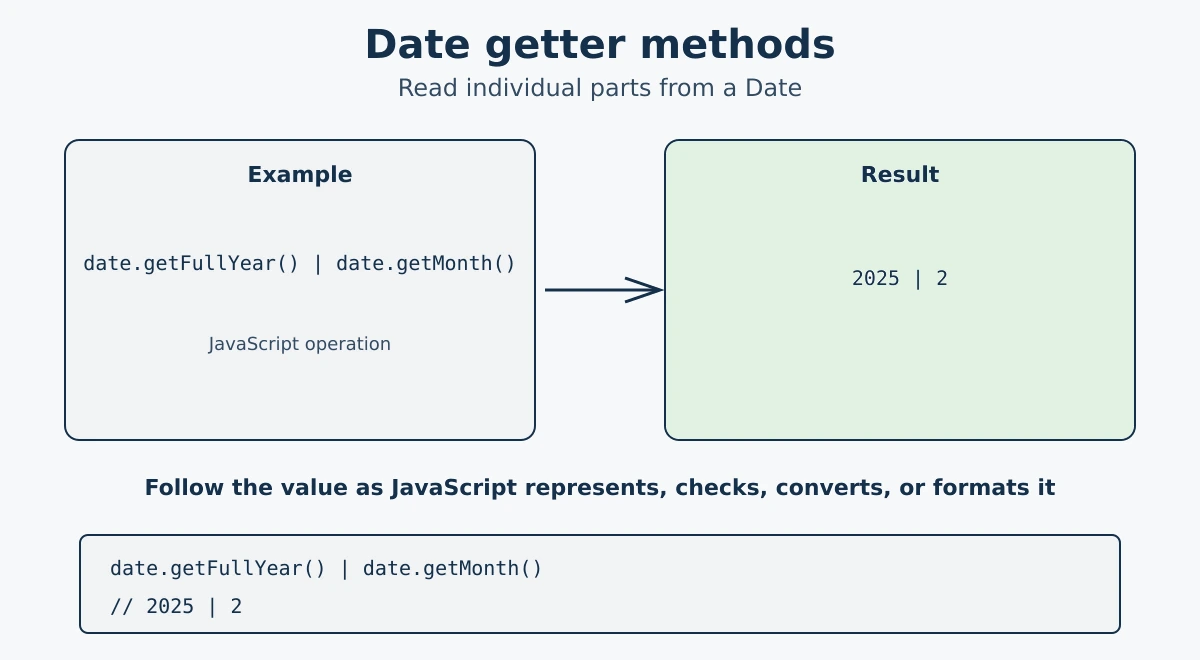
console.log(Date.now()); // current timestamp in msGetter methods let you read individual parts of a date such as year, month, day, hour, and so on.
Methods beginning with get use the local
time zone. Use the matching getUTC...
methods when you need to read the UTC components of a
timestamp.
const d = new Date("2025-03-15T10:30:45.500");

console.log(d.getFullYear());     // 2025
console.log(d.getMonth());        // 2  (March, months are 0-indexed)
console.log(d.getDate());         // 15 (day of the month)
console.log(d.getDay());          // 6  (Saturday, 0=Sunday)
console.log(d.getHours());        // 10
console.log(d.getMinutes());      // 30
console.log(d.getSeconds());      // 45
console.log(d.getMilliseconds()); // 500
console.log(d.getTime());         // timestamp in ms
Remember: getMonth() returns 0 for January and 11 for December. Add 1 when displaying it to users.
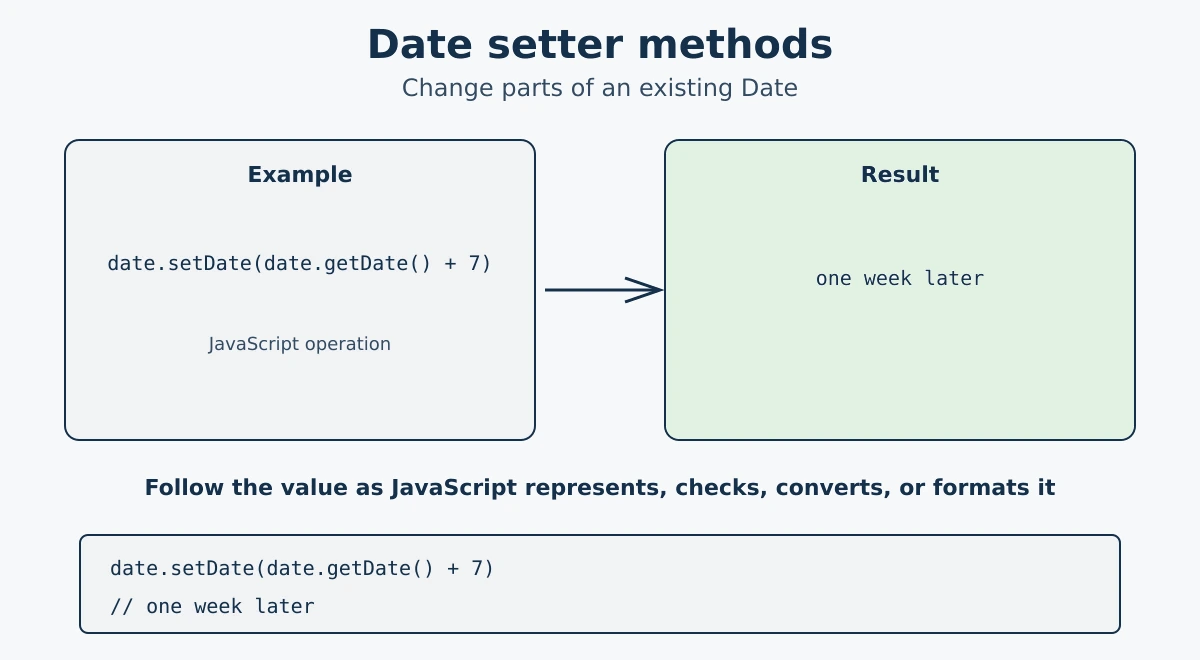
Setter methods let you change individual parts of an existing date object. This is useful when you want to adjust a date rather than create a new one.
Setters mutate the existing Date object
and return its new timestamp in milliseconds. If you
need to preserve the original date, create a copy with
new Date(original.getTime()) first.
const d = new Date("2025-01-01");

d.setFullYear(2026);
console.log(d.getFullYear()); // 2026

d.setMonth(5); // June (0-indexed)
console.log(d.getMonth()); // 5

d.setDate(20);
console.log(d.getDate()); // 20

d.setHours(9);
d.setMinutes(15);
d.setSeconds(0);
console.log(d); // 2026-06-20 09:15:00
A common use case is adding days to a date:
const today = new Date();
today.setDate(today.getDate() + 7); // add 7 days
console.log(today); // one week from now
The Intl.DateTimeFormat API lets you format dates according to a specific locale (language and region). This is great for displaying dates in a way that feels natural to your users.
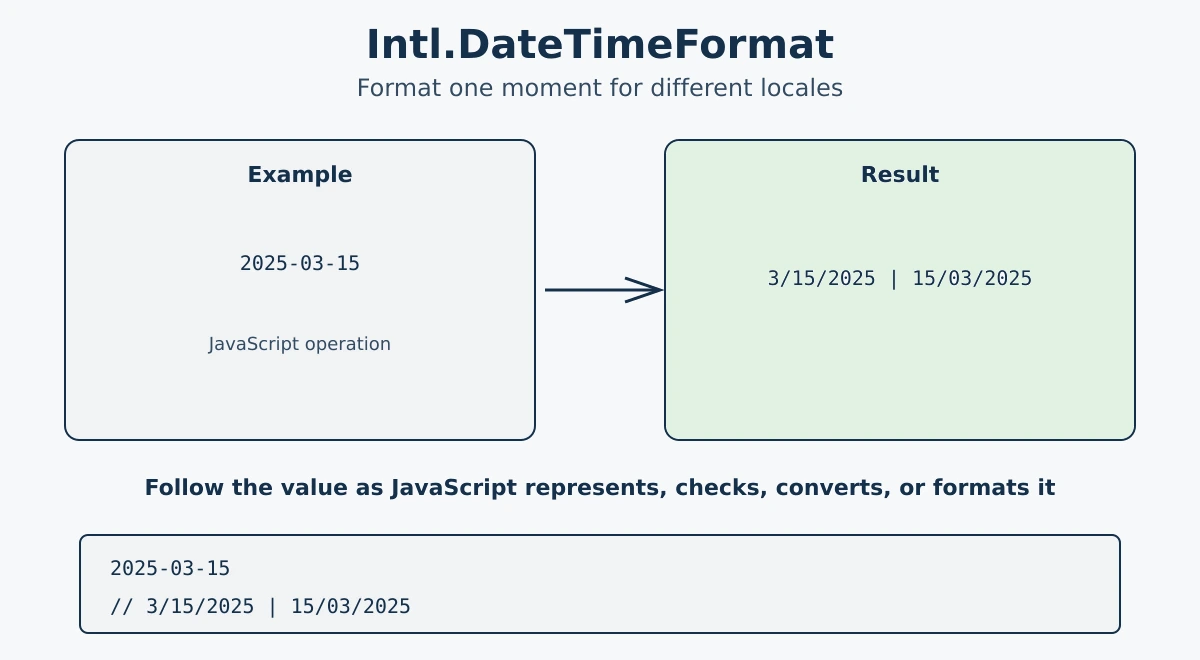
const date = new Date("2025-03-15");

// US English
console.log(new Intl.DateTimeFormat("en-US").format(date));
// 3/15/2025

// British English
console.log(new Intl.DateTimeFormat("en-GB").format(date));
// 15/03/2025

// German
console.log(new Intl.DateTimeFormat("de-DE").format(date));
// 15.3.2025
You can also customize the output with options:
const date = new Date("2025-03-15T10:30:00");

const formatter = new Intl.DateTimeFormat("en-US", {
  weekday: "long",
  year: "numeric",
  month: "long",
  day: "numeric",
  hour: "2-digit",
  minute: "2-digit",
});

console.log(formatter.format(date));
// Saturday, March 15, 2025 at 10:30 AM
To get the user's locale from the browser automatically:
const userLocale = navigator.language; // e.g. "en-US"
const date = new Date();
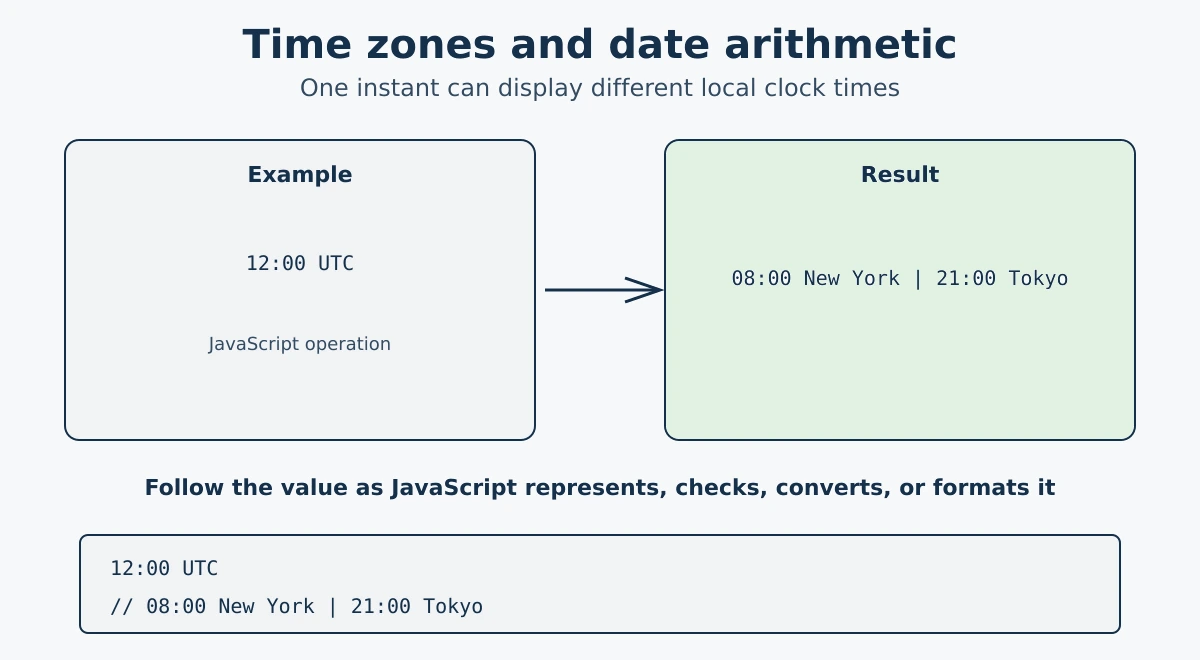
console.log(new Intl.DateTimeFormat(userLocale).format(date));A Date represents a moment in time, but it can be displayed in different time zones. The same timestamp may show a different clock time in New York, London, or Tokyo. For API data, store instants in UTC, then format them for the user's intended time zone while preserving user preferences or original zones when they matter.
| Need | Use | Why |
|---|---|---|
| Compare two moments | date.getTime() | Compare their millisecond timestamps. |
| Add a fixed duration | Copy the timestamp and add milliseconds | Useful for hours, minutes, and short durations. |
| Display for a region | Intl.DateTimeFormat with timeZone | Lets the user see a localized calendar and clock time. |
| Calendar months or daylight-saving rules | Use a date library or carefully test setMonth | Calendar arithmetic is not always the same as adding a fixed number of milliseconds. |
const start = new Date("2026-09-22T12:00:00Z");
const oneHourLater = new Date(start.getTime() + 60 * 60 * 1000);

console.log(oneHourLater.toISOString()); // UTC: 2026-09-22T13:00:00.000Z

const zones = ["UTC", "America/New_York", "Asia/Tokyo"];
for (const timeZone of zones) {
  console.log(timeZone, new Intl.DateTimeFormat("en-US", {
    dateStyle: "medium",
    timeStyle: "short",
    timeZone
  }).format(start));
}
Duration versus calendar arithmetic: adding 24 hours means adding exactly 86,400,000 milliseconds. Adding one calendar day in a local zone can cross a daylight-saving transition and may not equal exactly 24 elapsed hours. Be explicit about which meaning your feature needs.
Parsing warning: an ISO timestamp with Z is UTC. Date strings without a time zone can be interpreted as local time, so prefer complete ISO timestamps from APIs and store the original zone or user preference when it matters.
Intl.DateTimeFormat with an explicit locale and time zone for display.
- JavaScript uses a single number type for both integers and decimals.
- All numbers are stored as 64-bit floating point (IEEE 754), which can cause small precision errors with decimals.
- Use
Number(),parseInt(), orparseFloat()to convert values to numbers. - Number systems: binary (
0b), octal (0o), decimal (no prefix), hexadecimal (0x). - Use
Number.isNaN(),Number.isFinite(), andNumber.isInteger()to check number values. - The
Mathobject provides rounding (round,floor,ceil),sqrt,pow,abs, andrandom. - The remainder operator
%returns what is left after division. - Numeric separators (
_) make large numbers easier to read without affecting their value. - BigInt handles integers beyond
Number.MAX_SAFE_INTEGER. Cannot be mixed with regular numbers in arithmetic. - Number methods:
toFixed()for rounding to decimals,toString()for base conversion,valueOf()for the primitive value. - Key Number properties:
MAX_VALUE,MIN_VALUE,MAX_SAFE_INTEGER,MIN_SAFE_INTEGER,POSITIVE_INFINITY,NEGATIVE_INFINITY, andNaN. - Use
Intl.NumberFormatto display numbers in locale-specific formats including currency and percentage. - The
Dateobject stores time as milliseconds since the Unix epoch (Jan 1, 1970). - Create dates with
new Date(), a date string, individual components, or a timestamp. - Getter methods like
getFullYear(),getMonth(),getDate()read parts of a date. Note: months are 0-indexed. - Setter methods like
setFullYear(),setMonth(),setDate()change parts of a date. - Use
Intl.DateTimeFormatto format dates according to any locale and with custom options. - For time zones, use UTC for stored instants, fixed milliseconds for elapsed durations, and calendar-aware logic for local days, months, and daylight-saving changes.
What's next? Now that you know how JavaScript works with numbers and dates, let's learn about unique collections in the next tutorial.
Videos for this topic will be added soon.