JavaScript Output
Output methods help you see what your code is doing at every step. This is essential for debugging, testing ideas quickly, and building confidence as a developer.
When you write JavaScript, you need a way to see what your code is doing. You may want to check a variable, see whether a function ran, display a result, or investigate a problem.
JavaScript can show information in three common places:
- the browser developer console,
- a browser dialog,
- the webpage itself through the DOM.
We will start with the console because it is the easiest and most useful place to inspect code while learning JavaScript.
Your first output can be one line:
console.log("Hello JavaScript!");You can also log a calculation or a variable:
console.log(2 + 3); // 5

const name = "Sajid";
console.log(name); // Sajid
These messages appear in the browser's developer console, not directly on the webpage. That is where developers inspect their code.
console.log() prints information to the browser's developer console. It is the main beginner-friendly way to inspect values while writing and debugging JavaScript.
console.log("Hello World");
console.log(10);
console.log(true);
console.log("Age:", 30);
console.log(2 + 2);
console.log("Name:", "John", "Age:", 30);

const userName = "SimplyJavaScript";
console.log(userName);
You can pass several values to one call. This makes it easy to label the information you are inspecting.
To see console.log() output, open your browser's Developer Tools:
- Press F12, or
- Right-click the page, choose Inspect, and select the Console tab.

console.log("Hello");Developer Console
"Hello"The console is primarily for developers. Visitors will not see a console message as part of the page's visible content.
The console has different methods for different messages:
console.log()shows general information or debugging details.console.warn()highlights a warning or recoverable issue.console.error()reports an error or failure that needs attention.
console.log("Application started");
console.warn("Password will expire soon");
console.error("Unable to load user");
All three normally appear in the browser console, with different visual emphasis.
Note: Both window.console() and console() refer to the same thing in a browser environment. There's no practical difference between them. They both point to the console object, where you can access methods like log(), error(), and others to display information in the browser's console. More details will be covered in the BOM part.
console.log() is excellent while learning and debugging. In a production application, logging should be intentional so useful events can be investigated without exposing private information or creating unnecessary noise.
- Never log passwords, access tokens, payment information, or sensitive personal data.
- Use
log,warn, anderroraccording to the message. - Logs are for developers and operations; visible webpage output is for users.
function loadProfile(userId) {
  console.info("profile.load.start", { userId });

  try {
    // load profile data here
    console.info("profile.load.success", { userId });
  } catch (error) {
    console.error("profile.load.failed", {
      userId,
      message: error.message
    });
  }
}
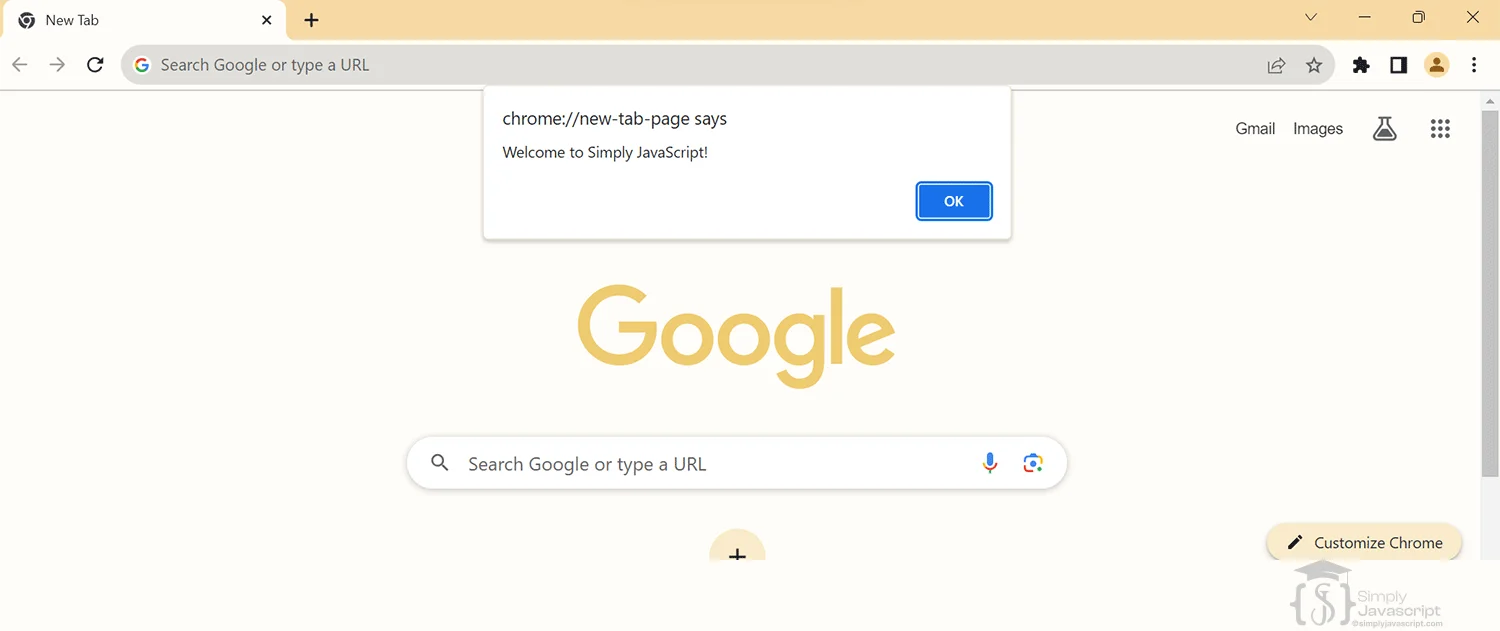
window.alert() displays a browser dialog that the user must dismiss before interacting with the page. alert() is shorthand for window.alert().
window.alert("Hello!");Alerts are useful for quick demonstrations and testing, but they block interaction. Modern applications usually use custom messages, notifications, or toasts instead.
document.write() writes text or HTML directly into the document while it is loading.
document.write("Hello World");
document.write("Hello SimplyJavaScript<br>Hello Learners");document.write() after the document has loaded can replace the whole document. It is useful for understanding old or very simple examples, but is generally avoided in modern applications.So far, we have mainly shown output to developers. To show a result to the user, JavaScript can find an HTML element and update it through the DOM, the browser's representation of the webpage.
<div id="message"></div>document.getElementById("message").textContent = "Hello JavaScript!";JavaScript finds the element with the message ID and changes its content. This page only introduces the idea; the DOM tutorial covers DOM manipulation in more detail.
textContent inserts plain text into an element. It does not interpret the value as HTML.
const element = document.getElementById("message");
element.textContent = "Hello World";

element.textContent = "<strong>Hello</strong>";
// The <strong> tags appear as text.
Use textContent when you want to display text, especially when that text could come from a user or another untrusted source.
innerHTML reads or replaces the HTML inside an element. The browser parses the assigned value as HTML.
element.innerHTML = "<strong>Hello World</strong>";
// The browser displays bold text.| Property | How it treats the value |
|---|---|
textContent | Plain text; HTML tags are not parsed. |
innerHTML | HTML; tags are parsed into elements. |
Security reminder: Do not insert untrusted user input directly into innerHTML. Use textContent for plain text, or sanitize content before inserting HTML.
| Audience | Methods | Typical use |
|---|---|---|
| Developers | console.log(), console.warn(), console.error() | Debugging, inspecting values, and diagnosing problems. |
| Users | DOM, textContent, innerHTML | Results, validation messages, and application content. |
| Users, briefly | alert() | Simple blocking demonstrations or notifications. |
Console output is not a replacement for user-facing UI. Developers see logs in the console; users need information rendered in the application.
Template literals use backticks and ${...} placeholders to build readable strings.
const name = "Sam";
const orders = 3;

console.log(`User: ${name}`);
console.log(`Orders: ${orders}`);
The expression inside ${...} is evaluated and included in the resulting string. Template literals make formatted console or webpage messages easier to read.
| Method | Where output appears | Typical use | Recommendation |
|---|---|---|---|
console.log() | Browser console | Debugging and inspection | Common during development |
console.warn()/console.error() | Browser console | Warnings and failures | Use with meaningful context |
alert() | Browser dialog | Simple blocking messages | Avoid for normal app UI |
document.write() | Document | Legacy/simple demonstrations | Generally avoid |
textContent | Webpage | User-facing plain text | Safe default for text |
innerHTML | Webpage | User-facing HTML | Use carefully with untrusted input |
- Expecting
console.log()on the webpage: It appears in Developer Tools, not in the page content. - Using
alert()for every message: It blocks interaction and is usually not appropriate for application UI. - Using
document.write()in a modern application: It can replace the document after loading. - Using
innerHTMLwith untrusted input: UsetextContentwhen you only need plain text. - Using logs as the user interface: Developers see console messages; users need visible UI.
- Print your name using
console.log(). - Print the result of
10 + 20. - Print your name, age, and country using one
console.log()call. - Create
<div id="message"></div>, then usetextContentto display"Welcome to JavaScript!". - Predict where
console.log("Hello")appears. - What is the difference between
element.textContent = "<b>Hello</b>"andelement.innerHTML = "<b>Hello</b>"?
console.log() appears in the Developer Console. textContent displays the tags as text, while innerHTML interprets them as HTML.console.log(): Inspects values in the developer console.console.warn(): Reports warnings.console.error(): Reports errors or failures.alert(): Shows a blocking browser dialog.document.write(): Writes into the document and is generally avoided after loading.textContent: Displays plain text safely in an element.innerHTML: Inserts or reads HTML and requires care with untrusted input.- Template literals: Create readable formatted strings.
- Audience: Console output is mainly for developers; DOM output is mainly for users.
What's next? Now that you know how to display and inspect output, learn how to add comments to your JavaScript code in the Comments tutorial.
- What is the purpose of
console.log(), and how does it differ fromconsole.error()andconsole.warn()? - When is
console.log()useful for debugging? - What is
document.write(), and what are its drawbacks? - When might you choose
document.write()over DOM methods? - How does
window.alert()affect user interaction? - What are the advantages and disadvantages of
window.alert()? - What is
innerHTML, and what should you consider when using it? - How does
innerHTMLdiffer from other DOM methods?
document.write() writes text or HTML directly into the document while it is loading. It can be useful for quick testing, but it is generally avoided in modern applications because calling it after the page has loaded can replace the whole document.
For real projects, developers usually use DOM methods like createElement() and appendChild() instead. We'll cover those in the DOM tutorial.
document.write("Hello World");
document.write("Hello SimplyJavaScript<br>Hello Learners"); // <br> prints Hello Learners on a new line
window.alert() displays a browser dialog. It is simple and useful for quick checks while learning.
It also blocks interaction with the page until the dialog is closed. In real applications, that usually hurts user experience, so developers prefer non-blocking UI messages like toasts or custom notifications.
window.alert("Hello");
innerHTML lets you read or change the HTML content inside any element on your page. For example, you can grab a <div> and replace its content with new text, images, or HTML.
It is very useful for updating content without reloading the page. Just remember: setting innerHTML replaces everything inside that element, and because it parses HTML, you should not insert untrusted user input into it.
Note: We'll cover innerHTML in detail in the DOM tutorial. For now, just know it's one way to display output on the page.
<div id='test'></div>document.getElementById('test').innerHTML = '<span>Hello World</span>';
If you only want plain text output, use textContent. It treats the value as text, not HTML, so tags are shown as text instead of being parsed.
document.getElementById('test').textContent = '<span>Hello World</span>'; | Topic | console.log() | document.write() | window.alert() | innerHTML |
|---|---|---|---|---|
| Function | Used for logging messages | Writes directly to document | Displays a browser dialog | Manipulates HTML content |
| Output | Outputs to the console | Outputs directly to the HTML | Displays as a popup alert | Dynamically updates HTML |
| Usage | Commonly for debugging | Used for quick HTML output | Alerts user with information | Widely used for updating content in the DOM |
| Impact | Doesn't modify HTML content | Overwrites existing content | Interrupts user interaction | Parses and inserts HTML (avoid untrusted input) |
- console.log(): Prints output to the browser console. Your go-to tool for debugging and checking values.
- document.write(): Writes directly into the document. Quick for testing, but after page load it can replace the whole page.
- window.alert(): Shows a browser dialog. Blocks interaction until the dialog is closed. Avoid in real applications.
- innerHTML: Reads or changes HTML content inside an element. It parses HTML, so do not use untrusted user input with it.
What's next? Now that you can see your code's output, let's learn about comments in the next tutorial.
- What is the primary purpose of console.log() in JavaScript? How does it differ from other methods like console.error() or console.warn()?
- Can you describe situations where console.log() is particularly useful in debugging JavaScript code?
- Explain document.write() and potential drawbacks or limitations when using this method?
- When might you choose to use document.write() over other DOM manipulation methods like innerHTML or appendChild()?
- Explain window.alert(). How does it interact with user interaction and why might it be used sparingly?
- What are the advantages and disadvantages of using window.alert() for displaying messages compared to other methods like modals or custom UI elements?
- Explain the purpose and functionality of the innerHTML property in JavaScript. What are some considerations or best practices when using it to manipulate the DOM?
- How does innerHTML differ from other DOM manipulation methods, such as createElement() and appendChild()? When would you prefer one over the other?


Output In Javascript