JavaScript DOM
This is where JavaScript stops being abstract and starts being visual. The DOM is how you make buttons work, show/hide content, and build every interactive feature users actually see. Without it, you're just doing math in a console.
The DOM (Document Object Model) is how your browser sees an HTML page. It's essentially a family tree: every element, attribute, and piece of text is a "node" connected to other nodes.
When your browser loads a page, it builds this tree from the HTML. You can then use JavaScript to read and change the tree, updating what's on screen without reloading the page.
<!-- HTML structure -->
<html>
  <body>
    <h1 id="title">Hello World</h1>
    <p>Welcome to the DOM.</p>
  </body>
</html>
Your browser turns the HTML above into a tree of nodes. You can use JavaScript to walk this tree, find elements, and change them whenever you want.
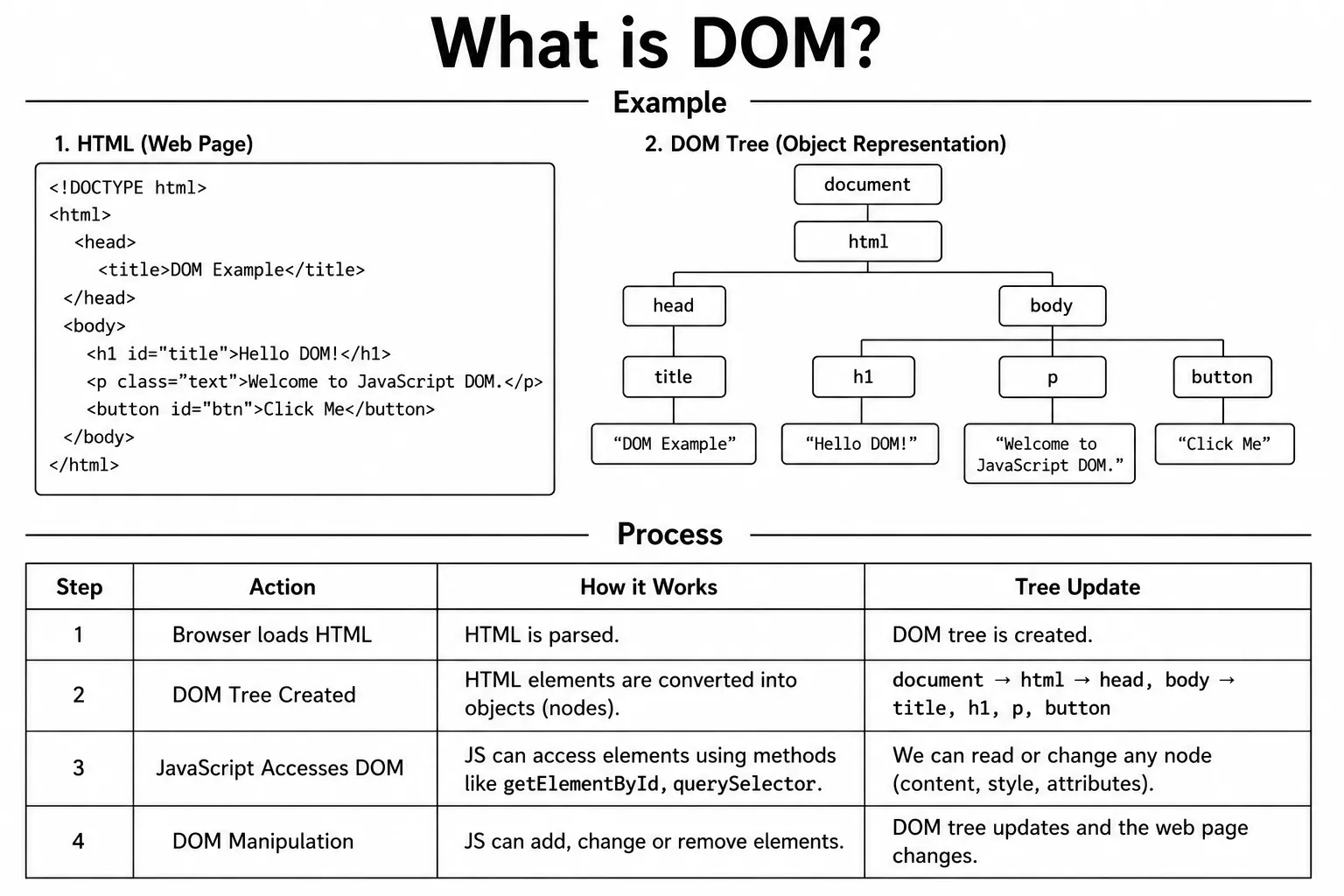
Before you can read, change, or interact with an HTML element, you first need to select it. JavaScript provides several methods to find elements in the DOM based on their ID, class name, tag name, or CSS selector.
Once an element is selected, you can update its text, change its style, modify its attributes, add or remove classes, respond to user events, or even create and remove elements dynamically.
Selecting elements is one of the most important DOM skills because almost every JavaScript application relies on it. Whether you're building buttons, forms, menus, sliders, or interactive web pages, selecting the right element is the first step.
The HTML and JavaScript must agree on the selector. This complete example includes the markup, the button, and the message that the script updates.
<button id="show-message" type="button">Show message</button>
<p id="message">Nothing has happened yet.</p>const showMessageButton = document.querySelector("#show-message");
const message = document.querySelector("#message");
showMessageButton.addEventListener("click", () => {
message.textContent = "The DOM was updated.";
});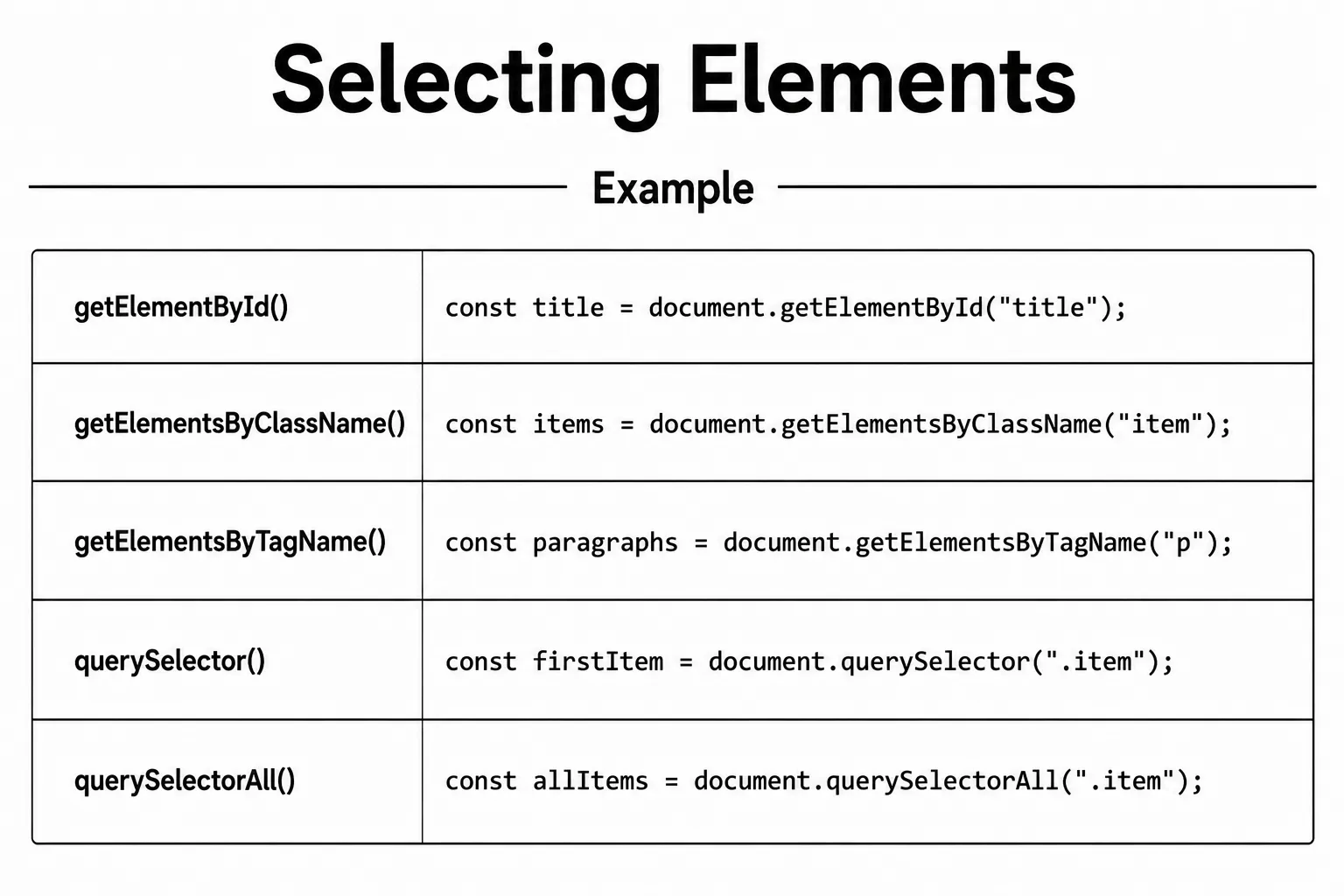
The getElementById() method finds and returns a single HTML
element using its unique id. Since every ID should be unique on
a page, this method always returns only one matching element.
If an element with the specified ID exists, JavaScript returns that element.
If no matching element is found, the method returns
null. You can then use the returned element to read or change
its content, style, attributes, or events.
The getElementById() method is a simple and commonly used DOM
method. It is frequently used to work with buttons,
forms, input fields, headings, images, and other elements that have a unique
ID.
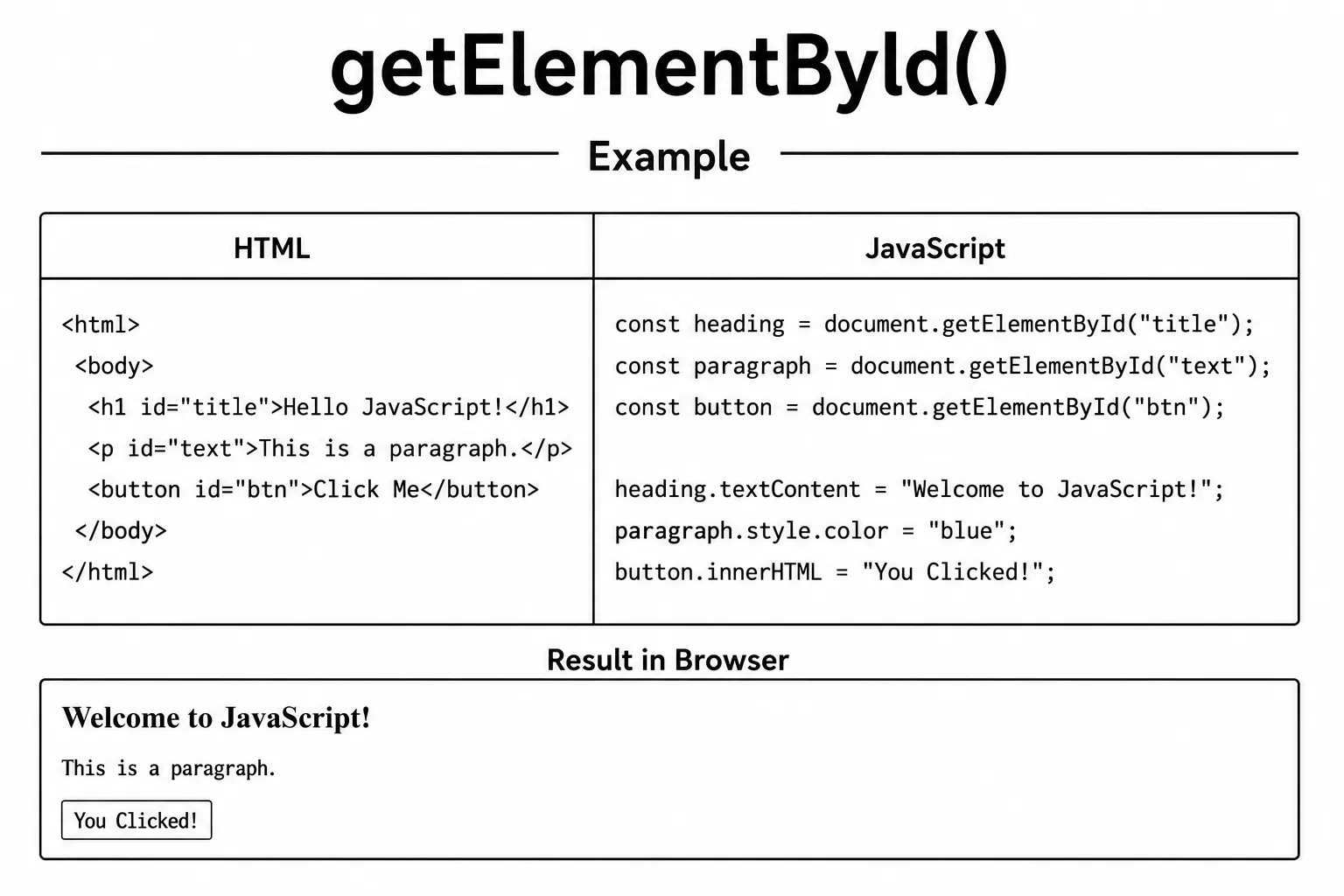
// HTML: <h1 id="title">Hello</h1>

const heading = document.getElementById("title");
console.log(heading.textContent); // Output: Hello
Since every id on a page must be unique,
you'll always get back one element or nothing.
The querySelector() method returns the
first HTML element that matches a CSS selector. You can use
selectors such as an id, class, tag name,
attribute, or even complex CSS selectors to find elements.
If a matching element is found, JavaScript returns that element. If no
element matches the selector, the method returns null. Because
it uses CSS selectors, it is one of the most flexible and powerful ways to
select elements in the DOM. An invalid CSS selector causes an error, so make
sure the selector syntax is valid.
The querySelector() method is widely used in modern JavaScript
applications to work with buttons, forms, menus, cards, navigation bars, and
other page elements. It is the preferred choice when you need to select
elements using CSS selector syntax.
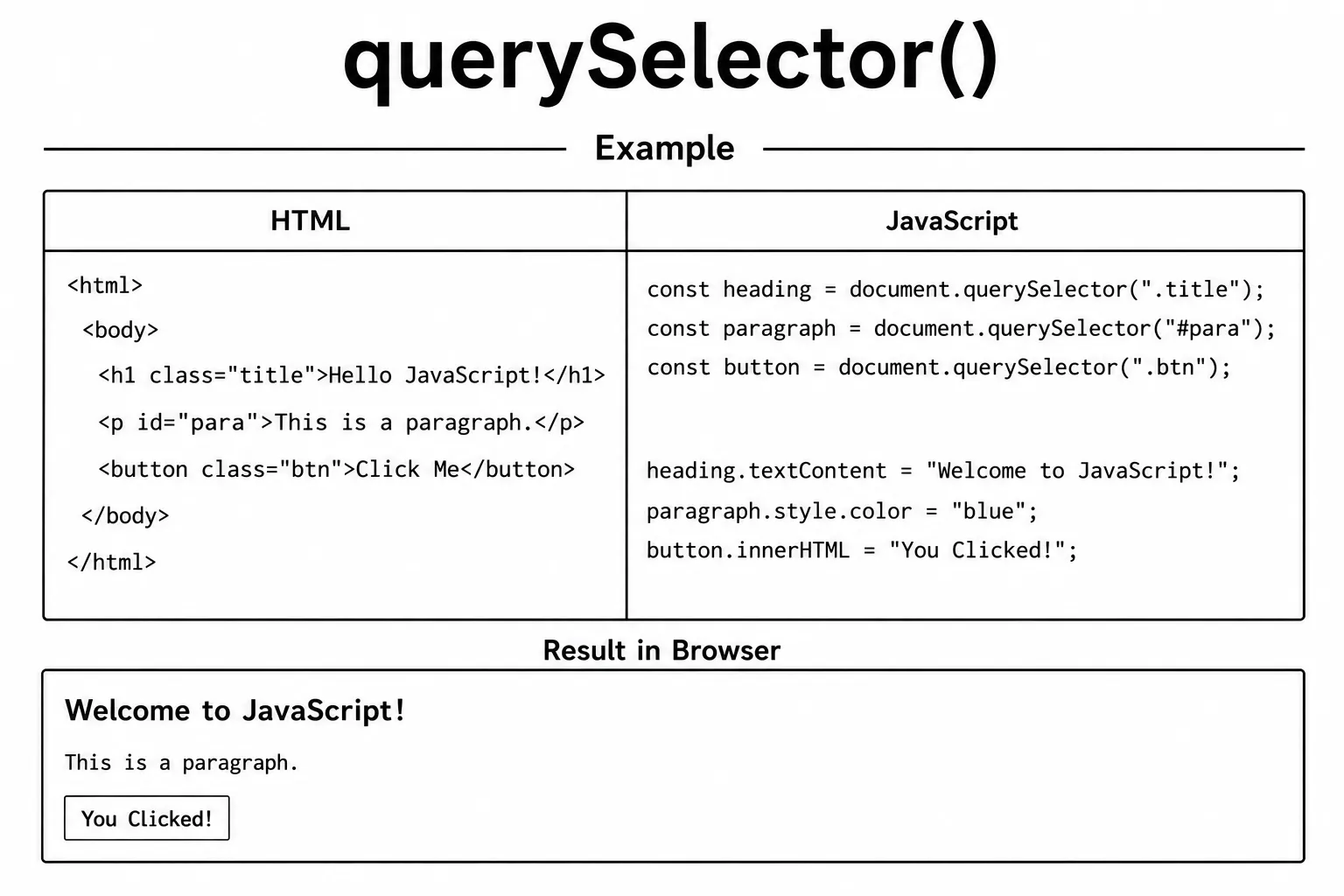
// HTML: <p class="intro">Welcome</p>

const para = document.querySelector(".intro");
console.log(para.textContent); // Output: Welcome

// Select by tag name
const firstBtn = document.querySelector("button");

// Select by attribute
const link = document.querySelector('a[href="#top"]');
Tip: If you are just starting, querySelector() and querySelectorAll() are enough for most DOM selection tasks.
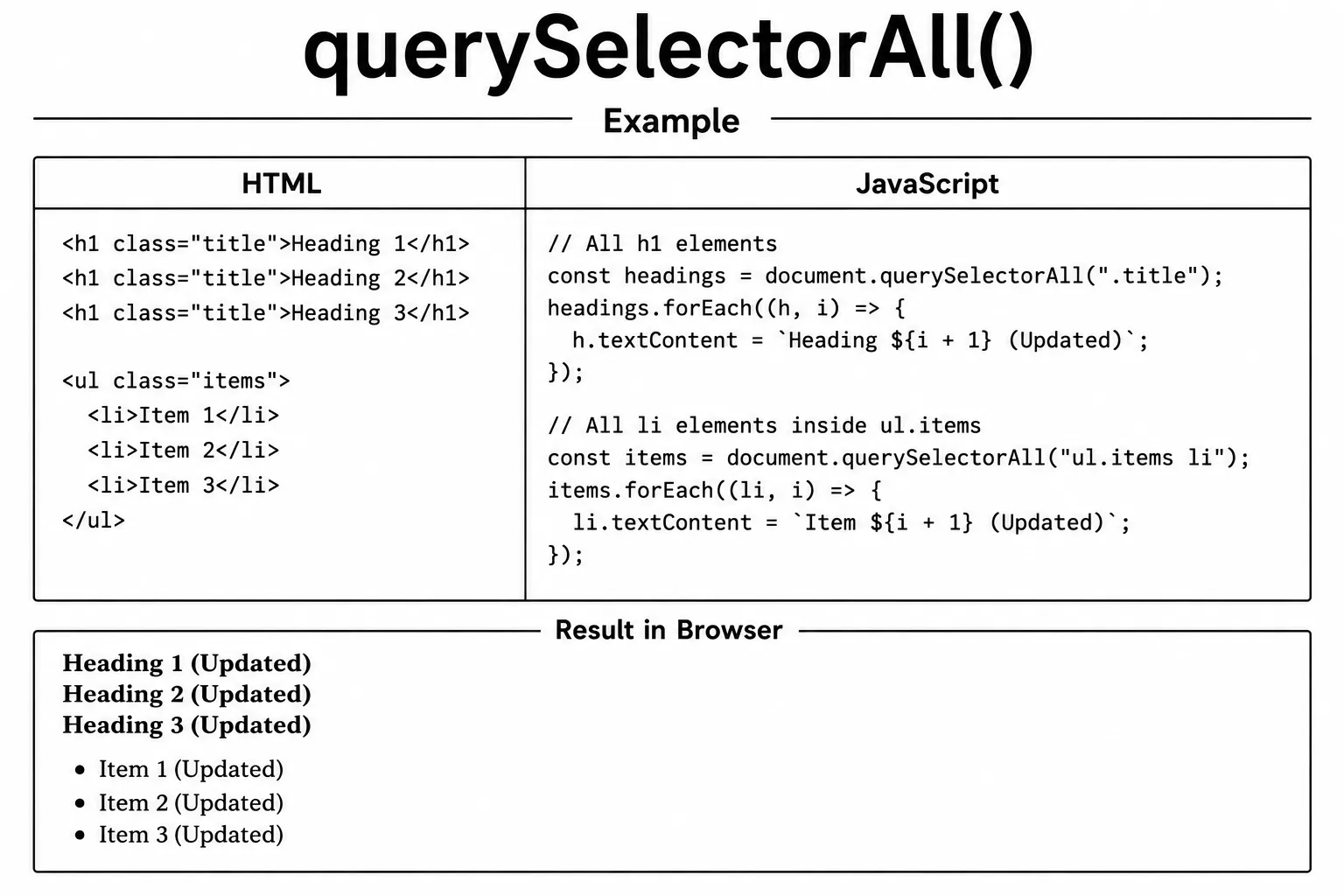
The querySelectorAll() method returns
all HTML elements that match a CSS selector. Instead of
returning just one element, it returns a NodeList containing
every matching element in the document.
You can loop through the returned NodeList using methods like
forEach() to read or update each element one by one. If no
elements match the selector, an empty NodeList is returned
instead of null.
The querySelectorAll() method is commonly used to work with
groups of elements, such as buttons, cards, menu items, form inputs, or list
items. It is the preferred method when you need to perform the same action on
multiple elements at once.
The returned NodeList is a snapshot of the matching elements at
the time of the selection. If you create a new matching element later, it is
not added to the existing list; run querySelectorAll() again when
you need an updated collection.
// HTML: <li>Apple</li> <li>Banana</li> <li>Cherry</li>

const items = document.querySelectorAll("li");

items.forEach(item => {
  console.log(item.textContent);
});
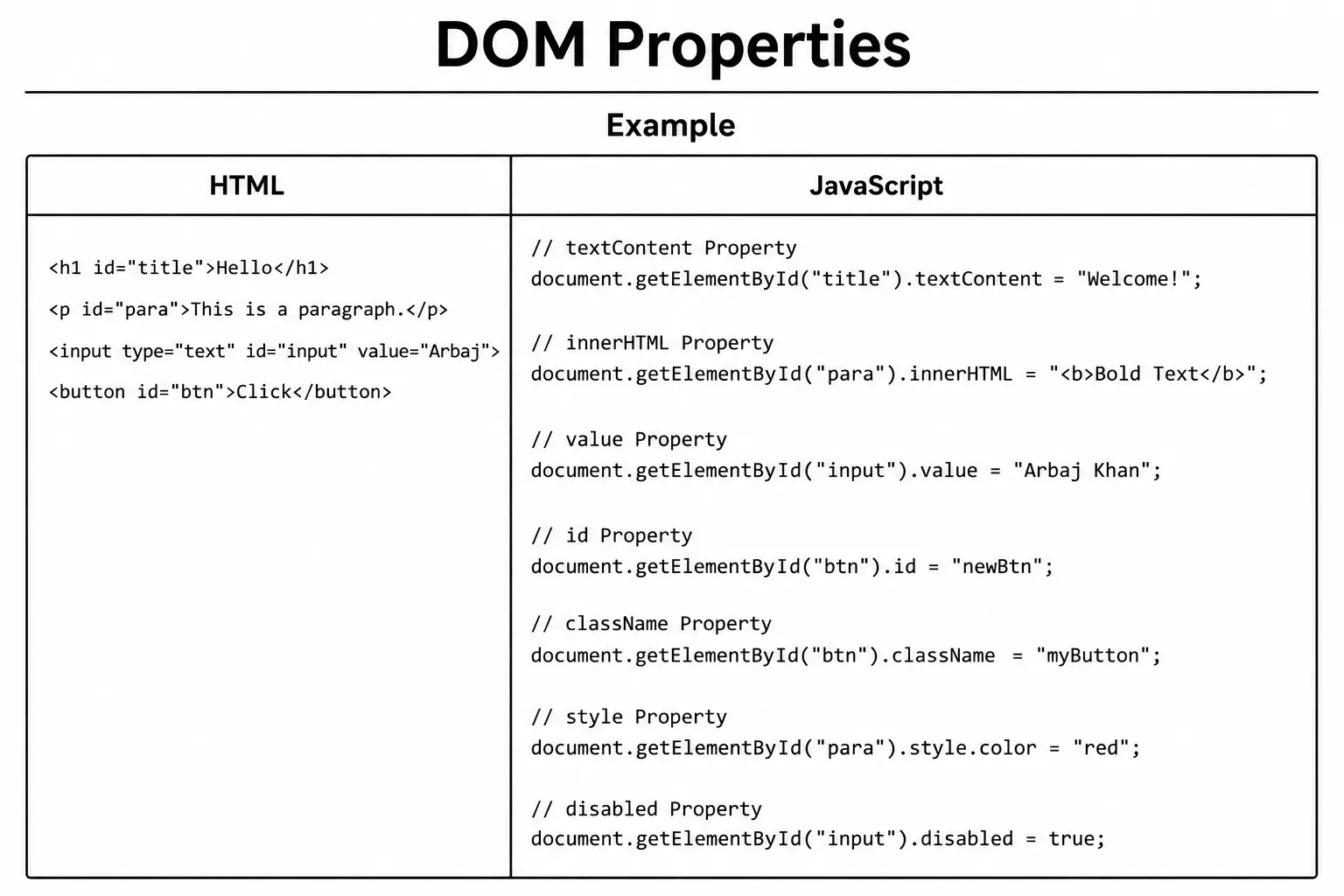
// Output: Apple, Banana, CherryOnce you have selected an HTML element, you can access and modify its DOM properties. These properties let you read or update an element's content, appearance, attributes, and behavior using JavaScript.
Some of the most commonly used DOM properties include
innerHTML, textContent,
innerText, value, id,
className, classList,
style, src, href,
checked, disabled, and
children. Each property gives you control over a different
part of an element.
DOM properties are used in almost every JavaScript application. They help you update text, change styles, handle form inputs, show or hide elements, manage classes, update images and links, and build interactive web pages that respond to user actions.
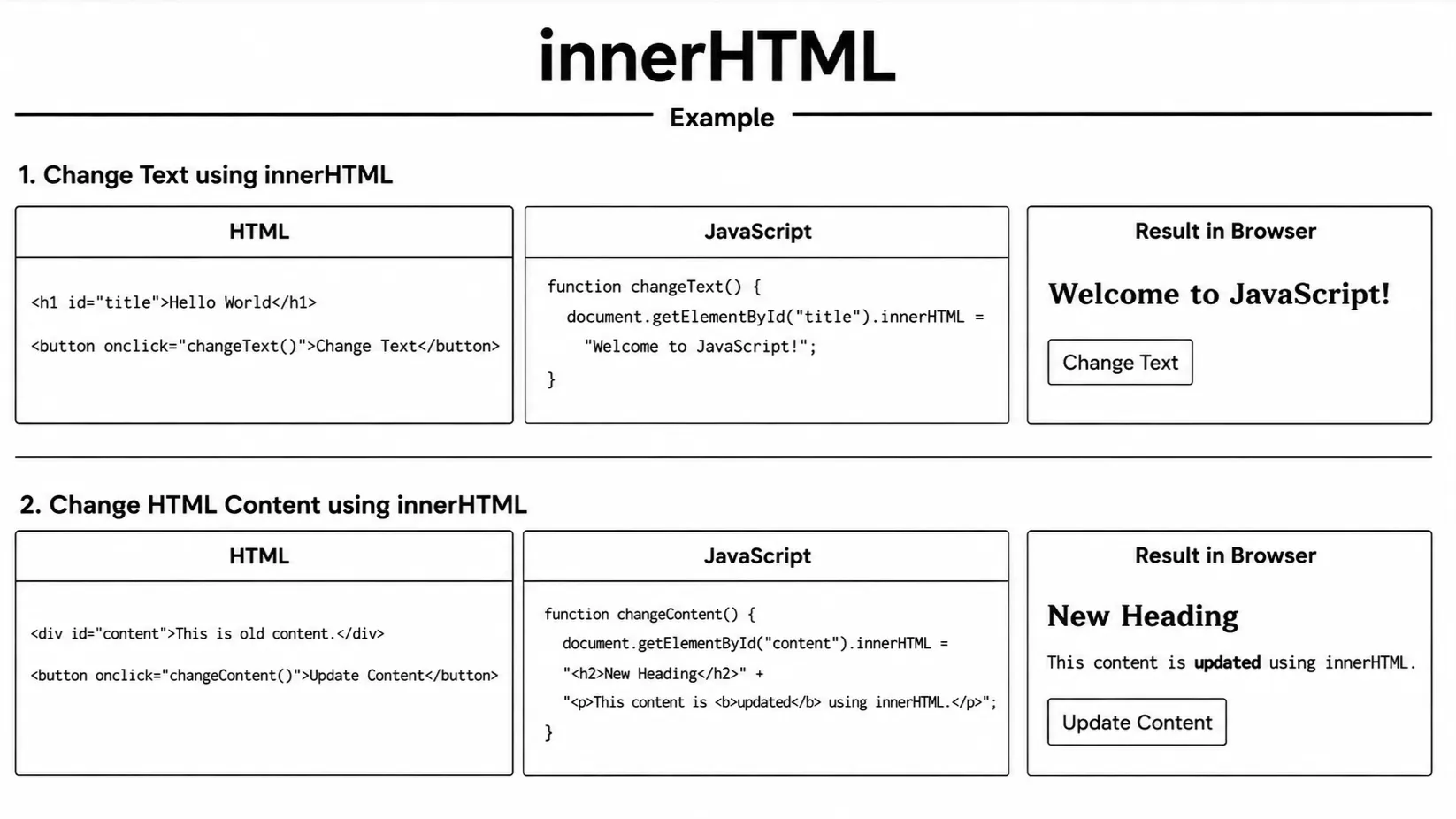
The innerHTML property lets you read or replace the HTML content
inside an element. It includes both the text and any HTML tags, allowing you
to create rich, formatted content dynamically with JavaScript.
When you assign a new value to innerHTML, the browser removes
the existing content inside the element and replaces it with the new HTML.
This makes it easy to update headings, paragraphs, images, buttons, links,
lists, and other HTML elements with a single line of code.
Replacing innerHTML also replaces the child elements inside that
container. Event listeners or other references attached to those old child
elements may be lost, so use textContent for plain text and DOM
methods such as createElement() when you need more control.
The innerHTML property is widely used to display dynamic data,
render API responses, create reusable UI components, and update parts of a
web page without reloading it. Since it understands HTML tags, it provides
much more flexibility than textContent when formatted content is
required.
Be careful when using innerHTML with user-provided data. If
untrusted content is inserted directly, it can introduce security issues such
as Cross-Site Scripting (XSS). Always sanitize or validate
user input before adding it to the page with innerHTML.
const box = document.getElementById("box");

// Read HTML content
console.log(box.innerHTML); // e.g. "<strong>Hello</strong>"

// Set HTML content (renders as HTML)
box.innerHTML = "<strong>Updated!</strong>";
Be careful with innerHTML when inserting
user-provided data, as it can expose your page to
cross-site scripting (XSS) attacks. Use
textContent instead when you only need
plain text.
Security tip: For user-generated content, prefer textContent. Use innerHTML only with trusted HTML.
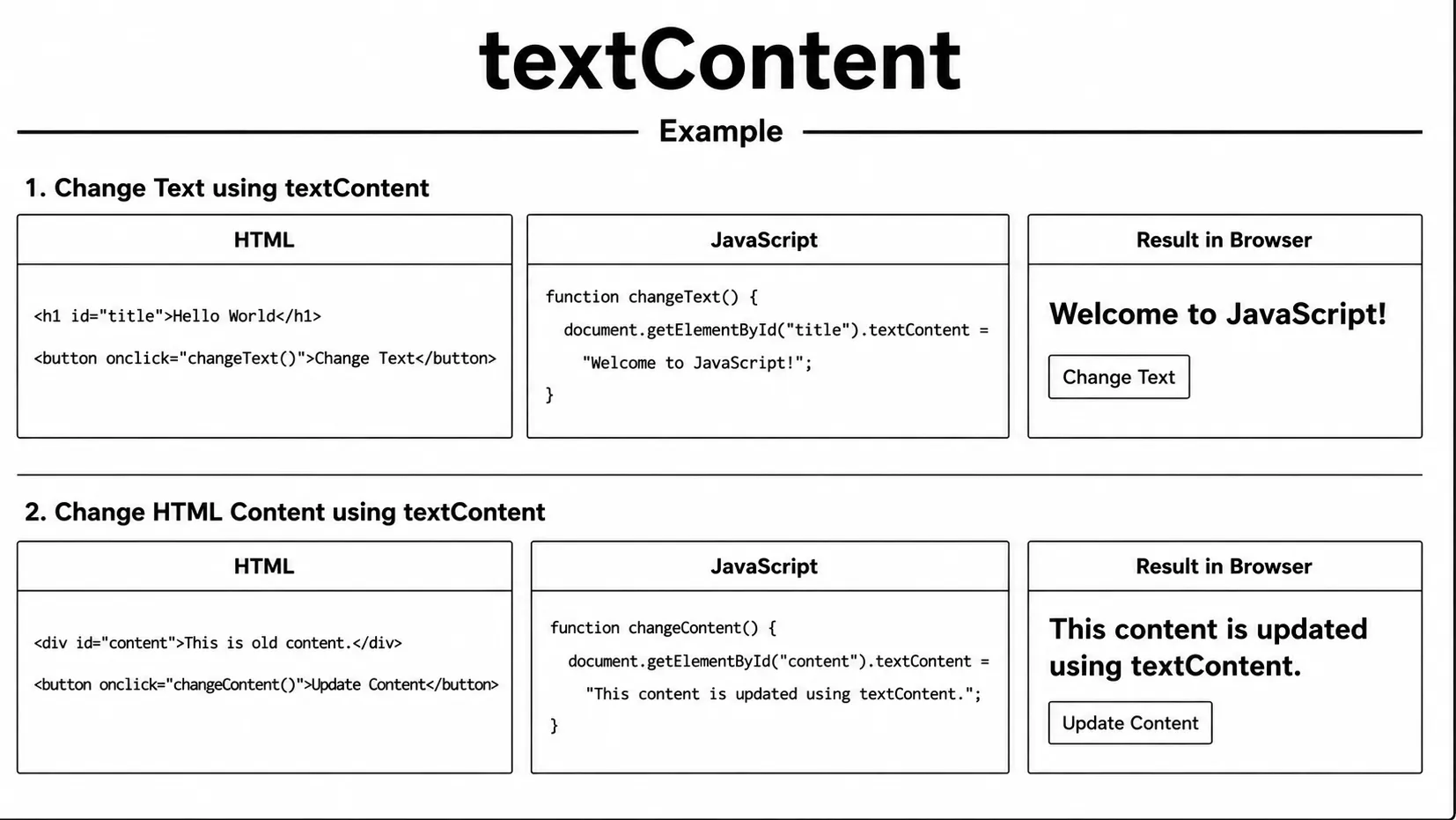
The textContent property lets you read or change the plain text
inside an HTML element. It returns only the text content and ignores any HTML
formatting or tags, making it a safe way to work with text.
When you assign a new value to textContent, any existing HTML
inside the element is replaced with plain text. Even if the text contains
HTML tags like <h1> or <b>, they are
displayed as normal text instead of being rendered by the browser.
The textContent property is commonly used to update labels,
headings, messages, notifications, and other text on a web page. It is
faster and safer than innerHTML because it does not parse or
execute HTML code.
Use textContent whenever you only need to display text. It helps
prevent security issues such as Cross-Site Scripting (XSS)
because any HTML tags are treated as plain text instead of being executed.
const msg = document.getElementById("msg");

// Read text (no HTML tags)
console.log(msg.textContent); // Output: Hello World

// Set plain text (tags are escaped, not rendered)
msg.textContent = "Goodbye <World>";
HTML attributes provide additional information about an element, such as its
id, class, src,
href, alt, or title. JavaScript lets
you read, add, update, and remove these attributes whenever needed.
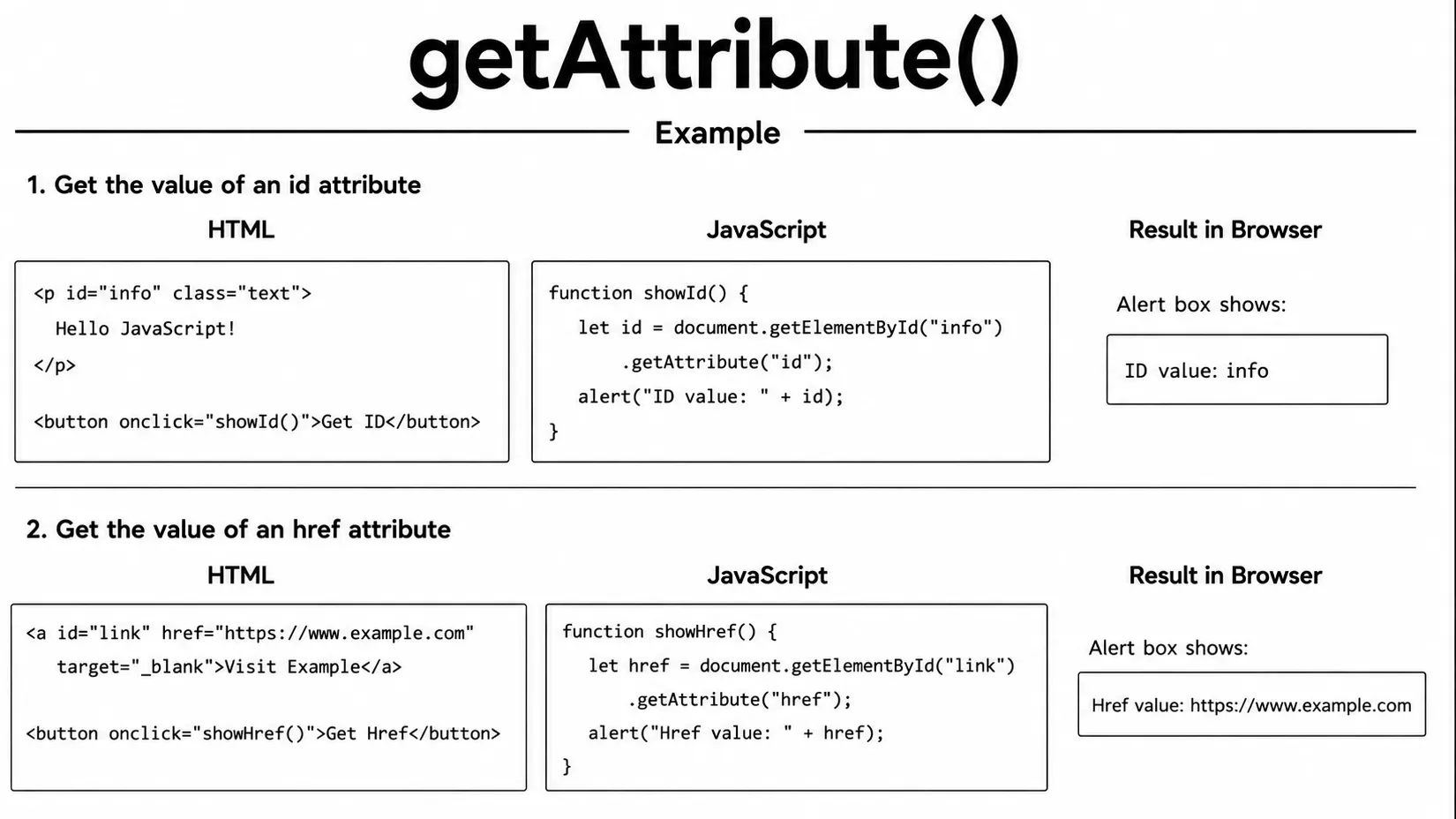
Use getAttribute() to read the value of an attribute,
setAttribute() to create or update an attribute, and
removeAttribute() to remove an attribute completely from an
element. These methods work with both standard HTML attributes and custom
attributes.
Attribute methods are commonly used to change image sources, update links,
enable or disable form fields, add accessibility attributes, and manage
custom data-* attributes. They are an essential part of DOM
manipulation in modern JavaScript.
An HTML attribute is the value written in the markup, while a DOM property is
a JavaScript value on the element object. They often reflect each other, but
not always. Use attribute methods for markup attributes and properties such
as input.value or input.checked for the element's
current form state.
// HTML: <img id="logo" src="old.png" alt="Logo">

const img = document.getElementById("logo");

// Read an attribute
console.log(img.getAttribute("src")); // Output: old.png

// Change an attribute
img.setAttribute("src", "new.png");

// Remove an attribute
img.removeAttribute("alt");
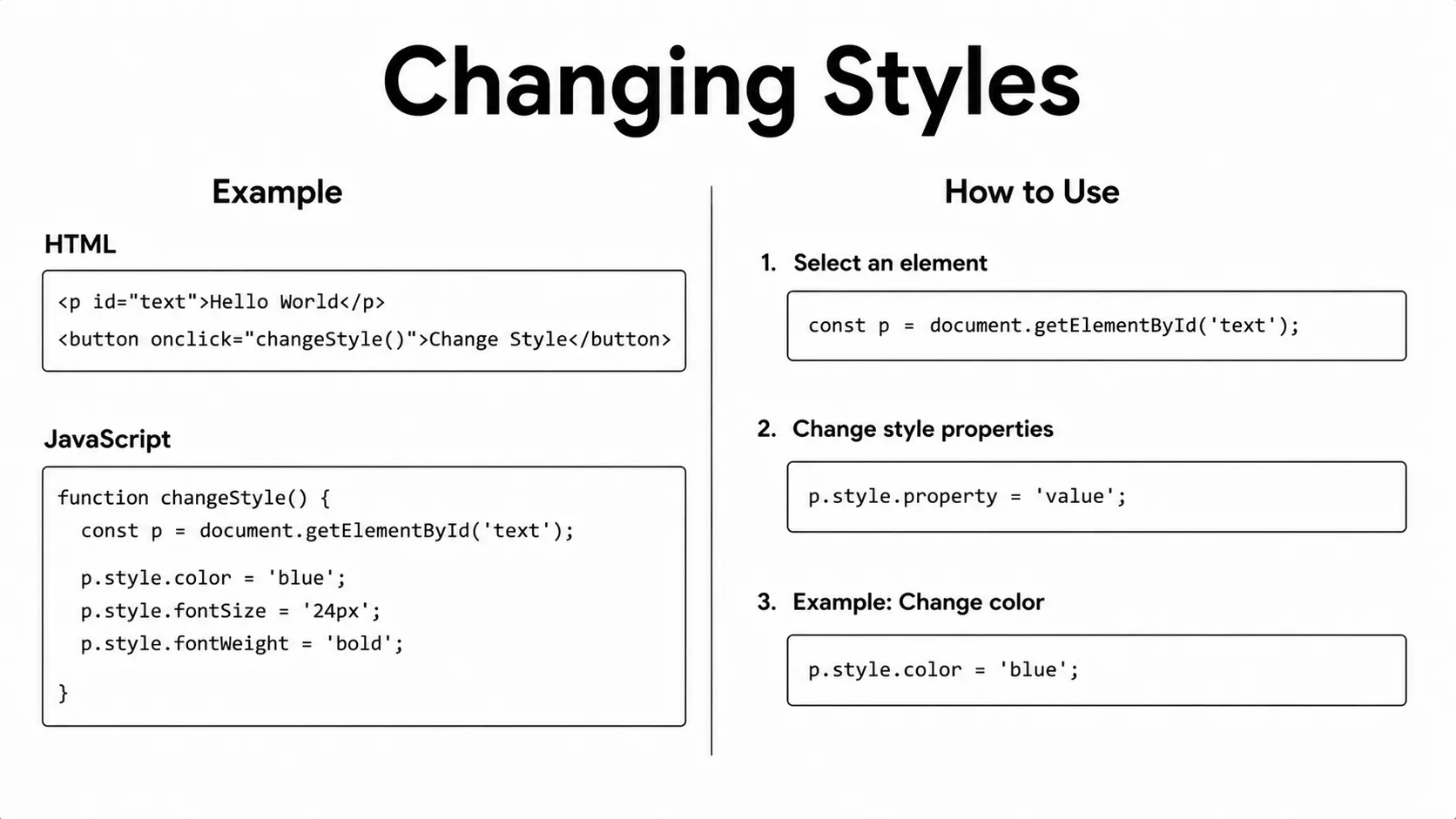
The style property lets you read or change an element's
inline CSS directly with JavaScript. You can use it to
update colors, fonts, sizes, spacing, borders, visibility, and many other
visual styles without editing your CSS file.
In JavaScript, CSS property names use
camelCase instead of hyphens. For example, use
backgroundColor instead of
background-color, fontSize instead of
font-size, and marginTop instead of
margin-top.
The style property is commonly used to show or hide elements,
change button colors, highlight selected items, animate UI elements, and
update styles based on user actions. It is one of the most frequently used
DOM properties in JavaScript.
While the style property is great for quick visual changes,
adding or removing CSS classes with classList is often a better
choice when applying multiple styles or maintaining larger projects.
const box = document.getElementById("box");

box.style.backgroundColor = "blue";
box.style.color = "white";
box.style.fontSize = "20px";
For toggling visual states, prefer adding and removing CSS
classes with classList.add(),
classList.remove(), or
classList.toggle().
const btn = document.getElementById("btn");

btn.classList.add("active");      // add a class
btn.classList.remove("hidden");   // remove a class
btn.classList.toggle("open");     // add if absent, remove if present
DOM changes should help every user, including people
who use a keyboard or screen reader. Start with
semantic HTML such as <button>,
<label>, <main>,
and <nav> instead of replacing
meaningful elements with clickable <div>
elements.
- Give form controls a visible
<label>and connect it with the input'sid. - Keep keyboard focus visible and move focus to newly opened content when the interaction requires it.
- Use
aria-expandedfor a control that opens or closes content, and keep its value in sync with the DOM. - Use
aria-live="polite"for short status messages that should be announced without interrupting the user. - Do not add ARIA when native HTML already provides the correct meaning; incorrect ARIA can make a control less usable.
This example uses a real button, a labelled input, an expandable region, and a live status message. The JavaScript updates both the visible content and the state information assistive technology can read.
<button id="toggle-details" type="button" aria-expanded="false" aria-controls="details">
  Show details
</button>
<div id="details" hidden>
  <label for="email">Email address</label>
  <input id="email" type="email" autocomplete="email" />
</div>
<p id="status" aria-live="polite"></p>const toggle = document.querySelector("#toggle-details");
const details = document.querySelector("#details");
const status = document.querySelector("#status");
toggle.addEventListener("click", () => {
const isOpening = details.hidden;
details.hidden = !isOpening;
toggle.setAttribute("aria-expanded", String(isOpening));
toggle.textContent = isOpening ? "Hide details" : "Show details";
status.textContent = isOpening ? "Details opened." : "Details closed.";
if (isOpening) {
document.querySelector("#email").focus();
}
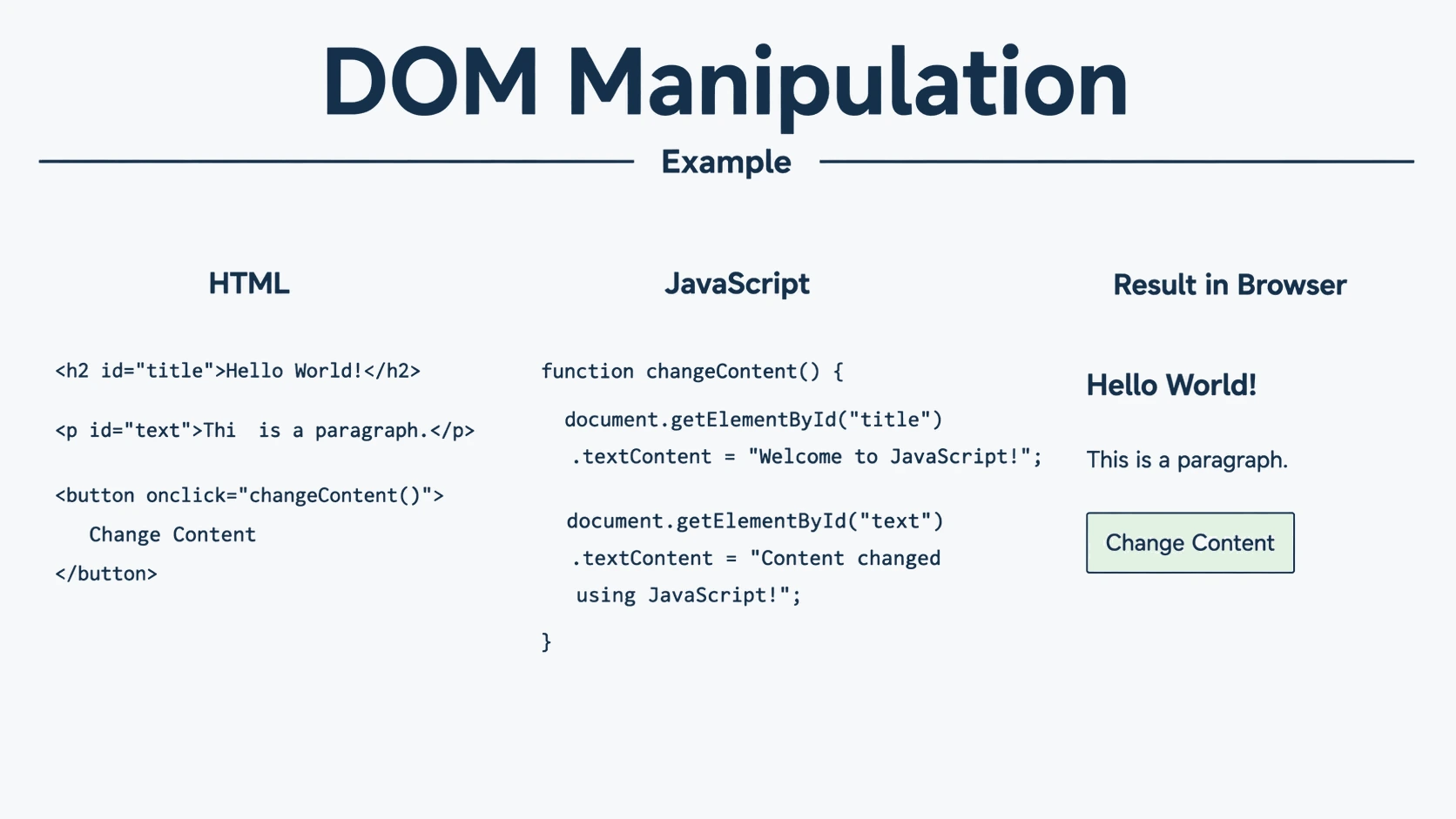
});JavaScript allows you to create, insert, replace, and remove HTML elements dynamically. This makes it possible to update a web page without reloading it, giving users a faster and more interactive experience.
The most commonly used DOM methods are
createElement() to create a new element,
appendChild() to add it to the page, and
removeChild() to remove an existing element. Together, these
methods let you build and manage page content entirely with JavaScript.
These methods are widely used to add new list items, display notifications, create cards, update comments, build dynamic menus, and remove elements based on user actions. They are essential for creating modern, interactive web applications.
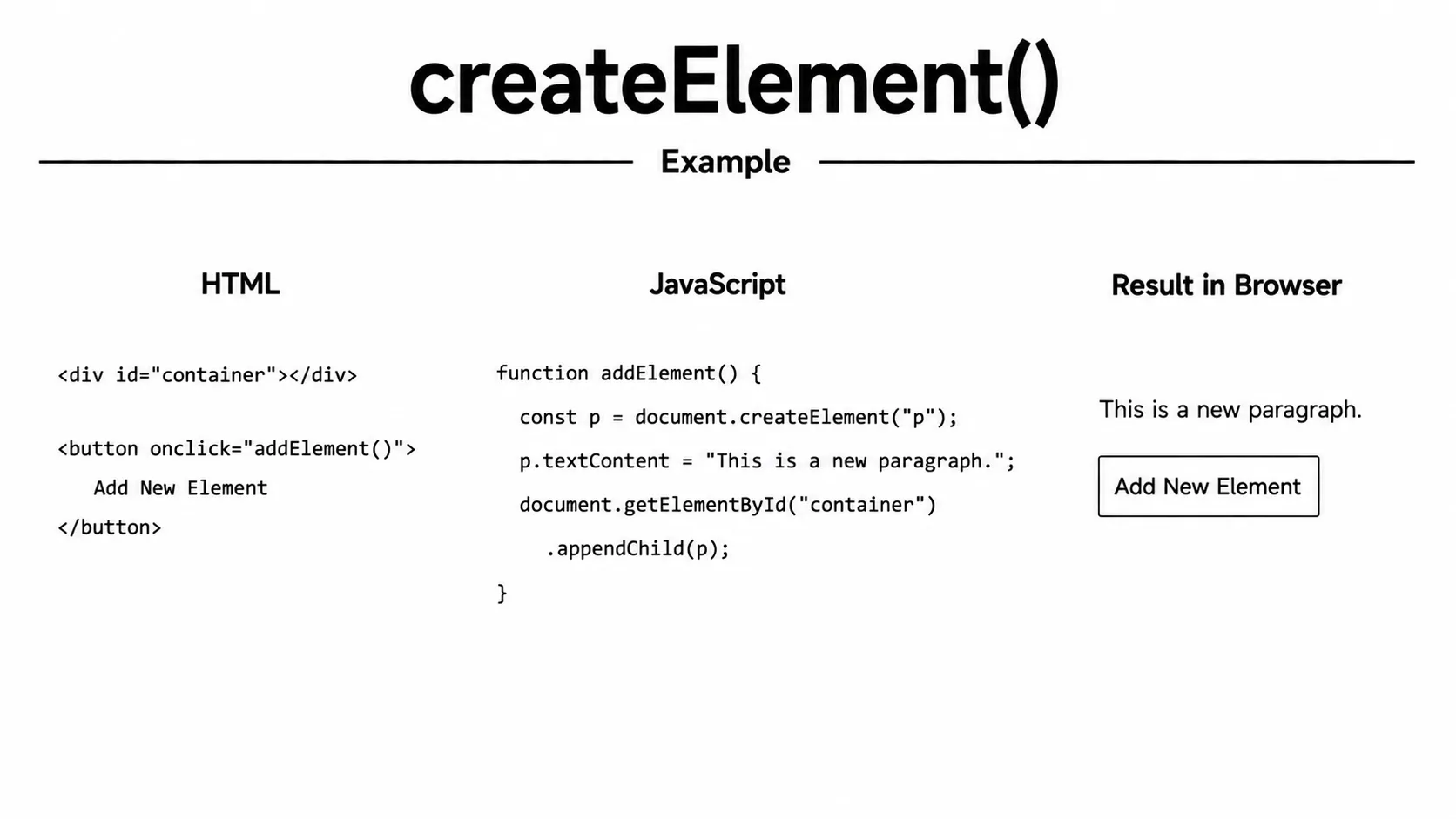
The document.createElement() method creates a new HTML element
in memory. At this stage, the element exists only in JavaScript and is not
visible on the web page because it has not been added to the DOM.
After creating an element, you can set its text, HTML, attributes, classes, styles, or event listeners before adding it to the page. This allows you to fully prepare the element before users can see it.
To display the new element, you must attach it to the DOM using methods like
appendChild(), append(), or
insertBefore(). Once attached, it becomes part of the page and
is rendered by the browser.
Creating an element and attaching it are separate steps: the first creates a JavaScript object, while the second places it in the document. You can set its content and attributes between those steps so the element is ready when it is added to the page.
The document.createElement() method is commonly used to create
dynamic content such as cards, list items, buttons, notifications, tables,
forms, and other UI elements without reloading the page.
// Create a new paragraph element
const newPara = document.createElement("p");
newPara.textContent = "I was created with JavaScript!";
The appendChild() method adds an element as the
last child of a parent element. After it is appended, the
new element becomes part of the DOM and is displayed on the web page.
If the element already exists somewhere else in the document,
appendChild() does not create a copy. Instead, it removes the
element from its current location and moves it to the new parent element.
The appendChild() method is commonly used after
createElement() to add dynamically created elements such as list
items, cards, buttons, notifications, comments, or table rows to a web page.
This method returns the appended element, allowing you to continue working with it if needed. It is one of the most commonly used DOM methods for building dynamic and interactive web applications.
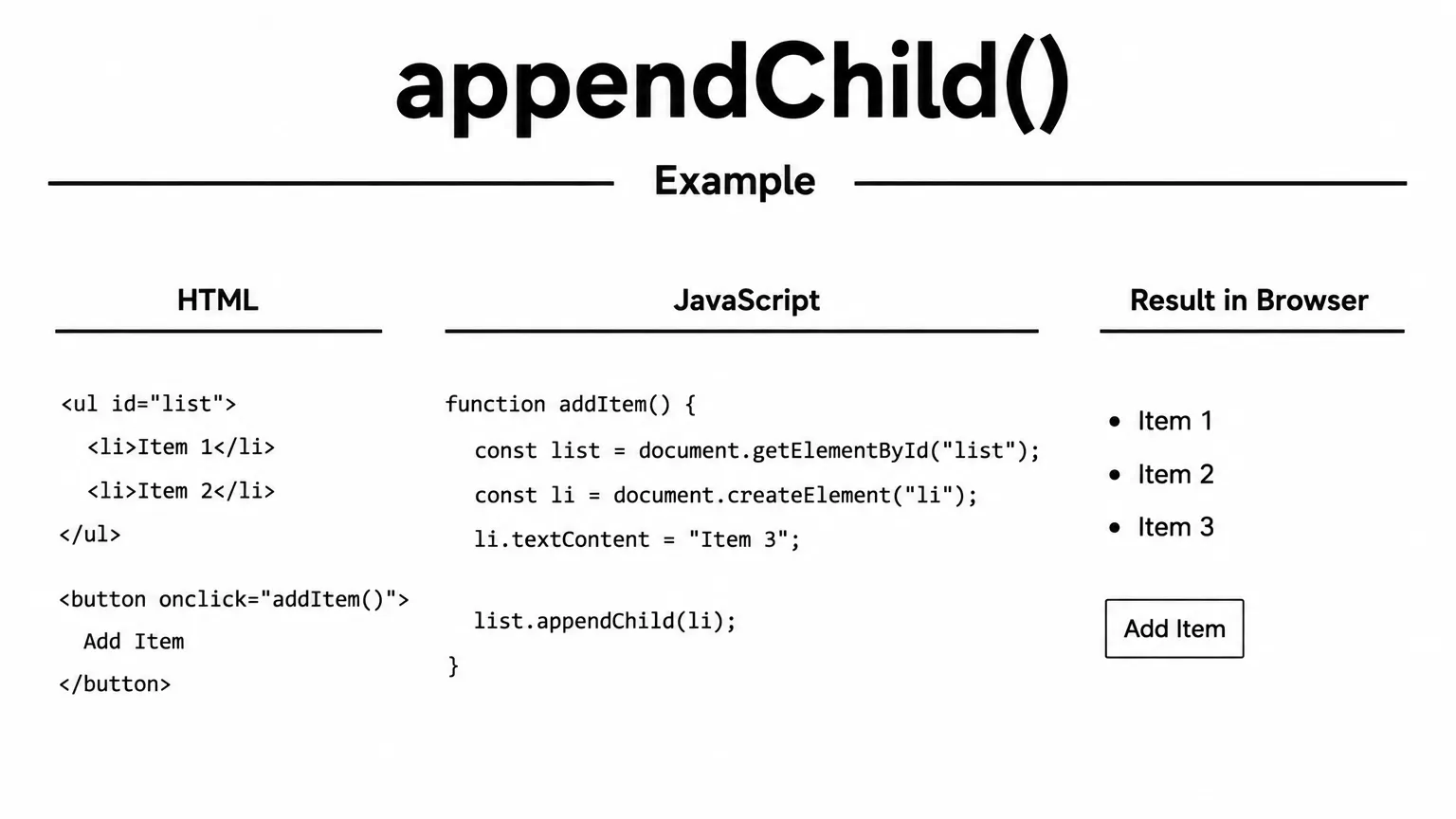
// HTML: <ul id="list"></ul>

const list = document.getElementById("list");

const item = document.createElement("li");
item.textContent = "New item";

list.appendChild(item);
// Result: <ul><li>New item</li></ul>
The removeChild() method removes a child element from its parent
element. To use it, call removeChild() on the parent and pass
the child element you want to remove.
The element must be a direct child of the parent you use. If it is not, or if
it has already been removed, the browser throws an error. When you are not
sure which parent contains the element, the element's remove()
method is often simpler.
Once the element is removed, it disappears from the DOM and is no longer visible on the page. The method returns the removed element, so you can store it or add it back to the page later if needed.
The removeChild() method is commonly used to delete list items,
notifications, cards, comments, table rows, or any other HTML elements in
response to user actions. It is an essential method for building dynamic and
interactive web applications.
In modern JavaScript, you can also remove an element by calling its
remove() method directly, but
removeChild() is still widely used and is important to
understand when working with the DOM.
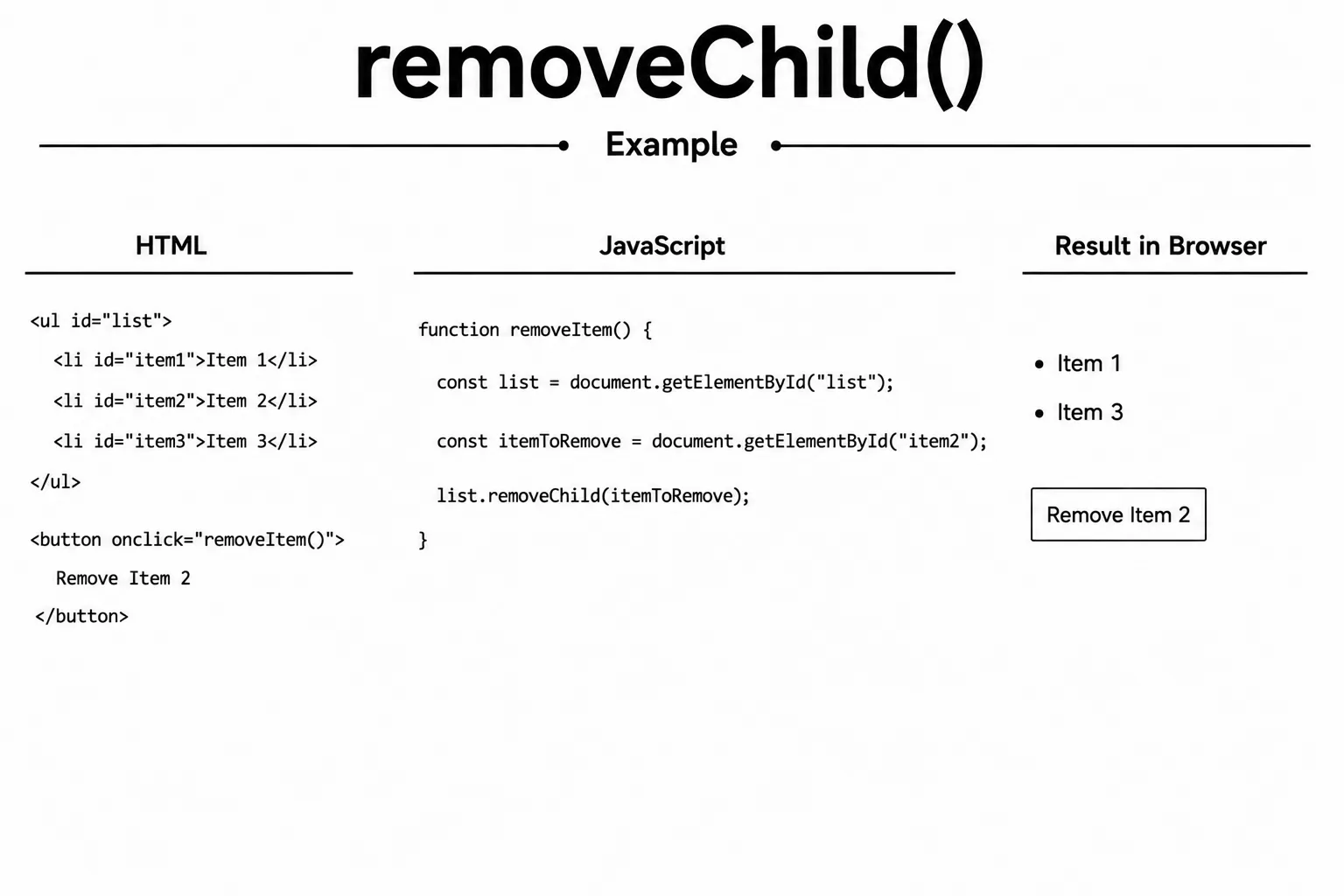
// HTML: <ul id="list"><li id="item1">First</li></ul>

const list = document.getElementById("list");
const item = document.getElementById("item1");

list.removeChild(item); // removes the li from the ul

// Modern shorthand (no need for parent reference)
item.remove();- The DOM is a tree of objects that represents an HTML page.
- getElementById selects one element by its unique id.
- querySelector selects the first element matching a CSS selector.
- querySelectorAll returns all matching elements as a NodeList.
- innerHTML reads or writes HTML content inside an element.
- textContent reads or writes plain text, safely escaping HTML.
- setAttribute / getAttribute manage HTML attributes.
- style and classList control element styling.
- createElement + appendChild add new elements to the page.
- removeChild / remove() delete elements from the page.